

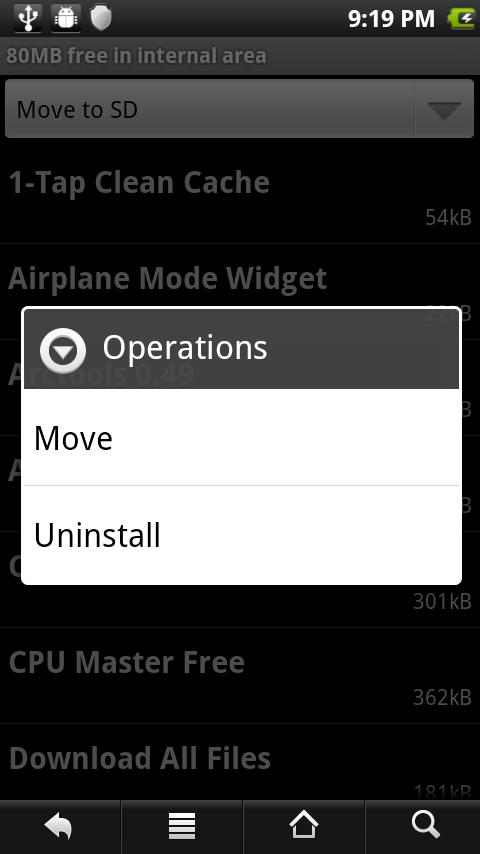
 Force2SD lets you force many apps to move to SD card/external storage even when the system would not allow you to move them, thereby saving space in the app storage area. While Android as of version 2.2 introduced the feature that lets you move apps to SD card/external storage, it normally only allows the movement of applications explicitly marked by the developer as movable. It moves many applications not marked as movable. You can also move applications back, and sort alphabetically or by apk size.
By default (you can turn this off) Force2SD will also scan for orphan app files on your SD card when starting. Sometimes, the system fails to delete the app file on the SD card when the app is uninstalled. If any orphan files are found, you will be asked if you want to delete them. This may help with some reboot issues.
While using Force2SD, you need to keep a few things in mind:
Note 1: Applications moved to SD card / external storage will not get an on-boot signal when the device is booted up. So, do not move applications that need to perform some operations on boot. Of course, you should always be able to move these applications back if you're having problems. As a bonus, if you don't want an application starting up on boot, you can use Force2SD to move it.
Note 2: After a reboot, it make take a while (even a couple of minutes) for the OS to show up the icons of apps that have been moved. That is normal--that's how the OS's apps-on-SD feature works.
Note 3: Some protected apps cannot move.
Note 4: The first time you start the app, it will do a slower scan of applications.
This is a wonderful app for the ones who constantly struggle with space on their smartphones. Just one this, make sure that you android device is rooted and enjoy lots of space with Force2SD.
Force2SD lets you force many apps to move to SD card/external storage even when the system would not allow you to move them, thereby saving space in the app storage area. While Android as of version 2.2 introduced the feature that lets you move apps to SD card/external storage, it normally only allows the movement of applications explicitly marked by the developer as movable. It moves many applications not marked as movable. You can also move applications back, and sort alphabetically or by apk size.
By default (you can turn this off) Force2SD will also scan for orphan app files on your SD card when starting. Sometimes, the system fails to delete the app file on the SD card when the app is uninstalled. If any orphan files are found, you will be asked if you want to delete them. This may help with some reboot issues.
While using Force2SD, you need to keep a few things in mind:
Note 1: Applications moved to SD card / external storage will not get an on-boot signal when the device is booted up. So, do not move applications that need to perform some operations on boot. Of course, you should always be able to move these applications back if you're having problems. As a bonus, if you don't want an application starting up on boot, you can use Force2SD to move it.
Note 2: After a reboot, it make take a while (even a couple of minutes) for the OS to show up the icons of apps that have been moved. That is normal--that's how the OS's apps-on-SD feature works.
Note 3: Some protected apps cannot move.
Note 4: The first time you start the app, it will do a slower scan of applications.
This is a wonderful app for the ones who constantly struggle with space on their smartphones. Just one this, make sure that you android device is rooted and enjoy lots of space with Force2SD.
Force2SD - Saving Precious Storage On Your Phone
3 min read
When things don’t happen on their own, you need to make them happen. This is true in all aspects of your life. It is even true when we talk about our smartphones. The pace at which downloading happens, and us being the photograph generation requires us to constantly make space as there is always a lack of it. There is always something interesting to click, if nothing else then selfies, and there are innumerable apps that we cannot do without. The most essential being the social media ones, then come a few games, a fitness one maybe, and a photo editor, some news is also important and life without YouTube is unimaginable.
It is impossible for all our wants to fit into the internal memory of the phone. thus, there is external memory, or the SD card. And for a smooth sail over to the SD card requires an app called Force2SD because sometimes one needs to use force to get things done and ensure that no obstacles are faced in our daily routine. With this app, you can save precious storage.
Force2SD lets you force many apps to move to SD card/external storage even when the system would not allow you to move them, thereby saving space in the app storage area. While Android as of version 2.2 introduced the feature that lets you move apps to SD card/external storage, it normally only allows the movement of applications explicitly marked by the developer as movable. It moves many applications not marked as movable. You can also move applications back, and sort alphabetically or by apk size.
By default (you can turn this off) Force2SD will also scan for orphan app files on your SD card when starting. Sometimes, the system fails to delete the app file on the SD card when the app is uninstalled. If any orphan files are found, you will be asked if you want to delete them. This may help with some reboot issues.
While using Force2SD, you need to keep a few things in mind:
Note 1: Applications moved to SD card / external storage will not get an on-boot signal when the device is booted up. So, do not move applications that need to perform some operations on boot. Of course, you should always be able to move these applications back if you're having problems. As a bonus, if you don't want an application starting up on boot, you can use Force2SD to move it.
Note 2: After a reboot, it make take a while (even a couple of minutes) for the OS to show up the icons of apps that have been moved. That is normal--that's how the OS's apps-on-SD feature works.
Note 3: Some protected apps cannot move.
Note 4: The first time you start the app, it will do a slower scan of applications.
This is a wonderful app for the ones who constantly struggle with space on their smartphones. Just one this, make sure that you android device is rooted and enjoy lots of space with Force2SD.
Force2SD lets you force many apps to move to SD card/external storage even when the system would not allow you to move them, thereby saving space in the app storage area. While Android as of version 2.2 introduced the feature that lets you move apps to SD card/external storage, it normally only allows the movement of applications explicitly marked by the developer as movable. It moves many applications not marked as movable. You can also move applications back, and sort alphabetically or by apk size.
By default (you can turn this off) Force2SD will also scan for orphan app files on your SD card when starting. Sometimes, the system fails to delete the app file on the SD card when the app is uninstalled. If any orphan files are found, you will be asked if you want to delete them. This may help with some reboot issues.
While using Force2SD, you need to keep a few things in mind:
Note 1: Applications moved to SD card / external storage will not get an on-boot signal when the device is booted up. So, do not move applications that need to perform some operations on boot. Of course, you should always be able to move these applications back if you're having problems. As a bonus, if you don't want an application starting up on boot, you can use Force2SD to move it.
Note 2: After a reboot, it make take a while (even a couple of minutes) for the OS to show up the icons of apps that have been moved. That is normal--that's how the OS's apps-on-SD feature works.
Note 3: Some protected apps cannot move.
Note 4: The first time you start the app, it will do a slower scan of applications.
This is a wonderful app for the ones who constantly struggle with space on their smartphones. Just one this, make sure that you android device is rooted and enjoy lots of space with Force2SD.
Newsletter
Get the latest tech news delivered to your inbox weekly.