

 Move the sliders to the left or right to adjust them. Pocket Factor uses Android’s proximity sensor to decide whether or not your phone is in your pocket. If it is, then ambient noise will be judged differently. The higher the Pocket Factor slider is, the louder your phone’s ringer will be while in your pocket.
Accuracy is best set at a low level. When accuracy is high, the app takes too long to measure ambient noise. If you walk from a crowded hallway into a silent classroom, then your ringer might take a few seconds too long to adjust. We suggest keeping accuracy around 3.
Sensitivity controls the sensitivity of the microphone. The developers explain that the app works best when kept at a default level of 10.
Move the sliders to the left or right to adjust them. Pocket Factor uses Android’s proximity sensor to decide whether or not your phone is in your pocket. If it is, then ambient noise will be judged differently. The higher the Pocket Factor slider is, the louder your phone’s ringer will be while in your pocket.
Accuracy is best set at a low level. When accuracy is high, the app takes too long to measure ambient noise. If you walk from a crowded hallway into a silent classroom, then your ringer might take a few seconds too long to adjust. We suggest keeping accuracy around 3.
Sensitivity controls the sensitivity of the microphone. The developers explain that the app works best when kept at a default level of 10.

How to Automatically Adjust your Android Ring Volume Based on Ambient Noise
3 min read
How many times have you been in a quiet classroom when your “Single Ladies (Put a Ring on It)” ringtone goes off at an embarrassingly loud volume?
If that’s never happened to you, count yourself as lucky. Because all it takes is one slip-up before you’re known as the biggest Beyoncé fan in the class.
If you want to protect yourself against such a devastating accident, then you’ll be interested in today’s Android how-to lesson. Today, we’re going to show you how to set your Android ringer volume based on ambient noise.
That’s right: you’ll never have to mess around with the volume of your ringer again. And your nightmares of being ‘that guy’ with the embarrassing ringtone will disappear.
Step 1) Download an app called Intelligent Ringer from the Google Play Store here
Step 2) Using this app is easy. Launch it, and the app will ask you whether you want to stop or start the app. Start it.
Step 3) When the app is running, a small phone volume notification will appear at the top of the screen. That tells you the app is currently monitoring ambient noise in order to set a normal volume.
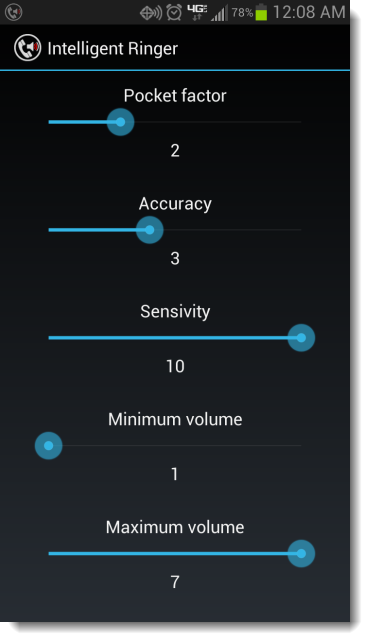
Step 4) To adjust app settings, go to the Menu > Settings section of the app. Here, you’ll see a screen that looks like this:
Move the sliders to the left or right to adjust them. Pocket Factor uses Android’s proximity sensor to decide whether or not your phone is in your pocket. If it is, then ambient noise will be judged differently. The higher the Pocket Factor slider is, the louder your phone’s ringer will be while in your pocket.
Accuracy is best set at a low level. When accuracy is high, the app takes too long to measure ambient noise. If you walk from a crowded hallway into a silent classroom, then your ringer might take a few seconds too long to adjust. We suggest keeping accuracy around 3.
Sensitivity controls the sensitivity of the microphone. The developers explain that the app works best when kept at a default level of 10.
Move the sliders to the left or right to adjust them. Pocket Factor uses Android’s proximity sensor to decide whether or not your phone is in your pocket. If it is, then ambient noise will be judged differently. The higher the Pocket Factor slider is, the louder your phone’s ringer will be while in your pocket.
Accuracy is best set at a low level. When accuracy is high, the app takes too long to measure ambient noise. If you walk from a crowded hallway into a silent classroom, then your ringer might take a few seconds too long to adjust. We suggest keeping accuracy around 3.
Sensitivity controls the sensitivity of the microphone. The developers explain that the app works best when kept at a default level of 10.
Newsletter
Get the latest tech news delivered to your inbox weekly.