Whether it’s an annoying ex-girlfriend or a persistent telemarketer, we all get calls from people we don’t want to talk to. Instead of picking up the phone and then angrily hanging up on that person, why not permanently block them from calling your phone?
There are plenty of different ways you can block people from calling your Android phone. Today, we’re going to outline the easiest ways to reject calls from any Android phone.
Blocking calls without an app
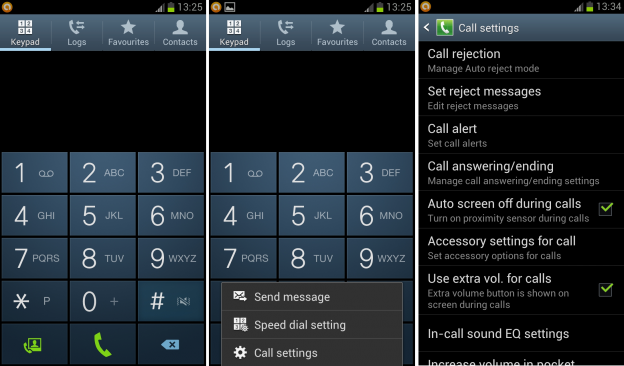
Android comes with a call blocking feature natively built-in. That call blocking feature can be accessed by following these steps:
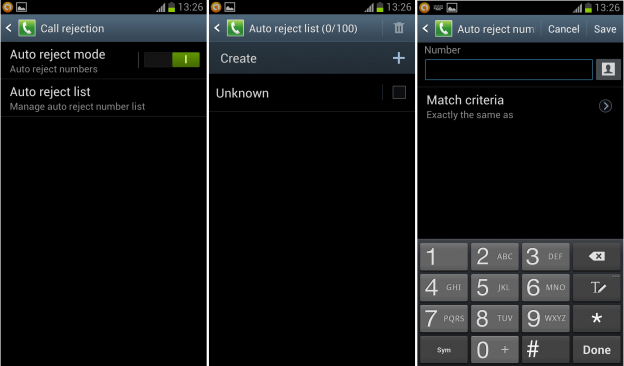
Phone > Menu > Call settings > Call rejection > Auto reject list
Just tap that auto reject list button and then tap
Create to add new numbers to your rejection list. Once numbers are on this list, that person will be unable to contact you.
If you want to prevent a specific contact from calling you, you can block their number directly from your contacts list. Just find that contact in your list, hit the
Menu button, then tap
Add to reject list.
Blocking calls with a rejection text message
If you want to be polite about rejecting somebody’s call, you can choose to send a rejection text message that lets them know why you immediately rejected their call.
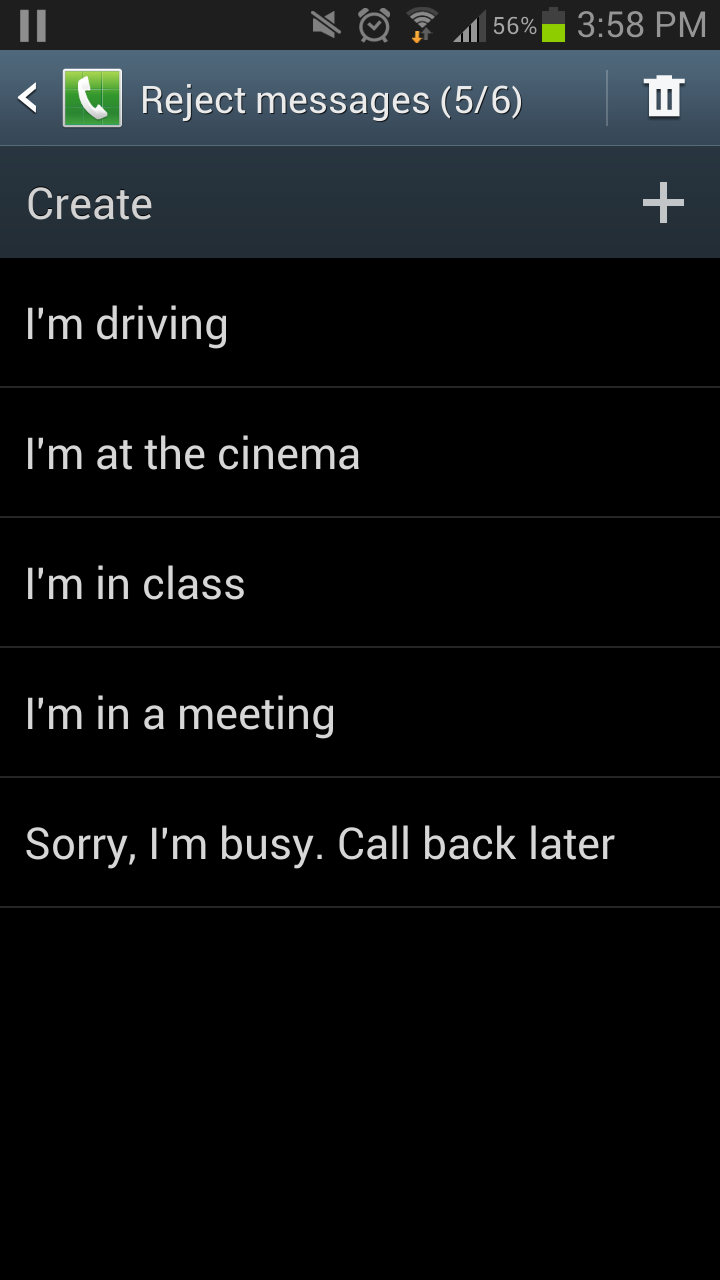
To setup a rejection message, go to
Phone > Menu > Call settings > Set reject messages
By default, Android comes with a number of helpful text messages, like “I’m driving” or “I’m in a meeting.” To create your own rejection message, just tap the
Create button at the top of that menu.
When you have an incoming call and you’re too busy to take it, you can simply drag the
Reject call with message button. You drag it to the center of the screen just like you would with the
Answer or
Ignore buttons.
Of course, you don’t
have to send a polite message. You could say something like “One more call and I’m going to file a restraining order against you, Sara.” It’s totally up to you.
Send callers straight to voicemail
If you want people to call you and leave a voicemail (but not reject them completely), then you can do that without installing any additional apps. Just go to a specific contact, tap the Menu button and then click Options. Under that menu, check the box beside
Incoming calls (
Send calls directly to voicemail).
A word of warning
Some carriers like to make money off of call blocking and may have disabled the feature in Android. If you are having trouble following the steps listed above, it might not be because you’re stupid – it’s because your carrier decided to take away your call blocking privileges.
Blocking calls with apps
There are a number of free Android apps that can block calls, and they all function in basically the same way. Here are the most popular free call blockers available on the Google Play Store:
-
Mr. Number Text, Call & Block
-
Call Control – Call Blocker
-
avast! Mobile Security