

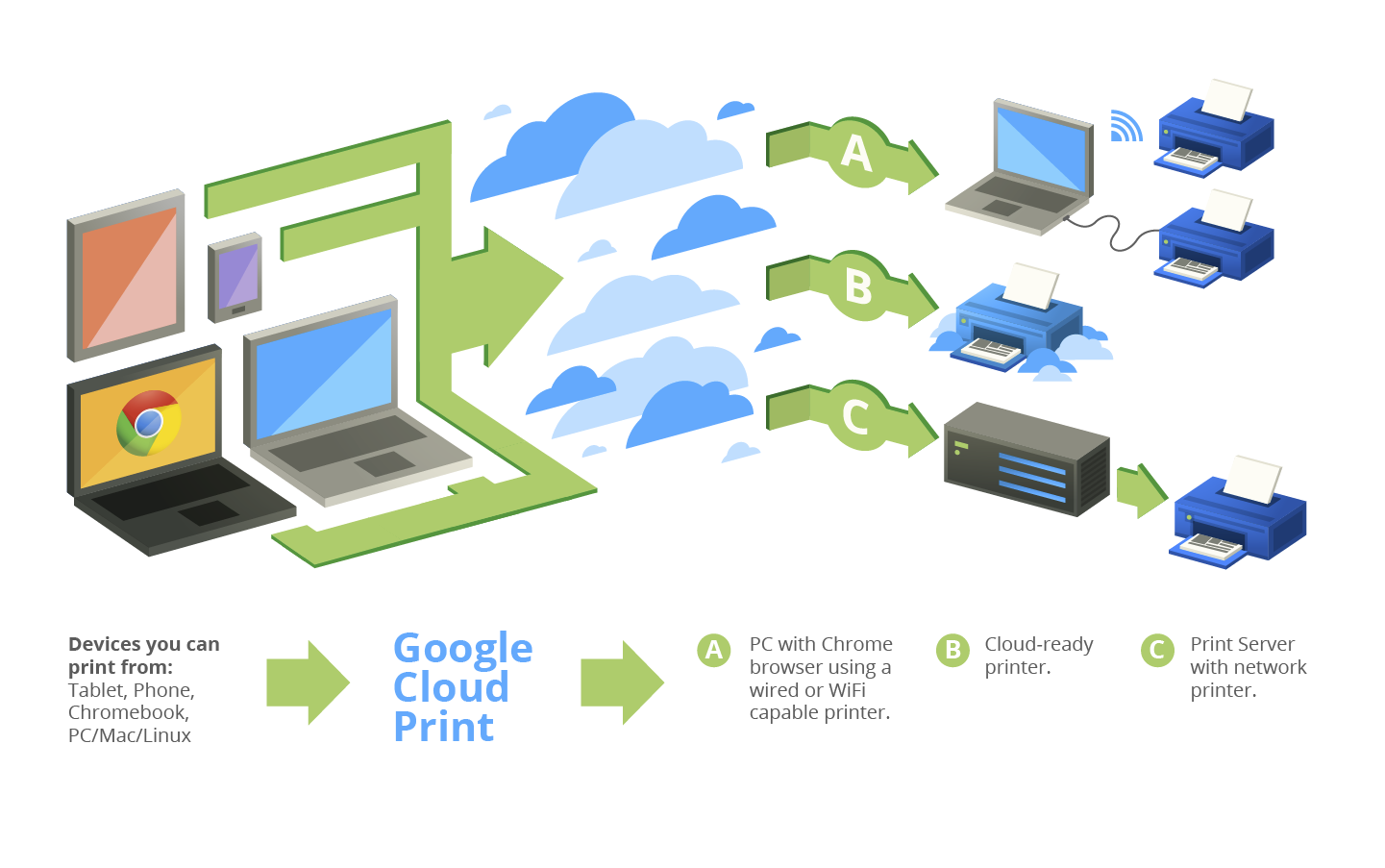
- Download and install Cloud Print on your Android device and on your Mac/PC.
- Install Google Chrome and enable Cloud Print by adjusting your Chrome settings as follows:
- Go to the wrench button on the Google Chrome browser toolbar, choose Settings and then go to the ‘Show advanced settings’ option.
- Navigate to the Google Cloud Print section and choose the ‘Add printers’ option. Ensure your printer is properly paired with your computer and is running properly.
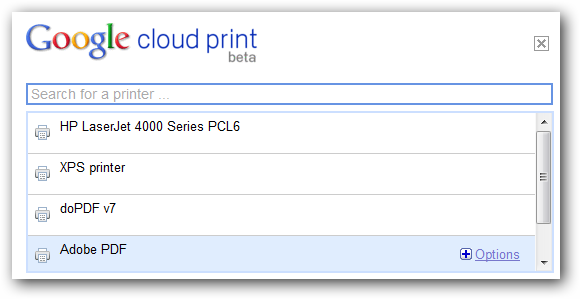
- Now go to the ‘Manage your printers’ link to see the list of any real or virtual printers installed on your computer.
How to Configure Cloud Print
Once you have downloaded the Cloud Print app and configured your Google Chrome settings, open the app on your Android device and skip the welcome messages. Now, input the Google account which has been configured by you for use with Cloud Print and then press “done”. Next you will be asked to allow the Cloud Print app to access your Google Account and you must press the “Allow access” option to continue. The Cloud Print app is compatible with a wide range of different printers and you will now be presented with a menu displaying the types of printer options from which you can choose the one which you will be working with. You need to pick the type of printer you’re going to be working with. Majority of users will be working with a ‘classic printer’; therefore, tap the “Other Printers” option and press the “Next” option. This list will show you all printers associated with your Google account, and you must choose the one you prefer to use and set it as the default printer. Your settings are now fully configured; however, it is advisable to use the “Print test page” button in order to ensure your printer is working properly with the Cloud Print app.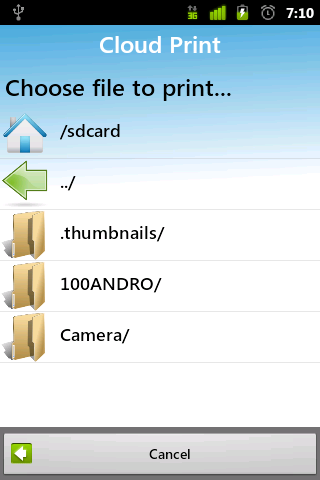 Features
You can use the Cloud Print App in multiple ways. It has a built-in file browser configured to launch a file directly from your device or SD card. Open the Cloud Print app on your Android device and navigate to the “Local” tab at the top of the app homescreen. This section will allow you access to choose any text or media files that you need to print out.
If you need to access and print your files on the internet – emails, cloud-based file sharing services, etc. – you can navigate to the “Web” tab. One of the bonus features of this app includes the ability to print web pages and other content by simply using the share option where you will simply have to press the Cloud Print app icon.
Whether you are at home or work and urgently need to print out some documents without having to go through the hassle of downloading and transferring files to your computer first, Cloud Print is the perfect time-saving solution. However, if you want to print these documents while travelling, then you must ensure your computer and the Google Chrome browser are both left running at the time. It’s an application that is bound to be a highly efficient Android tool which will come in handy more often than once.
Features
You can use the Cloud Print App in multiple ways. It has a built-in file browser configured to launch a file directly from your device or SD card. Open the Cloud Print app on your Android device and navigate to the “Local” tab at the top of the app homescreen. This section will allow you access to choose any text or media files that you need to print out.
If you need to access and print your files on the internet – emails, cloud-based file sharing services, etc. – you can navigate to the “Web” tab. One of the bonus features of this app includes the ability to print web pages and other content by simply using the share option where you will simply have to press the Cloud Print app icon.
Whether you are at home or work and urgently need to print out some documents without having to go through the hassle of downloading and transferring files to your computer first, Cloud Print is the perfect time-saving solution. However, if you want to print these documents while travelling, then you must ensure your computer and the Google Chrome browser are both left running at the time. It’s an application that is bound to be a highly efficient Android tool which will come in handy more often than once.