If you have some, umm, sensitive pictures and videos on your Android device, then you may want to hide them from any prying eyes. If you don’t, then your heart rate will skyrocket up to 200 every time you let somebody look at a picture on your phone.
To prevent unwanted eyes from seeing your most personal pictures and videos, hide them on your Android device using a special app called KeepSafe.
How to keep your pictures safe using KeepSafe
KeepSafe is the easiest and most effective way to hide pictures and video files from unwanted eyes. Here’s a quick step by step guide to using KeepSafe:
Step 1) Download KeepSafe from the Google Play Store
by clicking here
Step 2) Once the app’s installation is complete, go to your Gallery and tap the ‘Share’ button. Scroll down the list of apps until you see KeepSafe
Step 3) The photos you’ve chosen will be sent to the KeepSafe app
Step 4) Change KeepSafe privacy and password settings by opening the app and pressing the Settings button. Set a secure password and your pictures will be protected from prying eyes.
Step 5) You can send private pictures to friends and contacts directly through KeepSafe’s “Safe Send” picture. Safe Send actually functions like SnapChat because it allows you to only share photos with other people for a limited amount of time.
How to keep your pictures safe using GalleryLock
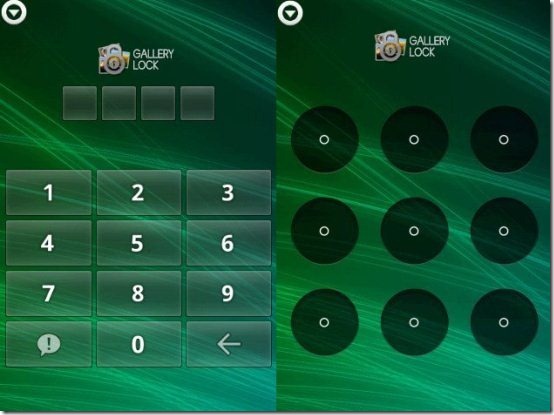
Here’s a step by step guide to using Gallery Lock to protect images and video files:
Step 1)
Download Gallery Lock from here (it’s free!)
Step 2) Go to your Gallery and choose photos you want to hide. You can choose one photo or group multiple photos together.
Step 3) Once you’ve chosen which photos you want to hide, hit the ‘Share’ button on the bottom left corner of your screen or the menu button (yes, this step sounds like the exact opposite of what you want to do) then choose the
GalleryLock app from the screen.
Step 4) The pictures, videos, and files you have chosen will be sent to the GalleryLock app
Step 5) Open the GalleryLock app from the main Android menu and go to the Settings page
Step 6) Change the password for that gallery to something secure (by default, the password is set to 0000)
Step 7) From the GalleryLock app menu, you can also assign pictures and videos to different folders
Important: once you’ve sent pictures and videos to the GalleryLock app, you can only access them through the GalleryLock app. Do not forget your password and do not delete the app without first transferring your pictures back into the regular gallery folder.