I spend most of my day working at my PC. But I’ll occasionally feel the need to download an app on my Android, respond to a text message, and do other phone-related activities. I don’t type nearly as fast on my phone as I do on my computer keyboard, so it sometimes feels like I’m wasting my time.
But a recently released app/software combo called SnapPea allows you to easily manage your Android over your computer. You can send text messages, download apps, and do all of the other things you need to do on your phone.
Yes, I know Android phone management software is nothing new. I’ve used Keis, which is Samsung’s remote control software, and it does the job fairly well. But SnapPea is in a whole other category. It’s like Keis but with a more colorful, easy-to-use interface.
Ready to try out SnapPea for yourself? Here’s our review of this wonderful app.
What you can do with SnapPea
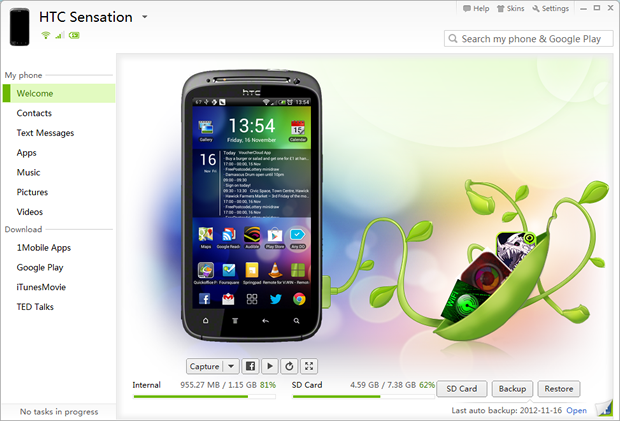
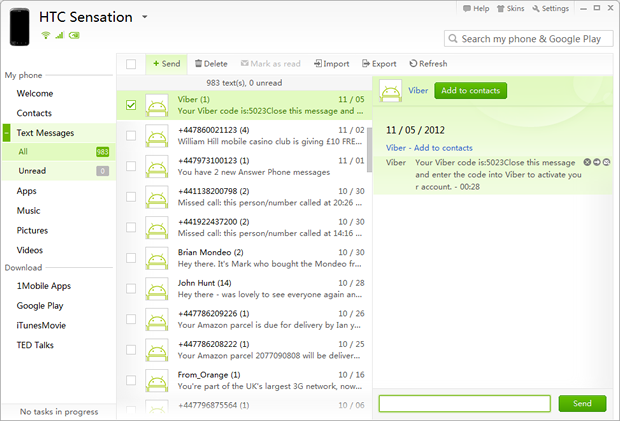
-Send, receive, and delete text messages over your computer
-Add and remove contacts, or edit existing ones
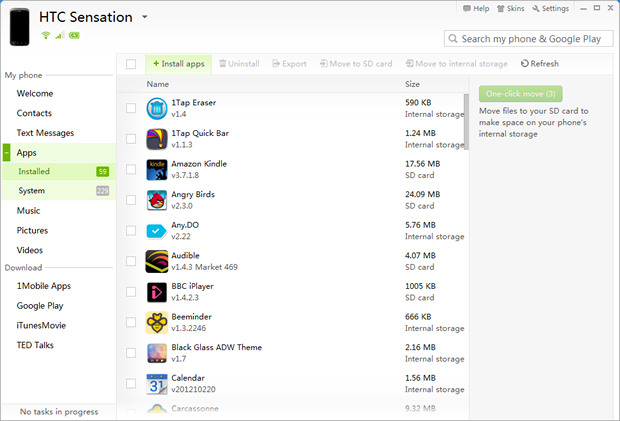
-Download or transfer apps, pictures, music, and videos
-Access the Google Play Store and download apps to your device
-Access other app stores, like 1Mobile Apps, iTunes Movie, and TED talks
-Download books
-View battery life, signal strength, and network connections
-Control your phone over a USB connection or over a wireless network
-Backup and restore your Android
How to use SnapPea
Setting up SnapPea is very easy. In fact, the program basically walks you through the entire process. Here’s our step-by-step guide:
Step 1) Download SnapPea from here on your PC
Step 2) Download the SnapPea app from the Google Play Store on your Android
Step 3) Turn on your phone’s debugging mode by going to Settings > Developer options and then ticking the checkbox beside
USB Debugging
Step 4) Install SnapPea on your PC and run the program
Step 5) Connect your Android to your computer via USB
Step 6) Let the program install all the necessary permissions and drivers
Step 7) That’s it! You’ll now be able to access your Android from your computer using the SnapPea interface.
Connect your phone to your computer automatically
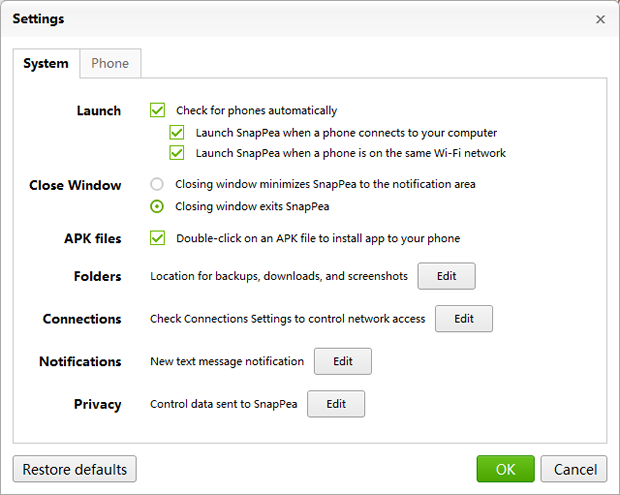
After setting up SnapPea, your phone will automatically connect to your computer every time you’re on the same wireless network. When running SnapPea, text messages will pop up on your computer screen along with any other notifications that you receive.
So now, every time I get home, connect to my wireless network, and sit down at my computer, I can use my phone more easily than ever. To change this setting, just click on the
Settings button on the SnapPea program.
Automatic backup
The SnapPea program will automatically backup important phone data as soon as you connect it to your PC, including text messages, pictures, and contact info. You can tell SnapPea to do this every time you connect your phone to your PC, or on a periodic basis.
The SnapPea interface is extremely easy to use. Just click on the sections you want to access along the left hand side of the screen. It’s all self-explanatory and accessible directly from your computer screen. Enjoy!