5 Tips and Tricks for the New Snapchat Update
3 min read
Snapchat recently released an update for iOS and Android.
That update has confused some Snapchat users with its new features and abilities. Today, I’m going to help you navigate the new Snapchat with 5 easy tips and tricks.
5) Turn on filters
Snapchat has had filters for a little while, but they’re not always on by default. To turn on filters and start using them, follow these steps:
-Take a photo
-Swipe left or right
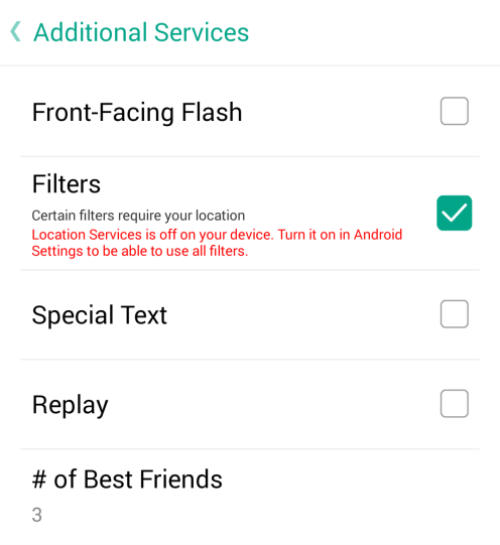
-You should see a message that says ‘turn on filters’. Tap the ‘I want filters’ button at the bottom of that screen.
-You’ll go to the ‘additional services’ menu, where you can check the filters box. You’ll be able to enjoy the usual sepia-style filters along with filters for the speed at which you’re traveling and the current temperature. For the last two filters, you need to activate the ‘Enable location’ function in Snapchat.
4) Replay one snap every 24 hours
This latest setting change has caused some controversy. The reply feature lets you reply snaps once every 24 hours. To activate this setting, simply swipe left from the main screen, tap the cog wheel, and then tap ‘manage’ under additional services. Check the ‘Replay’ function and you’ll now be able to reply a single snap every 24 hours.
It’s impossible to switch this function off when sending a picture. So yeah, best of luck if you enjoy sending private selfies to your friends.
3) Activate special text
To put special text on your pictures, you’ll once again need to go to the additional services menu (swipe left from the main screen and tap the cog wheel).
Then, enable the ‘special text’ feature. Now, when you’re sending a Snapchat, you can tap the ‘T’ button in the top right corner of the screen to change the style of text. There aren’t a lot of options available, but it’s better than nothing.
2) Video chatting over Snapchat
The video chat feature on Snapchat certainly isn’t perfect, but it is available for you to use.
To enable video chatting on Snapchat, simply swipe right on their name from the Snapchat inbox. Tap and hold the Snapchat button when both friends are in the messaging window to share live video with each other.
When you leave the chat window, all your video messages will be cleared.
1) Secret filters and commands

When Snapchat was first released, there was no swiping left or right to add filters to your snaps.
Instead, you had to know some secret codes. Most of those secret codes still work. To type in a ‘secret code’ in Snapchat, you just take a snap, open a text box on the screen, and type in the following commands:
B&w… (turns your snap black and white)
Negative… (turns your snap negative)
Sepia… (turns your snap Sepia)
Know any more Snapchat secrets? Let us know in the comments!

-You should see a message that says ‘turn on filters’. Tap the ‘I want filters’ button at the bottom of that screen.
-You’ll go to the ‘additional services’ menu, where you can check the filters box. You’ll be able to enjoy the usual sepia-style filters along with filters for the speed at which you’re traveling and the current temperature. For the last two filters, you need to activate the ‘Enable location’ function in Snapchat.
4) Replay one snap every 24 hours
This latest setting change has caused some controversy. The reply feature lets you reply snaps once every 24 hours. To activate this setting, simply swipe left from the main screen, tap the cog wheel, and then tap ‘manage’ under additional services. Check the ‘Replay’ function and you’ll now be able to reply a single snap every 24 hours.
It’s impossible to switch this function off when sending a picture. So yeah, best of luck if you enjoy sending private selfies to your friends.
3) Activate special text
To put special text on your pictures, you’ll once again need to go to the additional services menu (swipe left from the main screen and tap the cog wheel).
Then, enable the ‘special text’ feature. Now, when you’re sending a Snapchat, you can tap the ‘T’ button in the top right corner of the screen to change the style of text. There aren’t a lot of options available, but it’s better than nothing.
2) Video chatting over Snapchat
The video chat feature on Snapchat certainly isn’t perfect, but it is available for you to use.
To enable video chatting on Snapchat, simply swipe right on their name from the Snapchat inbox. Tap and hold the Snapchat button when both friends are in the messaging window to share live video with each other.
When you leave the chat window, all your video messages will be cleared.
1) Secret filters and commands
When Snapchat was first released, there was no swiping left or right to add filters to your snaps.
Instead, you had to know some secret codes. Most of those secret codes still work. To type in a ‘secret code’ in Snapchat, you just take a snap, open a text box on the screen, and type in the following commands:
B&w… (turns your snap black and white)
Negative… (turns your snap negative)
Sepia… (turns your snap Sepia)
Know any more Snapchat secrets? Let us know in the comments!

One Click Root Author
Content Writer
Experienced writer covering technology and mobile development.
You Might Also Like
Android Apps
Android 14 Root Methods: What Changed?
Explore the new root methods and security changes in Android 14.
Android Apps
Latest Android Security Updates Impact Root Access
Understanding how the latest security patches affect root methods.
Android Apps
Google Pixel 8 Pro Root Guide Released
Complete step-by-step guide to rooting the Google Pixel 8 Pro.
Comments
JD
John Doe
2 days ago
Great article! Very informative and well-written. Thanks for sharing.
JS
Jane Smith
5 days ago
I found the security section particularly helpful. Looking forward to more content like this!
Leave a Comment
Newsletter
Get the latest tech news delivered to your inbox weekly.
Popular Posts
-
1
Getting Started with Android Development
12.5K views
-
2
Best Practices for Mobile Security
8.2K views
-
3
Understanding Smartphone Hardware
6.8K views