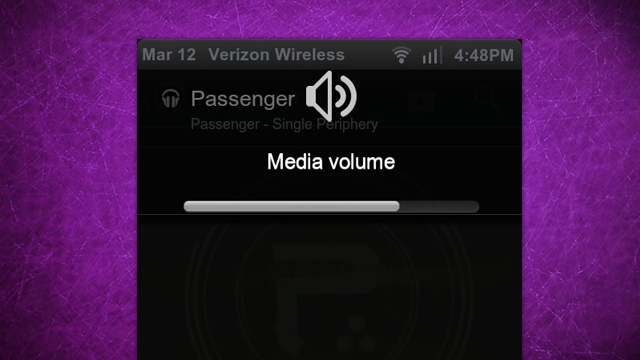
How to Change What Your Android’s Volume Keys Do
2 min read
Your Android has a number of physical buttons along the outside case.
However, most Android users only use these buttons for a single task. The lock button locks your phone and the volume up and down buttons control volume.
However, you can easily change the assignment of these buttons while preserving their original usages.
Today, I’m going to show you how to change what your Android’s volume up and down buttons do. The method listed below lets you add new codes to your Android’s volume buttons to take pictures, record audio, and perform other valuable tasks.
Step 1) Download a free app from the Google Play Store called QuickClick
Step 2) Open the app and flip the switch to ‘ON’
Step 3) Tap the ‘Create new action’ button
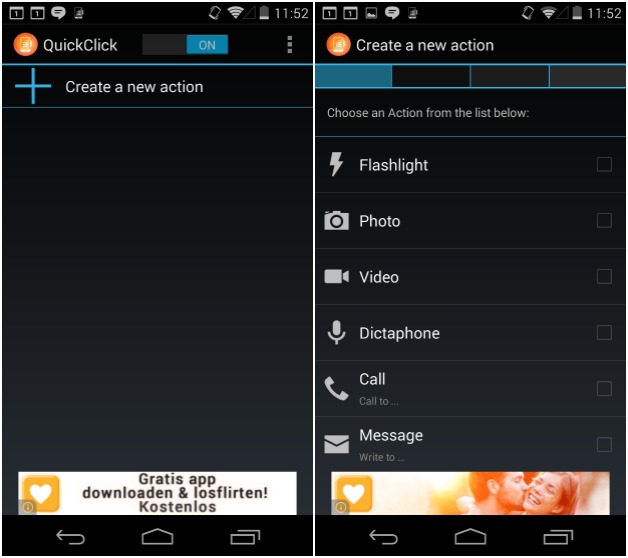
Step 4) Choose your action. You have a number of different options, including ‘Flashlight’, ‘Photo’, ‘Video’, and ‘Dictaphone’.
Step 5) After clicking a specific action, you’ll see another screen with more details about that action. If you choose to take a photo or video, for example, you can choose whether to take that video with the front or rear camera and whether or not to use flash, autofocus, and other options.
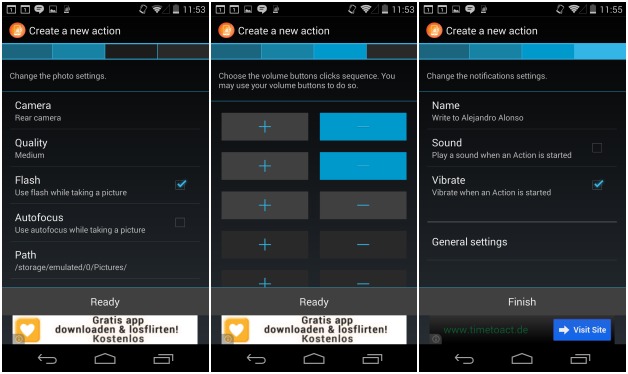
Step 6) Choose the combination of volume key presses that will activate the action.
Step 7) Click ‘Finish’ and you’re done!
These steps can be used to create a wide range of helpful commands on your device. You can use your volume buttons for all sorts of different things. Here are a few reasons why your volume buttons can be useful:
-Easily take a photo or video with one hand
-Quietly record an audio conversation
-Call or message a popular contact with just a few clicks
Most people only use their Android’s volume buttons for a single thing. Thanks to QuickClick, you can easily start using your volume buttons for more tasks than ever before.
Once again, you can download QuickClick and start using your volume buttons today here.

Step 4) Choose your action. You have a number of different options, including ‘Flashlight’, ‘Photo’, ‘Video’, and ‘Dictaphone’.
Step 5) After clicking a specific action, you’ll see another screen with more details about that action. If you choose to take a photo or video, for example, you can choose whether to take that video with the front or rear camera and whether or not to use flash, autofocus, and other options.
Step 6) Choose the combination of volume key presses that will activate the action.
Step 7) Click ‘Finish’ and you’re done!
These steps can be used to create a wide range of helpful commands on your device. You can use your volume buttons for all sorts of different things. Here are a few reasons why your volume buttons can be useful:
-Easily take a photo or video with one hand
-Quietly record an audio conversation
-Call or message a popular contact with just a few clicks
Most people only use their Android’s volume buttons for a single thing. Thanks to QuickClick, you can easily start using your volume buttons for more tasks than ever before.
Once again, you can download QuickClick and start using your volume buttons today here.

One Click Root Author
Content Writer
Experienced writer covering technology and mobile development.
You Might Also Like
Android Apps
Android 14 Root Methods: What Changed?
Explore the new root methods and security changes in Android 14.
Android Apps
Latest Android Security Updates Impact Root Access
Understanding how the latest security patches affect root methods.
Android Apps
Google Pixel 8 Pro Root Guide Released
Complete step-by-step guide to rooting the Google Pixel 8 Pro.
Comments
JD
John Doe
2 days ago
Great article! Very informative and well-written. Thanks for sharing.
JS
Jane Smith
5 days ago
I found the security section particularly helpful. Looking forward to more content like this!
Leave a Comment
Newsletter
Get the latest tech news delivered to your inbox weekly.
Popular Posts
-
1
Getting Started with Android Development
12.5K views
-
2
Best Practices for Mobile Security
8.2K views
-
3
Understanding Smartphone Hardware
6.8K views