

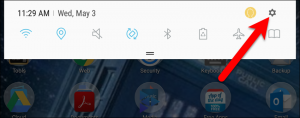
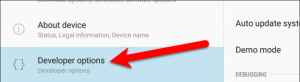
 Step 2. Open the Developer options item.
In order to speed, slow down or turn off your device animations, the Developer options should be available. To open the Developer options, scroll down to the bottom of the list under Settings. If you can’t find the Developer options, you can find it either before or after the About device option which depends on your phone. Tap the Developer options once you’ve found it.
Step 2. Open the Developer options item.
In order to speed, slow down or turn off your device animations, the Developer options should be available. To open the Developer options, scroll down to the bottom of the list under Settings. If you can’t find the Developer options, you can find it either before or after the About device option which depends on your phone. Tap the Developer options once you’ve found it.
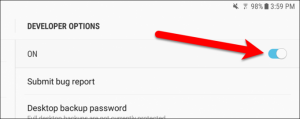
 Step 3. Enable the Developer options if it is disabled.
 The Windows animation scale, Transition animation scale and Animator duration scale settings controls the speed of the Android device animations. So if you set a lower number for each settings, your device will respond faster as well as the device animation
How do the animation values work?
The Windows animation scale, Transition animation scale and Animator duration scale settings controls the speed of the Android device animations. So if you set a lower number for each settings, your device will respond faster as well as the device animation
How do the animation values work?
- Windows animation scale: it controls the speed in which your app windows open and close.
- Transition animation scale: it controls the speed in which you can switch between your apps.
- Animation duration scale: it controls the smaller in-app animations like the tapping of menus and buttons.
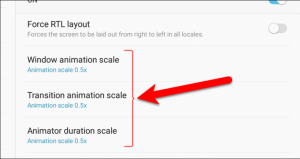
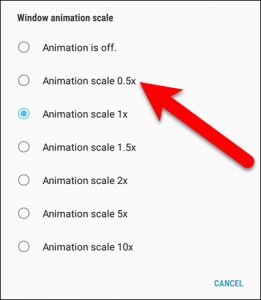 Tap any animation scale setting you want to change the value. So if you want a faster phone without turning off your device animation you can select the Animation scale 0.5x option. After the changes made on the Animator duration scale value, if you did not notice any changes, restart your device for the changes to take effect.
Keep in mind that if you completely turned off the animation on your device and you experienced some issues, you can switch it to Animation scale 0.5x.
If you want to keep the animations at your preferred adjustment settings or to keep them off, then you should always have the Developer options enabled. So if you turn off the Developer options or remove it from the Settings, your animation settings will return to its default value of 1x.
Tap any animation scale setting you want to change the value. So if you want a faster phone without turning off your device animation you can select the Animation scale 0.5x option. After the changes made on the Animator duration scale value, if you did not notice any changes, restart your device for the changes to take effect.
Keep in mind that if you completely turned off the animation on your device and you experienced some issues, you can switch it to Animation scale 0.5x.
If you want to keep the animations at your preferred adjustment settings or to keep them off, then you should always have the Developer options enabled. So if you turn off the Developer options or remove it from the Settings, your animation settings will return to its default value of 1x.