

 -Show network upload and download statistics
-Display internal and external storage device information
Sound useful? It is. Usemon has only been out for a few days but has already garnered fantastic ratings on the Google Play Store as well as the XDA Developers Forum. The app is free to download and does not require a rooted device, unlike other performance monitoring Android apps.
Usemon makes it easy to troubleshoot Android problems and highlight performance issues. With Usemon, users are more easily able to see which processes are clogging their system. They can also see the difference in performance before and after uninstalling a specific app, for example.
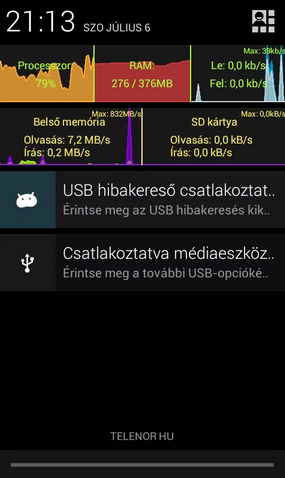
One of the coolest features of Usemon is its real-time data display in the notifications bar. Users can constantly monitor device performance directly from the notifications bar, and it’s easy to slide down this bar to reveal real-time graphs and other data.
Since Usemon gets its data directly from the Android OS kernel, it’s extremely lightweight and will not noticeably drain battery life or performance. This information is already being collected by Android, and Usemon basically just brings that information to the attention of the user.
If you want to:
-Speed up Android performance
-Troubleshoot Android performance problems
-Fix Android speed errors
-Monitor app resource usage
-And perform other troubleshooting activities
Then follow the instructions below to download Usemon today.
-Show network upload and download statistics
-Display internal and external storage device information
Sound useful? It is. Usemon has only been out for a few days but has already garnered fantastic ratings on the Google Play Store as well as the XDA Developers Forum. The app is free to download and does not require a rooted device, unlike other performance monitoring Android apps.
Usemon makes it easy to troubleshoot Android problems and highlight performance issues. With Usemon, users are more easily able to see which processes are clogging their system. They can also see the difference in performance before and after uninstalling a specific app, for example.
One of the coolest features of Usemon is its real-time data display in the notifications bar. Users can constantly monitor device performance directly from the notifications bar, and it’s easy to slide down this bar to reveal real-time graphs and other data.
Since Usemon gets its data directly from the Android OS kernel, it’s extremely lightweight and will not noticeably drain battery life or performance. This information is already being collected by Android, and Usemon basically just brings that information to the attention of the user.
If you want to:
-Speed up Android performance
-Troubleshoot Android performance problems
-Fix Android speed errors
-Monitor app resource usage
-And perform other troubleshooting activities
Then follow the instructions below to download Usemon today.
How to Easily Monitor Android Performance Stats With Usemon
2 min read
If you’ve ever used a Windows PC (I’d be very surprised if you hadn’t), then you’ve probably stumbled upon the Task Manager at some point. The Task Manager has a useful performance monitor feature that tells users detailed CPU and RAM statistics as well as information about which programs are using the most PC resources.
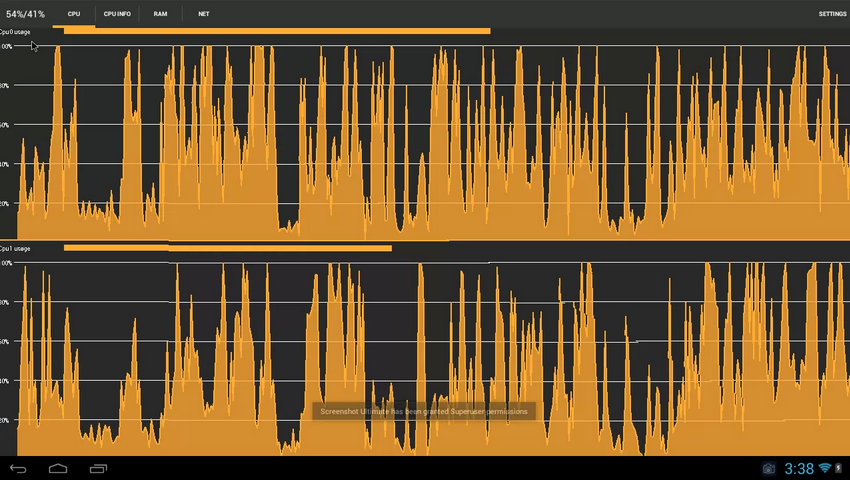
Android users can now enjoy a similar experience thanks to an app called Usemon. Usemon will:
-Display information about CPU usage and frequency
-Display RAM usage data
-Show network upload and download statistics
-Display internal and external storage device information
Sound useful? It is. Usemon has only been out for a few days but has already garnered fantastic ratings on the Google Play Store as well as the XDA Developers Forum. The app is free to download and does not require a rooted device, unlike other performance monitoring Android apps.
Usemon makes it easy to troubleshoot Android problems and highlight performance issues. With Usemon, users are more easily able to see which processes are clogging their system. They can also see the difference in performance before and after uninstalling a specific app, for example.
One of the coolest features of Usemon is its real-time data display in the notifications bar. Users can constantly monitor device performance directly from the notifications bar, and it’s easy to slide down this bar to reveal real-time graphs and other data.
Since Usemon gets its data directly from the Android OS kernel, it’s extremely lightweight and will not noticeably drain battery life or performance. This information is already being collected by Android, and Usemon basically just brings that information to the attention of the user.
If you want to:
-Speed up Android performance
-Troubleshoot Android performance problems
-Fix Android speed errors
-Monitor app resource usage
-And perform other troubleshooting activities
Then follow the instructions below to download Usemon today.
-Show network upload and download statistics
-Display internal and external storage device information
Sound useful? It is. Usemon has only been out for a few days but has already garnered fantastic ratings on the Google Play Store as well as the XDA Developers Forum. The app is free to download and does not require a rooted device, unlike other performance monitoring Android apps.
Usemon makes it easy to troubleshoot Android problems and highlight performance issues. With Usemon, users are more easily able to see which processes are clogging their system. They can also see the difference in performance before and after uninstalling a specific app, for example.
One of the coolest features of Usemon is its real-time data display in the notifications bar. Users can constantly monitor device performance directly from the notifications bar, and it’s easy to slide down this bar to reveal real-time graphs and other data.
Since Usemon gets its data directly from the Android OS kernel, it’s extremely lightweight and will not noticeably drain battery life or performance. This information is already being collected by Android, and Usemon basically just brings that information to the attention of the user.
If you want to:
-Speed up Android performance
-Troubleshoot Android performance problems
-Fix Android speed errors
-Monitor app resource usage
-And perform other troubleshooting activities
Then follow the instructions below to download Usemon today.
Newsletter
Get the latest tech news delivered to your inbox weekly.