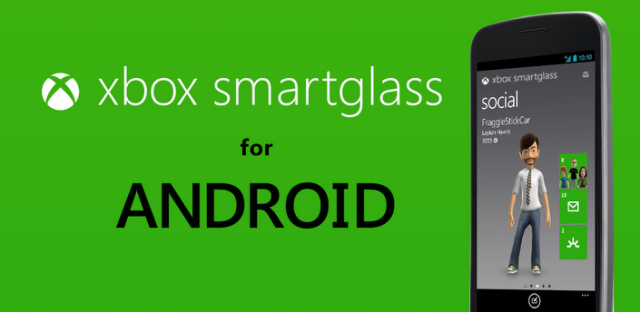
Microsoft has been on a tear over the last few months with its Windows 8 marketing. And one of the most popular features of the Windows 8 “revolution” is SmartGlass, an app that allows users to learn more information about TV shows and movies while they’re watching.
Basically, SmartGlass allows your smartphone or tablet to function as a separate screen while you’re using the Xbox 360. And fortunately, Microsoft isn’t forcing users to buy a Windows 8 phone or tablet just to use SmartGlass. On October 27, Microsoft released its SmartGlass app for Android (finally!).
Although the app is still in its early stages, it should become more and more useful as more TV shows and movie studios jump on board.
In one example of the power of SmartGlass, Microsoft played an episode of Game of Thrones while SmartGlass was playing on a nearby tablet. As the on-screen characters fought against one another on the battlefield, SmartGlass showed a map of the battlefield as well as detailed information about each of the sides involved. Very cool indeed.
But SmartGlass also acts as a virtual controller for your Xbox and allows users to do all sorts of cool things via their Android’s touch-screen interface. It’s the most powerful Xbox 360 remote available today, and we’re going to show you how to get it working in just minutes.
What you need:
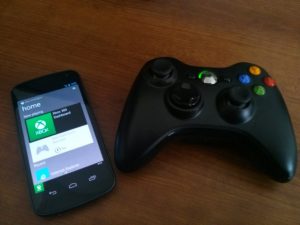
-An Android smartphone or tablet running Android 4.0 or higher
-An Xbox 360
-A wireless network in your home
How to use SmartGlass for Android
Step 1) Download SmartGlass for free
from the Google Play Store
Step 2) Enable the Smart Glass app in the console settings menu (it’s under the
Connectivity heading)
Step 3) Sign in to the app using your Xbox Live membership
Step 4) The app should automatically find your Xbox 360 and establish a connection. Have fun!
How to use SmartGlass
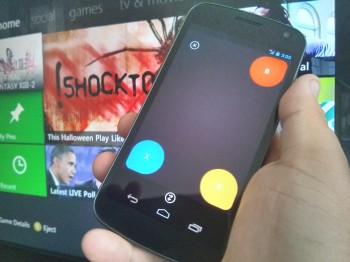
SmartGlass does more than just provide information about movies and TV shows you’re watching. The SmartGlass for Android app also allows users to access all of their favorite Xbox Live features. Here are a few things you can do to use SmartGlass to its full potential:
-Send and receive Xbox Live messages
-Search for new games
-Download Xbox Live apps
-Use your smartphone as a remote control (play, pause, and rewind movies)
-Edit your Xbox Live profile
-Browse the internet on your Xbox 360 and enter text into any fields (much easier than using the clunky controller/on-screen keyboard combo)
All of these features are easy to access – especially if you’re already familiar with the Xbox interface (you do own an Xbox, right?).
If you’re always fiddling around with your smartphone while you watch TV and movies on your Xbox 360, then the SmartGlass app is a must-download. Sure, it’s not perfect today, but as support for the app increases, you can expect SmartGlass to integrate our living rooms on a level we’ve never seen before.
Download SmartGlass today from the Google Play Store by clicking here