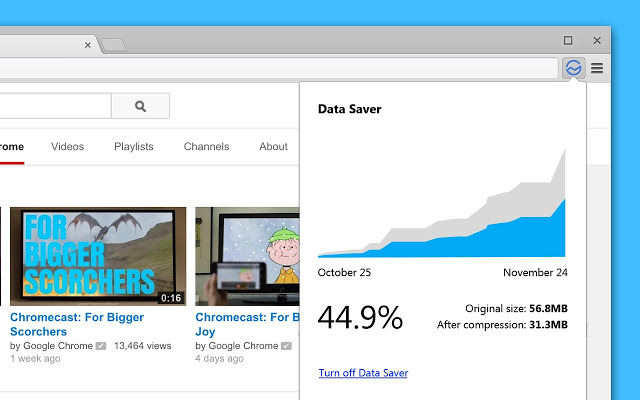
Google introduced Chrome’s Data Saver mode back in 2013. Today, Data Saver mode is so effective that a new update lets the system save up to 70% of your data usage.
How do you turn on Data Saver mode?
Should you turn on Data Saver mode? Today, we’re going to explain everything you need to know about Data Saver mode.
How to Turn on Data Saver Mode
First, let’s start with an easy one. Turning on Data Saver mode is really easy. Here’s how to do it on Chrome for Android:
Step 1) Open Chrome, tap the menu button (the three horizontal lines), then tap Settings
Step 2) Under Advanced, tap Data Saver
Step 3) Slide the switch to On. If you don’t like the changes, then you can switch off Data Saver at any time
How Does Data Saver Work?
As Google
announced in a blog post, they recently made changes to their Data Saver mode to help it reduce your data usage by up to 70% (previously, Google suggested a maximum of 50% data usage saved).
They did this by using Chrome to automatically detect when you’re on a slow internet connection. When a slow connection is detected, Google won’t load any images on a page. If you want to load images, then you can load them individually (tap on them) or tap the Load Images button at the bottom of the page to load everything manually.
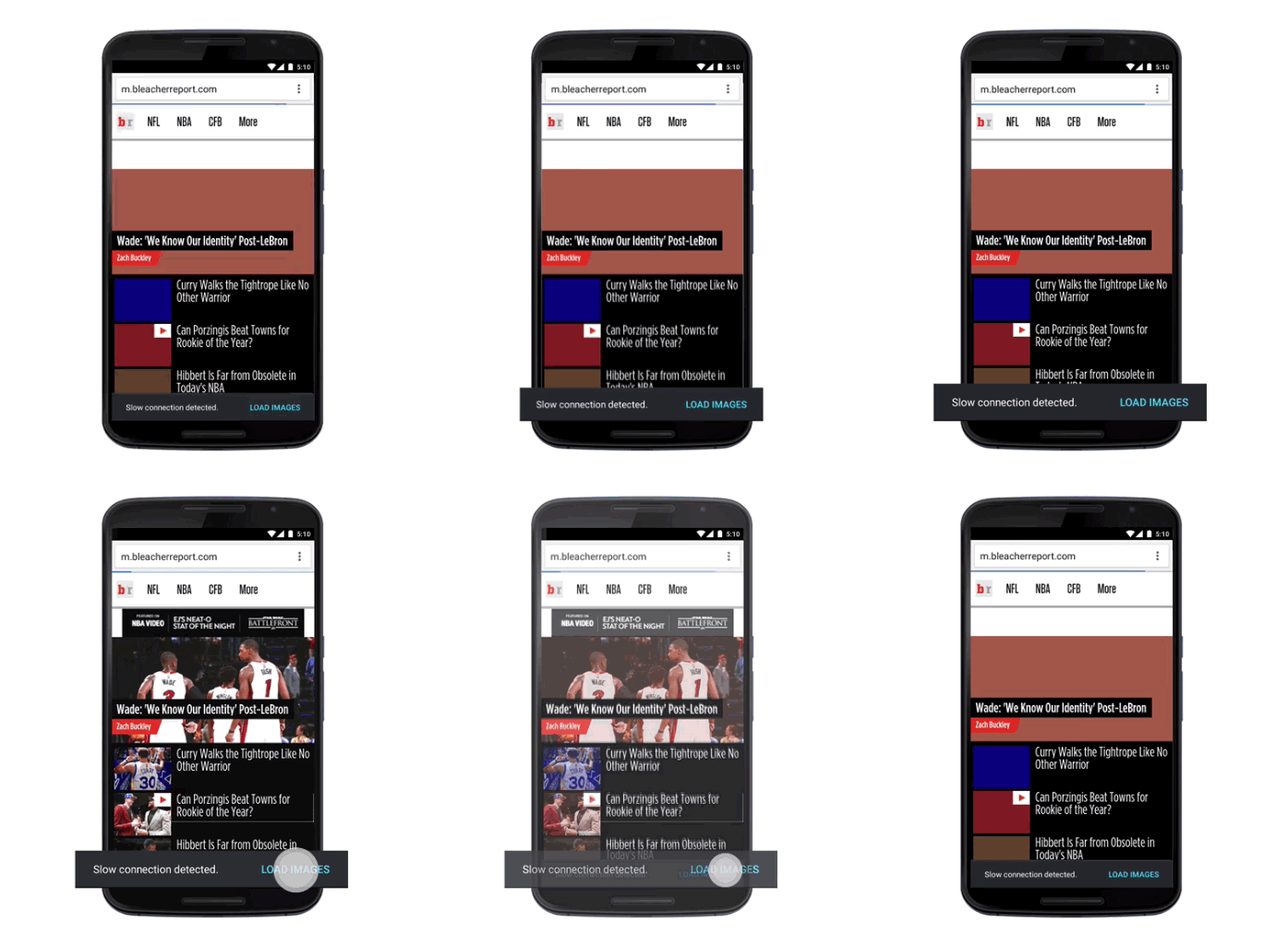
Data Saver makes lots of other minor and major changes to how data loads on Chrome.
Most of these changes involve data compression. If you don’t need, for example, to view a full-size resolution of an image that’s already small on your mobile browser, then Chrome won’t load that image.
In layman’s terms, Google’s Data Saver mode will sometimes make images look fuzzy and low-resolution to save you a significant amount of data.
Together, these and other changes can reduce your data usage in Chrome by up to 70%.
Why Wouldn’t You Use Data Saver Mode?
At this point, you may be wondering why Google doesn’t turn on Data Saver mode automatically for all users. I mean, everybody wants to save data, right?
The truth is: Data Saver mode does come with some compromises.
For example, you shouldn’t turn on Data Saver mode if….
-You frequently need to use websites to accurately determine your location
-You want all images to load in their full, clear resolution
-You frequently need to use internal websites (like intranet websites at your company) for work (Data Saver has been known to cause problems with these websites)
-Data Saver has also been known to cause compatibility problems with your carrier’s sites that they use for billing and authentication
If you don’t mind these minor problems, then Data Saver mode is an easy and awesome way to significantly reduce data usage.