

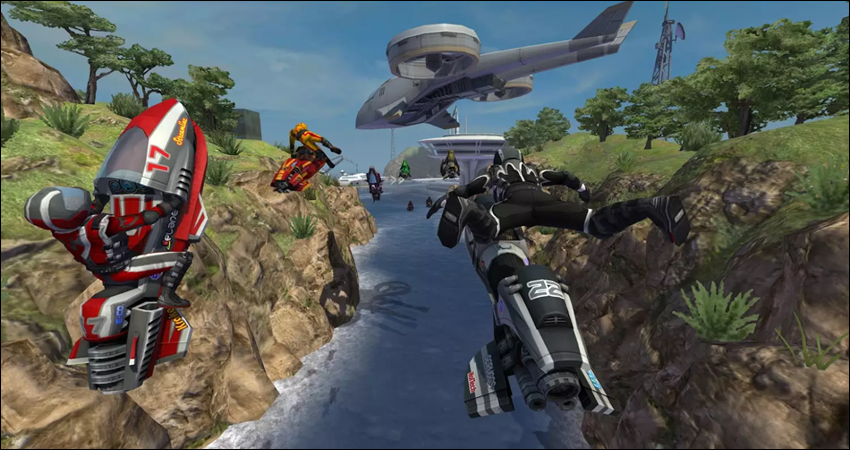
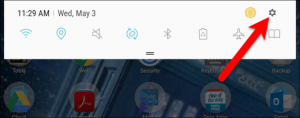
 In order to improve the image quality and graphics performance of your Android device, if it isn’t enabled yet, turn on your Developer options since that’s where you can access the Force 4x MSAA setting.
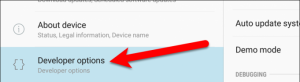
Step 2: Open the Developer options by scrolling down to the bottom of the list on the left pane under Settings. If you can’t find the Developer options there, you can find it before or after the About device item which depends on the brand of the device you are using.
In order to improve the image quality and graphics performance of your Android device, if it isn’t enabled yet, turn on your Developer options since that’s where you can access the Force 4x MSAA setting.
Step 2: Open the Developer options by scrolling down to the bottom of the list on the left pane under Settings. If you can’t find the Developer options there, you can find it before or after the About device item which depends on the brand of the device you are using.
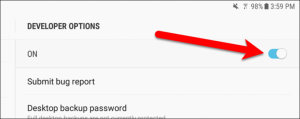
 Step 3: Tap the Developer options and turn it on if it’s off, by dragging the slider on in the right side of the screen.
 Step 4: Under Developer options, look for the Turn on 4x MSAA option and tap the slider button to the right side of 4x MSAA in OpenGL ES 2.0 apps to turn it on.
Step 5: After turning on the 4x MSAA in OpenGL ES 2.0 apps option, restart your Android device.
After restarting your Android device, your device will now be able to run your games especially the 3D ones, at the highest quality possible as well as your other applications, that is if your Android device is high-end enough for you to enjoy the changes made. Needless to say, the 4x MSAA in OpenGL ES 2.0 apps option can make your gaming experience smoother and you’ll be able to enjoy it more.
Step 4: Under Developer options, look for the Turn on 4x MSAA option and tap the slider button to the right side of 4x MSAA in OpenGL ES 2.0 apps to turn it on.
Step 5: After turning on the 4x MSAA in OpenGL ES 2.0 apps option, restart your Android device.
After restarting your Android device, your device will now be able to run your games especially the 3D ones, at the highest quality possible as well as your other applications, that is if your Android device is high-end enough for you to enjoy the changes made. Needless to say, the 4x MSAA in OpenGL ES 2.0 apps option can make your gaming experience smoother and you’ll be able to enjoy it more.