

 After installing launcher, simply press your home button, at which point you can choose which launcher to use by default.
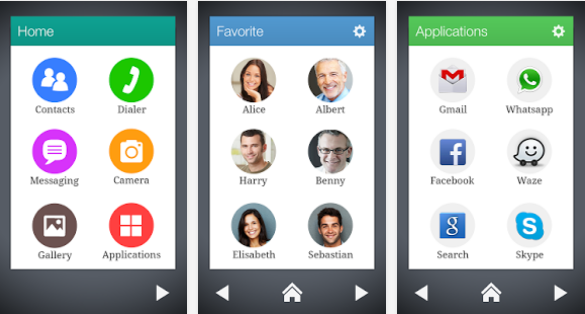
After you activate Wiser as your default launcher, you’ll find a simple main home screen. That main screen is divided into your most-used Android functions, including Contacts, Messaging, Dialer, Camera, Gallery, and Applications.
Click on any of those icons to see a similar screen with popular contact names or most-used applications. You can add items to the list by pressing the ‘+’ Add button.
Wiser is extremely self-explanatory. It’s a breeze to use and will help new users get the most out of their smartphones.
You can download Wiser for free from the Google Play Store here: https://play.google.com/store/apps/details?id=com.wiser.home
If you don’t like wiser, then you might enjoy the ‘Easy Mode’ available on Galaxy S devices. You can activate easy mode from Apps > Settings > Device > Home screen mode. It’s one of two launcher modes available on devices like the Galaxy S3.
After installing launcher, simply press your home button, at which point you can choose which launcher to use by default.
After you activate Wiser as your default launcher, you’ll find a simple main home screen. That main screen is divided into your most-used Android functions, including Contacts, Messaging, Dialer, Camera, Gallery, and Applications.
Click on any of those icons to see a similar screen with popular contact names or most-used applications. You can add items to the list by pressing the ‘+’ Add button.
Wiser is extremely self-explanatory. It’s a breeze to use and will help new users get the most out of their smartphones.
You can download Wiser for free from the Google Play Store here: https://play.google.com/store/apps/details?id=com.wiser.home
If you don’t like wiser, then you might enjoy the ‘Easy Mode’ available on Galaxy S devices. You can activate easy mode from Apps > Settings > Device > Home screen mode. It’s one of two launcher modes available on devices like the Galaxy S3.
Wiser is the World’s Simplest Android Launcher
2 min read
Most people agree that Android is easy to use.
However, if you don’t have a lot of experience with tech stuff, then Android could seem complicated. It’s probably not as easy to use as an iPhone or iPad, which is why someone created a launcher app called Wiser.
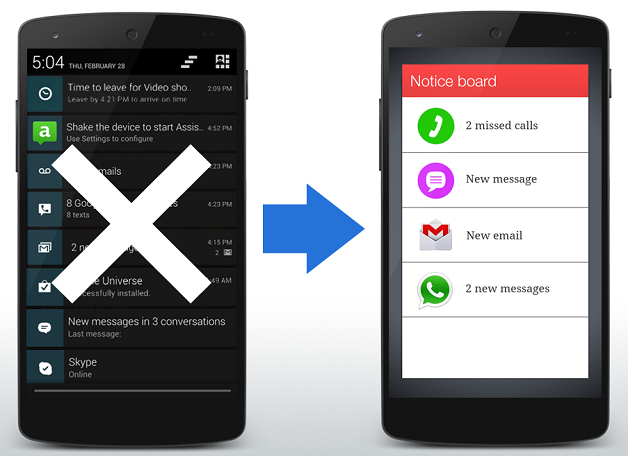
Wiser is the simplest Android launcher out there today. It reduces your Android down to a few simple shortcuts and apps.
It features colorful, clean screens that minimize fluff and frustration. If you regularly struggle with the UI on your Android device, then Wiser could be a huge help. It’s particularly popular with seniors and children – as well as anyone using a smartphone for the first time (like…seniors and children).
After installing launcher, simply press your home button, at which point you can choose which launcher to use by default.
After you activate Wiser as your default launcher, you’ll find a simple main home screen. That main screen is divided into your most-used Android functions, including Contacts, Messaging, Dialer, Camera, Gallery, and Applications.
Click on any of those icons to see a similar screen with popular contact names or most-used applications. You can add items to the list by pressing the ‘+’ Add button.
Wiser is extremely self-explanatory. It’s a breeze to use and will help new users get the most out of their smartphones.
You can download Wiser for free from the Google Play Store here: https://play.google.com/store/apps/details?id=com.wiser.home
If you don’t like wiser, then you might enjoy the ‘Easy Mode’ available on Galaxy S devices. You can activate easy mode from Apps > Settings > Device > Home screen mode. It’s one of two launcher modes available on devices like the Galaxy S3.
After installing launcher, simply press your home button, at which point you can choose which launcher to use by default.
After you activate Wiser as your default launcher, you’ll find a simple main home screen. That main screen is divided into your most-used Android functions, including Contacts, Messaging, Dialer, Camera, Gallery, and Applications.
Click on any of those icons to see a similar screen with popular contact names or most-used applications. You can add items to the list by pressing the ‘+’ Add button.
Wiser is extremely self-explanatory. It’s a breeze to use and will help new users get the most out of their smartphones.
You can download Wiser for free from the Google Play Store here: https://play.google.com/store/apps/details?id=com.wiser.home
If you don’t like wiser, then you might enjoy the ‘Easy Mode’ available on Galaxy S devices. You can activate easy mode from Apps > Settings > Device > Home screen mode. It’s one of two launcher modes available on devices like the Galaxy S3.
Newsletter
Get the latest tech news delivered to your inbox weekly.