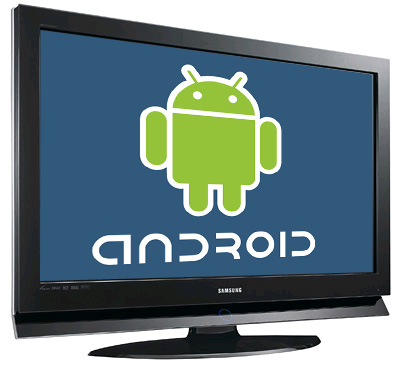
You’ve got Android on your smartphone and your tablet, so why not put it on your TV as well? You’ve probably grown accustomed to the sleek Android interface, and wouldn’t it be nice to use that same interface to choose which channels you want to watch? Of course it would!
Unfortunately, cable providers haven’t quite stepped up their game to that level…yet. But that doesn’t mean you should suffer through using the ancient operating system on your cable box. Instead, install Android on your TV today. To discover how to do just that, keep reading!
Use Google TV
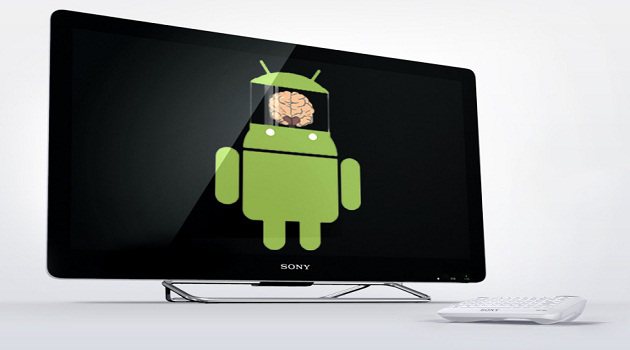
Google wants to bring Android to your living room through Google TV. You can purchase a Google TV box (which costs around $100) or you can buy a TV which has Google TV built-in. TVs with built-in Google TV are pretty rare, although you can expect to see more of them entering the market in the near future. Alternatively, you can buy the NSZ-GS7 Internet Player with Google TV, which is a Sony product that promises to revolutionize home entertainment.
Connect your Android smartphone
Your smartphone will be able to use your TV as a display. However, this solution isn’t ideal. Most smartphones don’t run at HD resolutions, which means you’ll encounter some pixilation issues on most screens and apps. However, all that you need in order to connect your smartphone to your TV is a mini-HDMI cable.
Connect your Android tablet
That same mini HDMI cable you used to connect your smartphone to your TV can also be used to connect your Android tablet to your TV. In some cases, your Android tablet might also have an HDMI port, in which case you can use a standard HDMI cable.
It’s usually easy to hook an Android tablet up to a PC because tablets generally have a higher resolution. That means you’ll experience less pixilation – even on larger TVs.
This is what your apps might look like if you blow them up onto a TV
Optimizing Android for the TV
Fix your resolution
If you’ve connected your Android smartphone to your TV, then you’re probably disappointed by the results. The screen can look pixelated and blurry. Sometimes, Android will scale itself to fix this problem – especially if the Android app you’re using has been optimized for tablets. However, if your phone is simply mirroring itself on your TV, then you’re going to encounter some resolution problems.
To fix this problem, try looking at your app’s settings screen. Some apps have a tablet mode and a smartphone mode. Others have an ‘HD’ mode. Try enabling tablet or HD mode to see if it fits better on your TV.
Use something like the CX-01
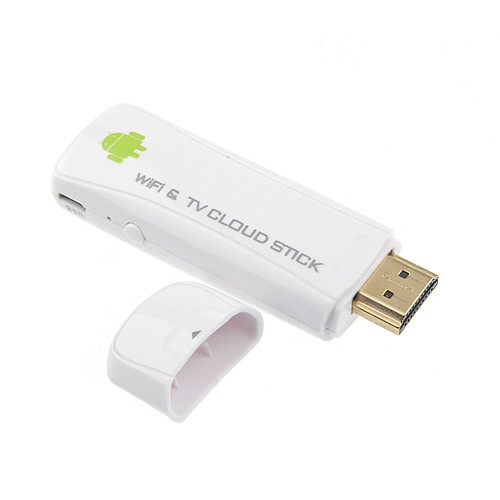
There is a Chinese hardware device called the CX-01 that plugs itself directly into your TV’s HDMI port. It’s about the same size as a USB stick, and it includes a full Android operating system. You can use the CX-01 to access the Google Play store and perform other Android related functions.
Unfortunately, the CX-01 is a Chinese device, and that means it is set to the Chinese language setting by default. If you don’t read Chinese, then this writer at TechNewsWorld suggests you hold up an existing Android device and navigate to your language menu side by side with the TV. You might not be able to read Chinese, but you can follow step by step instructions like this.
Get the latest tech news delivered to your inbox weekly.
Cookie Preferences
We use cookies to enhance your browsing experience, serve personalized content, and analyze our traffic. You can choose which types of cookies to allow. See our Cookie Policy for more information.
Essential Cookies
They are necessary for the operation of our website services and to secure area access.
Always Active
Performance and Functionality Cookies
They enhance website performance. Some features may not be available without them.
Analytics and Customization Cookies
They collect aggregated data to understand usage and customize the website.
Advertising Cookies
They enhance the relevance of ads, prevent repetition, and ensure proper display.
Social Networking Cookies
They enable content sharing and may support advertising.


 This is what your apps might look like if you blow them up onto a TV