

- It is not necessary to fill in every setting under Edit access point and fill out those items that are provided by your carrier.
- Make sure to type in every detail provided by your carrier. Every single one of them and make sure you type them exactly as it is since your carrier’s system is set to read an unexpected set of values and if there’s any changes, big or small, will highly affect your network connection.
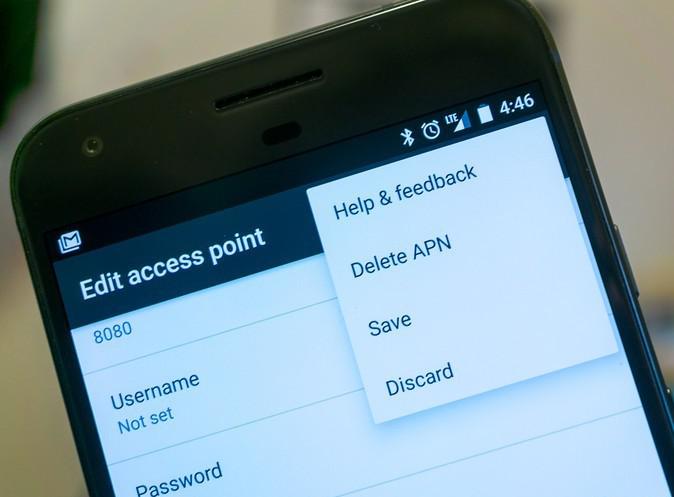
How to Modify the APN in your Android Device
4 min read
In order to connect to your network provider, your phone should have the necessary network settings that can be found in APN. To start, you have to look for the appropriate APN settings for the network you want to use. You can find those settings on your carrier’s website just like the example below:
Name - Ultra
APN - Wholesale
Proxy - (leave blank)
Port - 8080
Username & Password - (leave blank)
Server - (leave blank)
MMSC - https://wholesale.mmsmvno.com/mms/wapenc
MMS Proxy - (leave blank)
MMS Port - (leave blank)
MNC - 260
Authentication Type - (leave blank)
APN Type - default,supl,mms
MCC - 310
The example above is the setting you have to type in for a new APN that can use your carrier’s service for data and MMS. So the only thing you have to do is to know where to input it. Keep in mind that it can be different since it will depend on the kind of phone you have. Nevertheless, it’s always going to be under Wireless & networks on your phone’s settings. However, you can also find it under Cellular Networks, so try exploring the two to know where your APN setting is located just don’t make any changes while doing so.
Once you located the Access Point Names (APN), tap on it.
After opening APN you will see a list with at least one APN on it. So if you’re experiencing some problems with the APN you’re currently using, you’ll have to add another one but don’t ever delete the old one.
At the top of the APN setting’s screen, tap the plus sign to open the Edit access point screen. This is where you’ll put the settings needed from your carrier’s website. You have to take note of two important things:
Newsletter
Get the latest tech news delivered to your inbox weekly.