

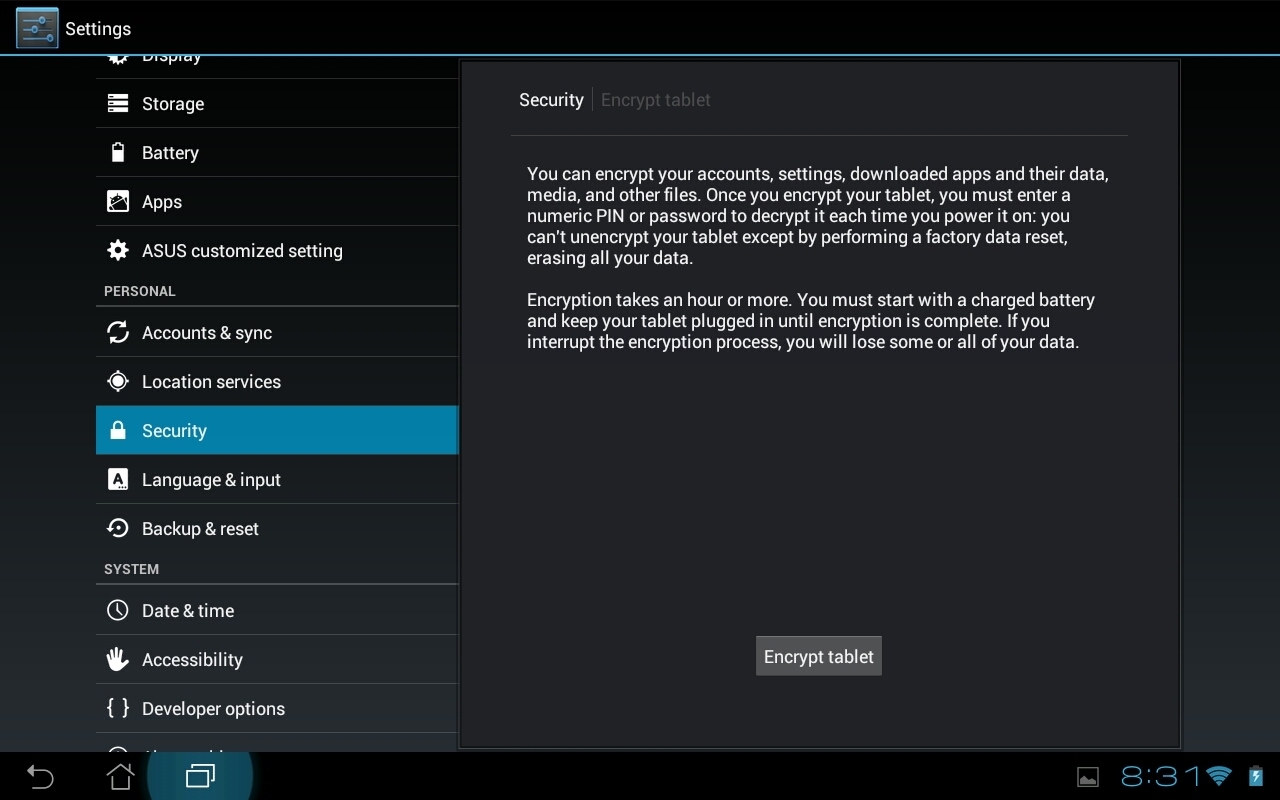
 Step 3) You’ll need to enter the PIN you used in step 1. The longer your PIN is, the more time it will take to encrypt your device. Obviously, the longer your PIN is, the more difficult it will be to guess. If you have time to spare, then I recommend setting up a long PIN. You’ll also need to plug in your phone during the encryption process. The last thing you want is for your phone to die halfway through encryption.
Step 4) After entering the PIN and plugging in your phone, tap the encrypt button. You’ll need to enter your PIN one last time (Android really wants to make sure you know your PIN and don’t forget it).
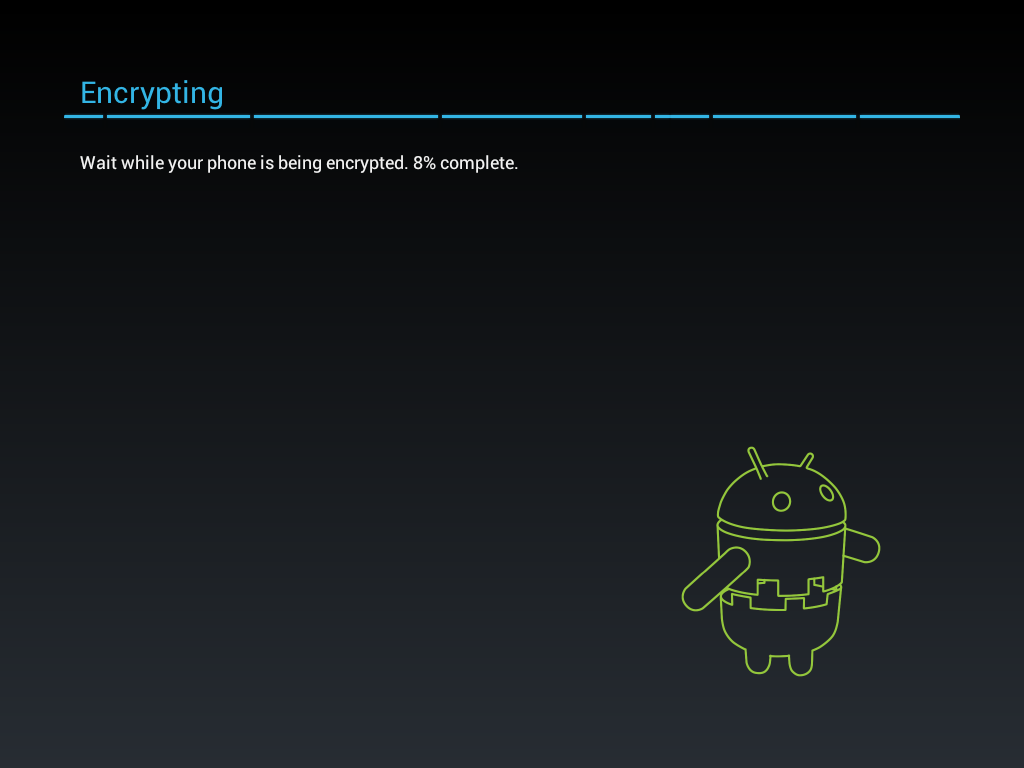
Step 5) Tap the “Encrypt phone” button. This process can take anywhere from 10 minutes to one hour, depending on how much data is on your device and how long your PIN is.
Some Android devices can be decrypted. The Galaxy S4, for example, can be decrypted without a factory reset. Other Androids, however, like the Moto X, require a factory reset to remove encryption. Obviously, when a phone is reset, all the data is wiped. That doesn’t make the data totally impossible to recover, but it does complicate things.
Ultimately, after encrypting your phone, you will need to enter a PIN every time you unlock your device. If you don’t enter that PIN, then all your data will be encrypted. So even if someone connects your phone to a computer, your data will be inaccessible.
Sure, encryption takes about half an hour of your time. But it also significantly reduces your chances of experiencing an embarrassing data leak. So what are you waiting for? Seriously. Smarten up.
Step 3) You’ll need to enter the PIN you used in step 1. The longer your PIN is, the more time it will take to encrypt your device. Obviously, the longer your PIN is, the more difficult it will be to guess. If you have time to spare, then I recommend setting up a long PIN. You’ll also need to plug in your phone during the encryption process. The last thing you want is for your phone to die halfway through encryption.
Step 4) After entering the PIN and plugging in your phone, tap the encrypt button. You’ll need to enter your PIN one last time (Android really wants to make sure you know your PIN and don’t forget it).
Step 5) Tap the “Encrypt phone” button. This process can take anywhere from 10 minutes to one hour, depending on how much data is on your device and how long your PIN is.
Some Android devices can be decrypted. The Galaxy S4, for example, can be decrypted without a factory reset. Other Androids, however, like the Moto X, require a factory reset to remove encryption. Obviously, when a phone is reset, all the data is wiped. That doesn’t make the data totally impossible to recover, but it does complicate things.
Ultimately, after encrypting your phone, you will need to enter a PIN every time you unlock your device. If you don’t enter that PIN, then all your data will be encrypted. So even if someone connects your phone to a computer, your data will be inaccessible.
Sure, encryption takes about half an hour of your time. But it also significantly reduces your chances of experiencing an embarrassing data leak. So what are you waiting for? Seriously. Smarten up.
How to Easily Encrypt your Android In Just 5 Steps
3 min read
Today, encryption is more important than ever before. I mean, just think of all the celebrities whose nudes have appeared online over the past few months.
If those celebrities had encrypted their phones, the photos would not have been leaked. It’s surprisingly easy to encrypt any Android device. But unfortunately, most people never choose to encrypt.
Here’s a simple 5 step guide that will instantly encrypt all the personal data on your Android device and prevent some weirdo from looking at your nude photos:
Step 1) Go to Settings > Security > Encryption > Screen lock and choose the PIN option. Setup a 4 digit PIN.
Step 2) Now your Android is ready to be encrypted. To encrypt it, go to Settings > Security > Encryption > Encrypt phone (or encrypt tablet if you’re using a tablet)
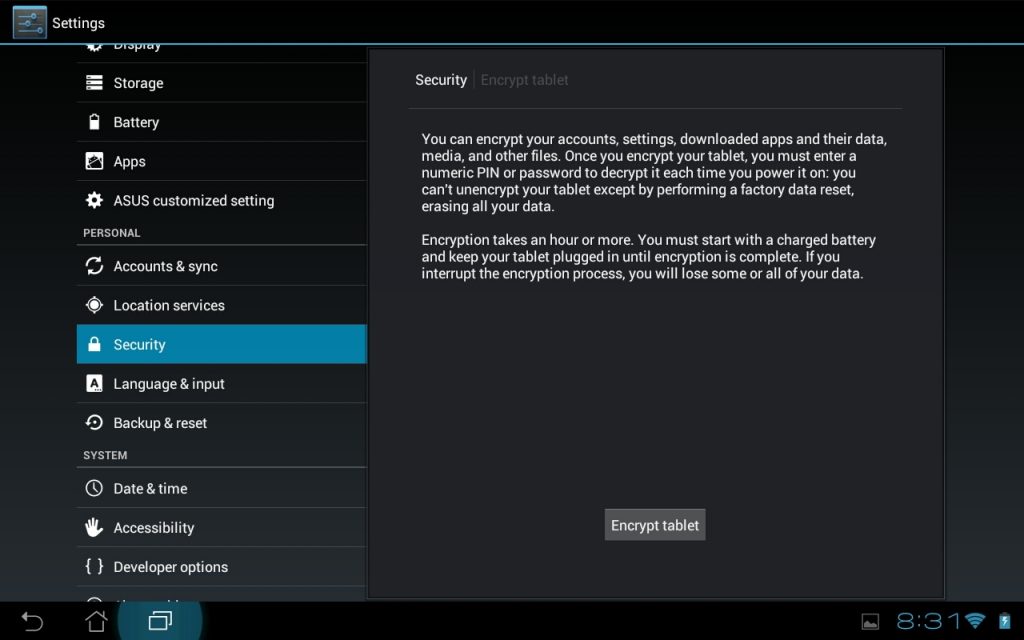 Step 3) You’ll need to enter the PIN you used in step 1. The longer your PIN is, the more time it will take to encrypt your device. Obviously, the longer your PIN is, the more difficult it will be to guess. If you have time to spare, then I recommend setting up a long PIN. You’ll also need to plug in your phone during the encryption process. The last thing you want is for your phone to die halfway through encryption.
Step 4) After entering the PIN and plugging in your phone, tap the encrypt button. You’ll need to enter your PIN one last time (Android really wants to make sure you know your PIN and don’t forget it).
Step 5) Tap the “Encrypt phone” button. This process can take anywhere from 10 minutes to one hour, depending on how much data is on your device and how long your PIN is.
Some Android devices can be decrypted. The Galaxy S4, for example, can be decrypted without a factory reset. Other Androids, however, like the Moto X, require a factory reset to remove encryption. Obviously, when a phone is reset, all the data is wiped. That doesn’t make the data totally impossible to recover, but it does complicate things.
Ultimately, after encrypting your phone, you will need to enter a PIN every time you unlock your device. If you don’t enter that PIN, then all your data will be encrypted. So even if someone connects your phone to a computer, your data will be inaccessible.
Sure, encryption takes about half an hour of your time. But it also significantly reduces your chances of experiencing an embarrassing data leak. So what are you waiting for? Seriously. Smarten up.
Step 3) You’ll need to enter the PIN you used in step 1. The longer your PIN is, the more time it will take to encrypt your device. Obviously, the longer your PIN is, the more difficult it will be to guess. If you have time to spare, then I recommend setting up a long PIN. You’ll also need to plug in your phone during the encryption process. The last thing you want is for your phone to die halfway through encryption.
Step 4) After entering the PIN and plugging in your phone, tap the encrypt button. You’ll need to enter your PIN one last time (Android really wants to make sure you know your PIN and don’t forget it).
Step 5) Tap the “Encrypt phone” button. This process can take anywhere from 10 minutes to one hour, depending on how much data is on your device and how long your PIN is.
Some Android devices can be decrypted. The Galaxy S4, for example, can be decrypted without a factory reset. Other Androids, however, like the Moto X, require a factory reset to remove encryption. Obviously, when a phone is reset, all the data is wiped. That doesn’t make the data totally impossible to recover, but it does complicate things.
Ultimately, after encrypting your phone, you will need to enter a PIN every time you unlock your device. If you don’t enter that PIN, then all your data will be encrypted. So even if someone connects your phone to a computer, your data will be inaccessible.
Sure, encryption takes about half an hour of your time. But it also significantly reduces your chances of experiencing an embarrassing data leak. So what are you waiting for? Seriously. Smarten up.
Step 3) You’ll need to enter the PIN you used in step 1. The longer your PIN is, the more time it will take to encrypt your device. Obviously, the longer your PIN is, the more difficult it will be to guess. If you have time to spare, then I recommend setting up a long PIN. You’ll also need to plug in your phone during the encryption process. The last thing you want is for your phone to die halfway through encryption.
Step 4) After entering the PIN and plugging in your phone, tap the encrypt button. You’ll need to enter your PIN one last time (Android really wants to make sure you know your PIN and don’t forget it).
Step 5) Tap the “Encrypt phone” button. This process can take anywhere from 10 minutes to one hour, depending on how much data is on your device and how long your PIN is.
Some Android devices can be decrypted. The Galaxy S4, for example, can be decrypted without a factory reset. Other Androids, however, like the Moto X, require a factory reset to remove encryption. Obviously, when a phone is reset, all the data is wiped. That doesn’t make the data totally impossible to recover, but it does complicate things.
Ultimately, after encrypting your phone, you will need to enter a PIN every time you unlock your device. If you don’t enter that PIN, then all your data will be encrypted. So even if someone connects your phone to a computer, your data will be inaccessible.
Sure, encryption takes about half an hour of your time. But it also significantly reduces your chances of experiencing an embarrassing data leak. So what are you waiting for? Seriously. Smarten up.
Newsletter
Get the latest tech news delivered to your inbox weekly.