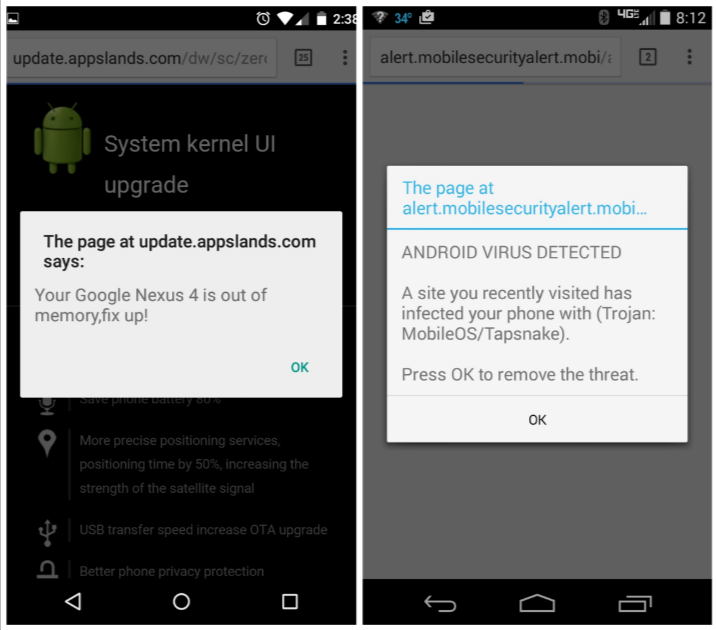
There are some obvious signs of mobile malware – like getting intrusive pop-ups every time you open an app. However, a lot of modern mobile malware is sneaky: it lies dormant on your device for months, quietly monitoring your activity.
With that frightening thought in mind, we want to help. Today, we’re teaching you the top 4 signs your Android has a secret malware problem:
1) Performance Isn’t as Good As It Used To Be
Unless your smartphone is more than 3 years old, or if it was really cheap, you shouldn’t notice big performance changes over the years. The performance you enjoyed when you bought your smartphone should
pretty much be the performance you enjoy 1 or 2 years into ownership.
If your Android performance suddenly begins to drop, then it could be a malware problem. But first, make sure it’s not a problem with an unoptimized app.
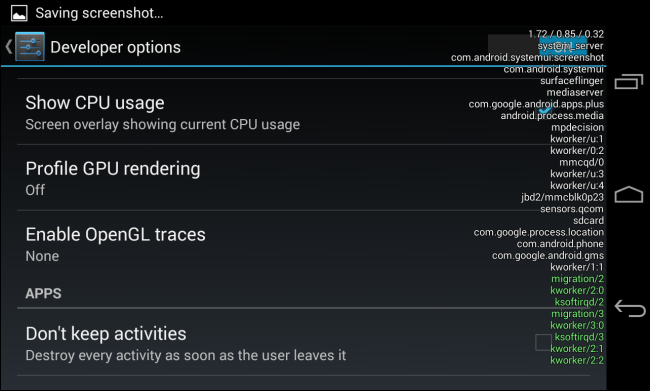
You can check for Android resource hogs by looking in the
Settings > Apps section of your device. From there, swipe towards the left to view the activity of running apps. You’ll be able to see the RAM usage of each individual app.
It’s like Task Manager for Android. Sometimes, you’ll actually see the name of the malware appear on your list of apps. Some of the most successful malware masquerades as an innocent app – so it’s always a good idea to check this list.
2) Your Battery is Draining Unusually Fast
Modern malware tracks your every move. If your battery is draining unusually fast, it could mean that malware is putting an extra heavy load on your sensors, your background usage, or other parts of your smartphone.
In any case, it’s a good idea to check your battery section to find the culprit.
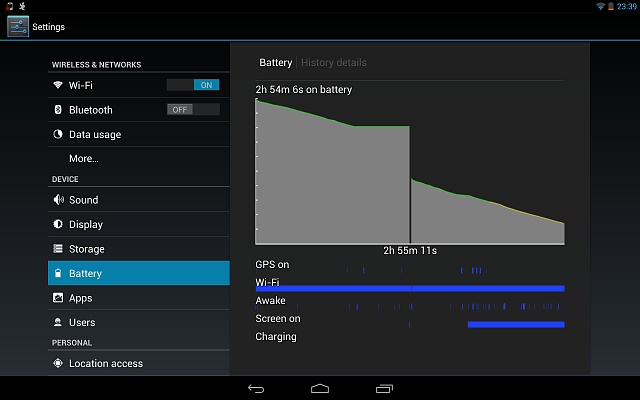
To do that, go to
Settings > Battery. On the next screen, you should see a list of apps that have used your battery over the last charging period. Typically, platforms like Android OS and your display will take up the biggest percentage of performance, along with popular social media apps like Facebook or Twitter.
If, however, you see a mysterious, unknown app on the list, then it could be a malware problem.
3) You Keep Going Over your Data Limit
Have you suddenly been hitting your data limit earlier than usual? Malware could be the culprit. Some malware sends your usage data back to a remote server, which means your mobile data is constantly being drained.
Sometimes, these amounts are so small they’re hard to spot – so the malware’s creator hopes you ignore it. Check your data usage by going to
Settings > Data. Or, consider calling your carrier, checking your latest bill, or monitoring your account online to see any new charges.
4) Advertisements Everywhere
Most Android malware is more accurately described as “adware”. The primary goal isn’t to steal your information, it’s to make money through advertisement clicks.
In fact, some apps are so filled with advertisements that they’re better described as adware than as a game or app.
Unless you have a virus, you should never see ads pop up on your Android home screen. In fact, even pop-up ads on your browser are rare. If you start to see apps that warn you about a virus problem or other issue, then don’t fall for it: be smart about it, install mobile malware protection apps, and scan your device for any issues.