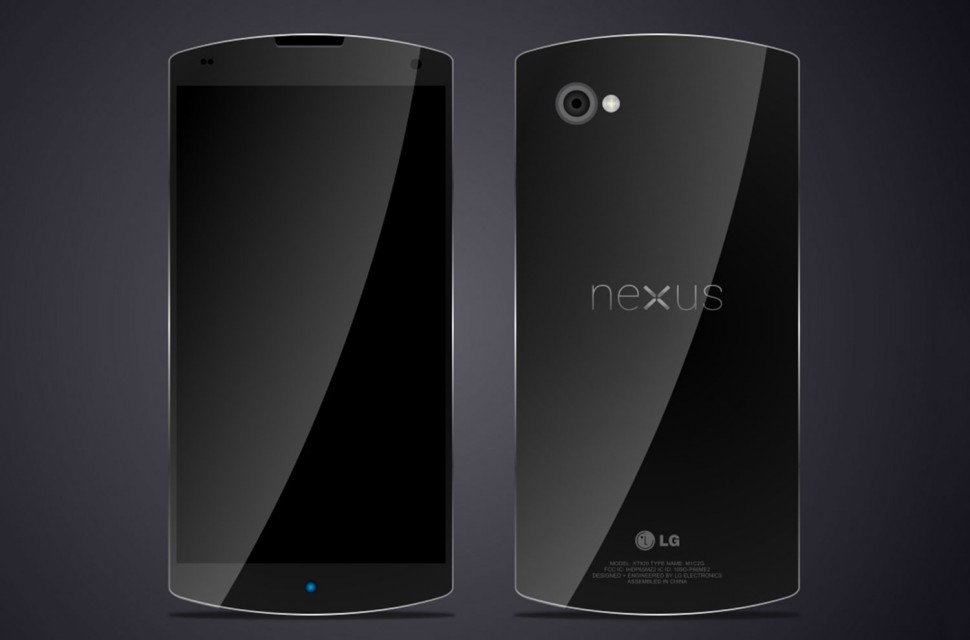
If you’re one of the early adopters of the Nexus 5, then lucky you. Want to increase the performance of your new Android? Here are some of the best Nexus 5 tips and tricks we’ve discovered since the phone was released:
5) Access the camera from the lock screen
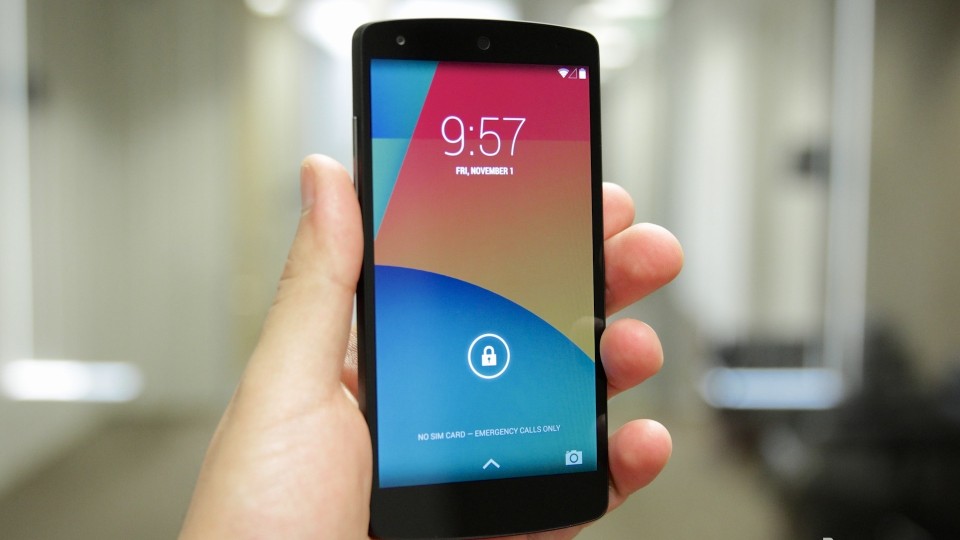
One of the few features I like on the iPhone is the ability to access the camera directly from the lock screen. Finally, we’ve got the same feature on Android…4.4. On the Nexus 5, you can access the camera from the lock screen simply by putting your finger on the camera icon and swiping your finger left.
4) Remove Google Hangouts as the default SMS app
Google is desperately trying to make Google+ happen. Sure, Hangouts can be useful. But most of your friends don’t use it or Google+. That’s why it’s annoying that Google decided to use Google Hangouts as the default SMS app in the Nexus 5.
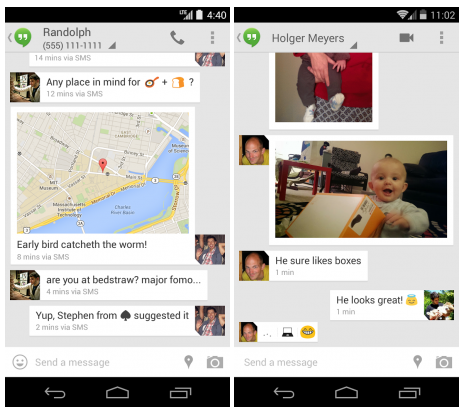
To remove Google Hangouts and its integration with SMS, go to
Settings > Wireless and Networks (More) > Default SMS app. From that menu, you can pick whichever SMS app you want. Unfortunately, there’s no separate SMS app included in the Nexus 5, so you’ll need to download a third-party SMS app from the Google Play Store.
3) Instantly access the extended settings menu
Most Androids now have the extended settings menu that allows users to instantly turn a number of different settings on or off, including NFC Mode, Hands-Free Mode, Wi-Fi Hotspot, Flight Mode, etc.
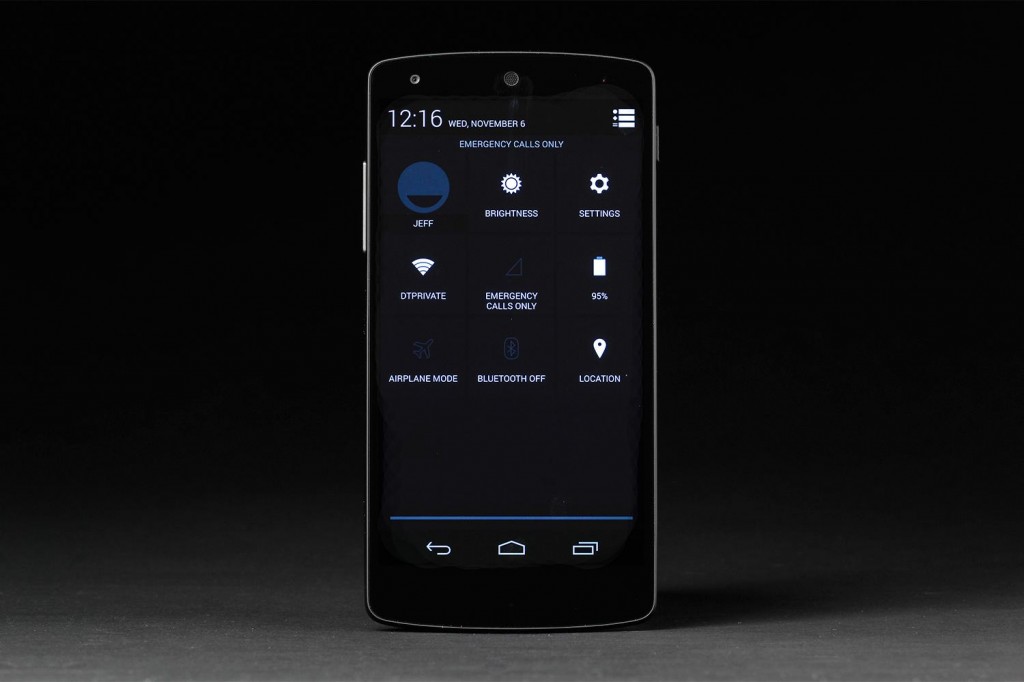
But to access this Settings menu, you have to open your normal notifications shade and then select the four-window icon in the top right corner, right? Wrong!
Instead, use two fingers to swipe down your notifications shade. Like magic, your extended settings menu will instantly appear. If you need to quickly turn your phone’s settings on or off, then this is the menu you want to access.
2) Enable Google Voice
Google Voice now recognizes your voice anytime you say “OK Google” while on your Android home screen. It’s always listening.
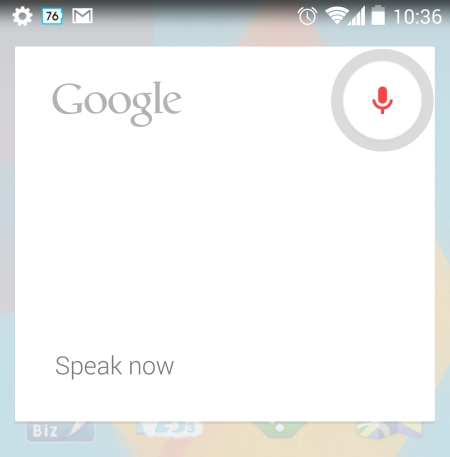
However, there’s one major restriction to Google Voice: it only listens for “OK Google” if your language is set to English (US). Fortunately, you can change your Google Voice language without changing your entire device’s language.
To do that, go to
Settings > Language & Input > Voice Speech (under
‘Speech’) > Language. From that menu, tap
English and finally
English (US). That’s it! Now Google will listen for OK Google whenever you’re on your Android home screen.
1) Save battery life with a less accurate GPS
I can’t think of very many applications where you need to narrow down your GPS location to the nearest meter. But that’s pretty much what Android’s GPS location data does by default. Many applications require GPS data in order to properly function, but GPS data takes up a lot of battery life. So what’s the solution?
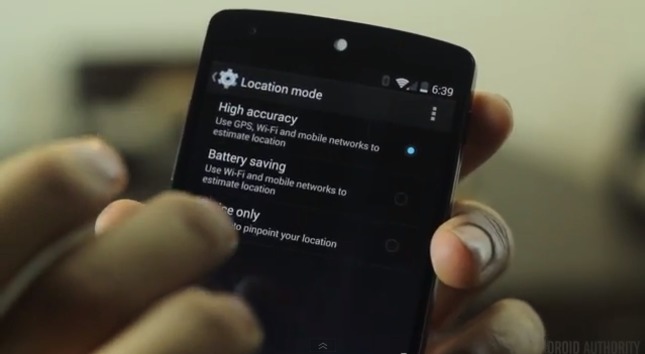
A less resource-intensive GPS mode is the solution, of course! The Nexus 5 and Android 4.4 come with a Battery Saving GPS mode which reduces the number of reference points used to obtain your exact location. This means you save battery life while still enjoying GPS features.
To access this setting, go to
Settings > Location > Mode. From that menu, choose
Battery Saving.