

Install Nova Launcher Beta
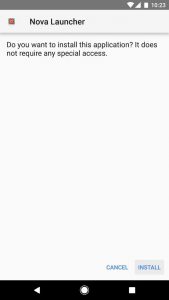
The company that created Nova Launcher which is TelsaCoil, just recently added a support for Adaptive Icons in the latest beta version of their home screen app. This version is different to as the one you'd find on the Play Store, so you'll have to install it using a different method. Your first option is to sideload the new beta version. Make sure "Unknown Sources" is enabled in your phone's settings, to do this method. When that's finished, tap the Download Complete notification, then press "Install" when prompted. This will work if you already have the stable version of Nova installed.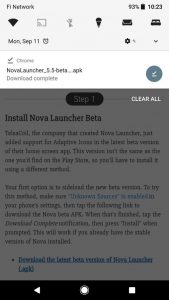
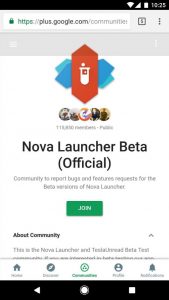
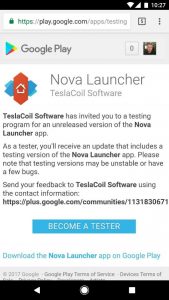
 For the second option, you can join the Nova Launcher beta program. To do that, make sure you're signed in with the same Google account you use on your Android device, then tap the "Join" button. Wait about 30 minutes, then you'll be able to download the latest beta version of Nova Launcher directly from the Play Store. If you already have Nova Launcher installed, the beta version will appear as an update.
Set Nova as Your Default Home Screen
Press your home button. Select "Nova Launcher" on the prompt, then press "Always" to make it your default home screen.
Enable Adaptive Icons & Choose a Shape
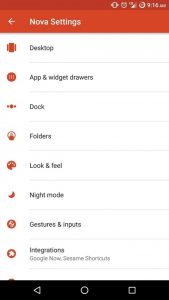
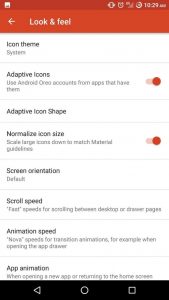
Long press any empty space on your home screen, tap the gear icon to enter Nova Launcher's settings menu. Touch the Look & Feel tab, to be able to see an option called "Adaptive Icons". Enable Adaptive Icons, to be allowed to enter the option called "Adaptive Icon Shape" (this option is inaccessible unless you enable Adaptive Icons).
Test to Ensure It Worked
Once you've chosen a shape for your Adaptive Icons, return to your home screen and check to see if all the icons on your home screen and app drawer are the shapes that you choose.