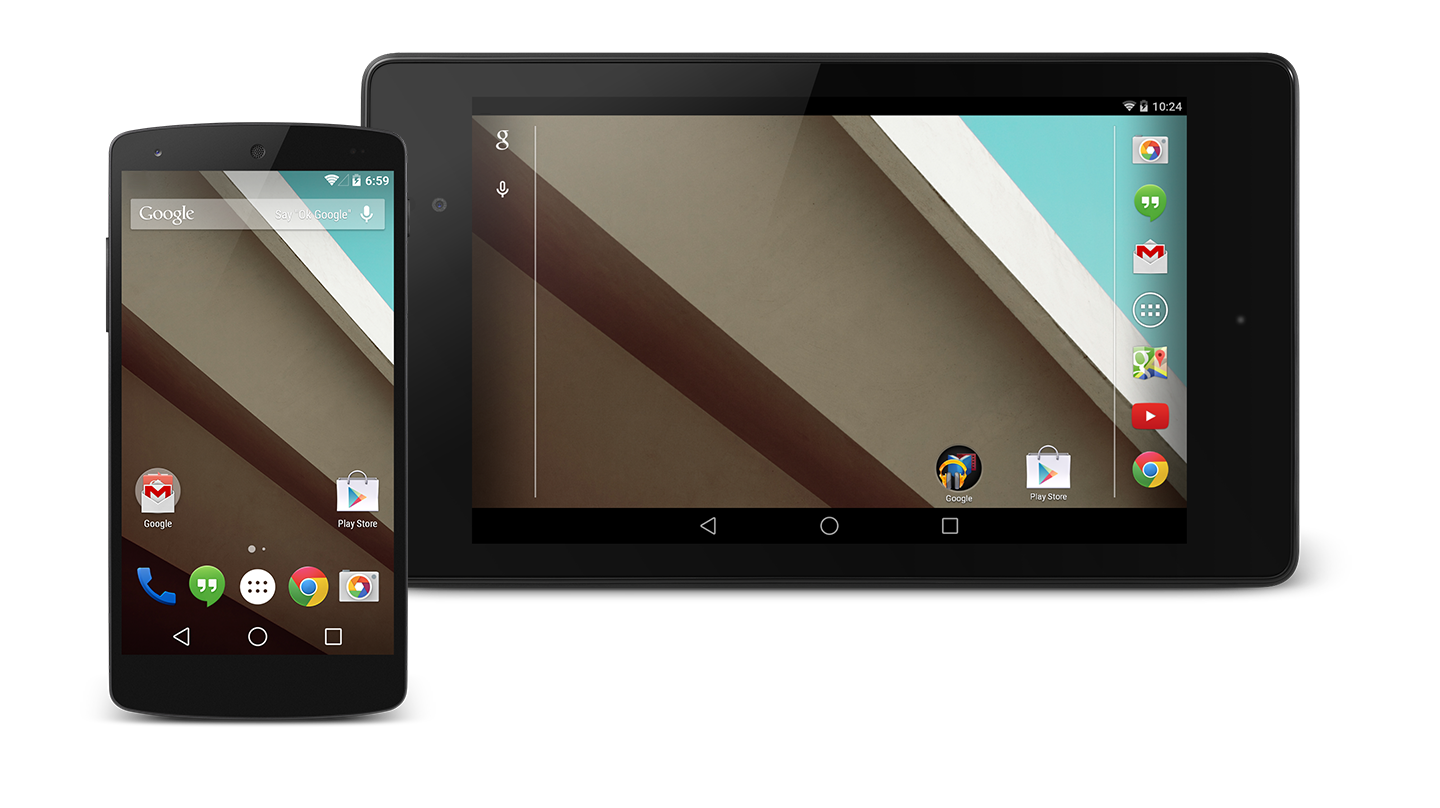
Android L is being (unofficially) released for more and more Android devices.
If you’re one of the lucky few to get the Android L update, then you’re probably wondering what, exactly, is so different and cool about it.
Well, today, we’re making things easier for you. Here are the top 6 most important changes you’ll encounter with Android L:
6) New navigation buttons
This may be the smallest but most obvious change with Android L. From the moment you boot up your device, you’ll encounter three new navigation buttons along the bottom. Those navigation buttons include a left-facing triangle, a circle, and a square.
No, you’re not playing a PlayStation 4. You’re just enjoying Android’s new interface which throws out the Back, Home, and Recent buttons (although the buttons do the same thing).
Some have said this layout is more playful, while others claim it’s just an aesthetic change for no major reason.
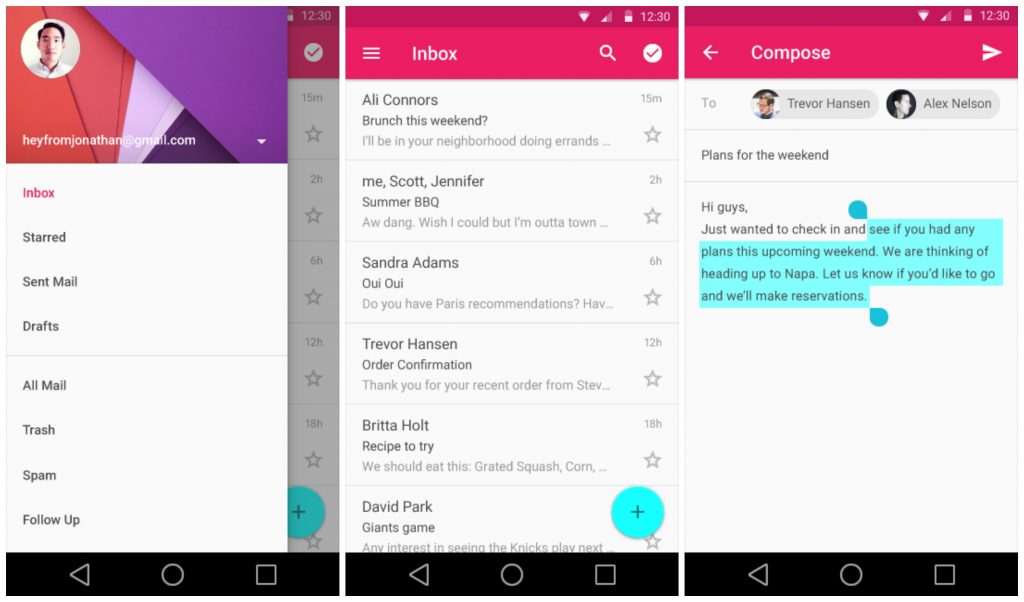
5) New and improved keyboard
It will take a few seconds to realize what’s different about the keyboard. While the typing feels virtually identical to previous versions of Android, the keys themselves are different. Take a close look, and you’ll realize that there is no spacing between keys.
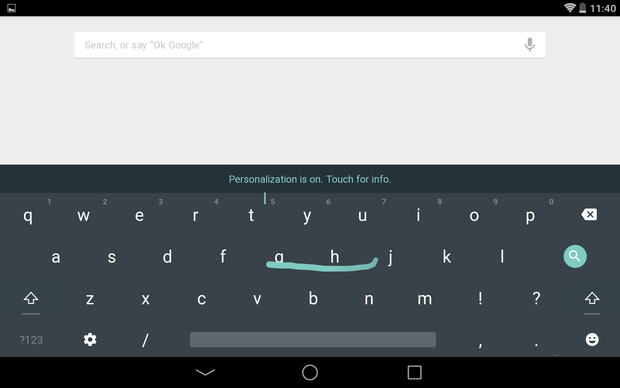
The colors have also been slightly muted, although they’ll brighten when you tap each key. Some people like the new look, and others hate it. Most people, however, don’t really care. If you don’t like the new layout, you can change it back to the original under the keyboard settings menu.
4) New Settings menu
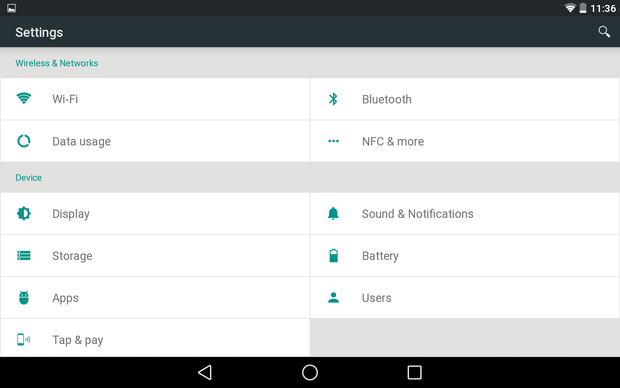
Every new Android version update seems to change the Settings menu. I kind of wish Google would just settle on a single settings menu for once. Alas, they have not, and Android L brings a totally new Settings menu with subheadings like “Wireless & Networks” and “Device”.
3) New notification shade
Whether you call it the notification panel, the notification shade, or something else entirely, Android L has a new one.
The new notification panel no longer lets you drag two fingers from the top of the screen. When you drag a single finger from the top of the screen, you’ll see a full notifications panel. If you slide down
again you’ll see the old Quick Settings menu.
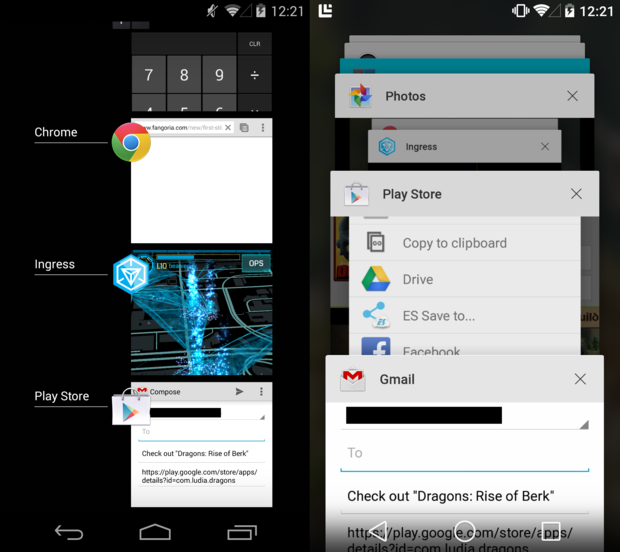
2) Revamped “Recent Apps” menu
I don’t know about you, but I don’t use the Recent Apps menu a whole lot. The new interface in Android L might change that.
The new Recent Apps menu displays your recent apps in a card view, making it easier to see what you were working on. It looks a lot like the way tabs are displayed in Chrome for Android, and some have also said it looks a lot like Safari on iOS.
Whatever it looks like, I think it looks pretty good.
1) A new and improved lock screen
Android L’s lock screen looks a lot different than previous versions of Android. This lock screen lets you swipe your camera by tapping and swiping the ‘camera’ icon, but you can also swipe left to access your phone dialer app.
If your phone is charging, the lock screen will also display how much time your phone will take to charge – the first time Android has included such a feature.
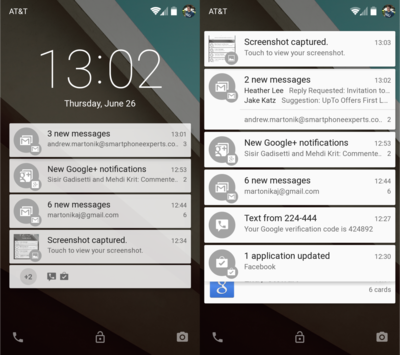
Notifications on the lock screen have also been improved. Notifications are expandable directly from the lock screen and can be dismissed or brought into view with a swipe.