Steve Jobs made a dream come true when he made a mobile phone not just built for communication, but for entertainment as well. It is thanks to the iPhone that we are able to play music on our phones. Sadly, there is one slight problem with Apple’s design, you cannot easily share your files to other devices of other brands.
This has become a problem when you want to share files to your friends, or switch OS entirely, especially to music, which takes a big chunk of your phone’s memory. It’s almost a burden just transferring your music files alone into another device. And believe it or not, even though there are already music streaming apps that allow users to download music and play them offline, there are still a number of music lovers who prefer to download and save their music on their hard drive.
Apple has iTunes, but it is not easy to sync your iTunes library with an Android device simply because there is no iTunes for Android. Luckily, there are work arounds, and we’re willing to share are a number of ways to transfer your music from iTunes to any Android device. Here’s how:
Copy your music files manually – the oldest trick in the book, and the most common at that. This only require a USB cable to connect your phone to your computer, and a bit of patience.
- Create a new folder on your desktop.
- Copy the music files to transfer into the new folder.
- Connect your Android device to your computer with a USB cable. You may need to adjust your phone settings to transfer files via USB (the option should appear in your notifications).
- Navigate to your Android device storage on your computer and copy-paste or drag-and-drop the music folder.
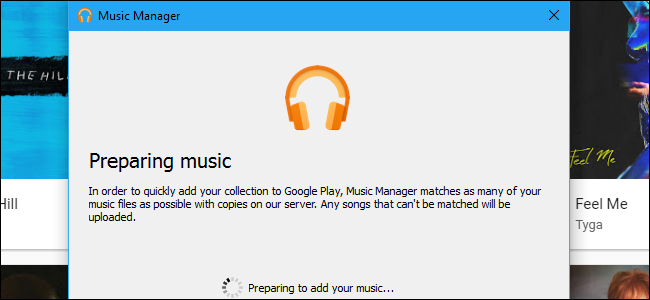
Transfer iTunes music via Google Play Music
- Download Google Play Music Manager to your PC.
- Install the program and run it.
- During set-up, there will be an option to Upload songs to Google Play.
- Select iTunes and finish the initial set-up.
- Sit back and let the program upload all your songs to Google Play Music.
Stream iTunes on Android with Apple Music
Apple Music is a good way to access iTunes on Android. There is not an iTunes app for Android, but there is an Android app for Apple Music. Like Google Play Music, it allows you to stream your entire iTunes library from your Android phone or any other device by simply logging into your Apple Account. Apple Music also allows you to stream 50 million songs and listen to curated playlists.
- Open iTunes on your PC and navigate to Preferences.
- In the General tab, turn on iCloud Music Library and click OK. The option is grayed out unless you have an Apple Music account.
- Download the Apple Music app on your Android device.
- Sign in with your Apple ID. Your iTunes music should be available to stream.
If you’re not able to find your iTunes music, there are a number of ways to fix it:
- Make sure you’re signed into the same Apple ID on both devices.
- Update the app to the latest version on all devices.
- Refresh your iCloud library by going to File > Library > Update iCloud Music Library.
Sadly, unlike Spotify or other music streaming apps, there is no free version. In order to stream iTunes music to Android, you will need to pay a monthly subscription fee of $9.99.
That’s how you transfer your music from Apple to Android. There are also other techniques such as using a third-party app to sync your music from OS to OS, but that’s a topic for another day.