Before you throw your arms up in the air and sigh saying, “Ah, yet another camera app!”, let us tell you why you need an attitude adjustment. Say hello to
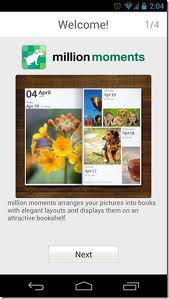
Million Moments – Photo Viewer, developed by Sony Digital Networking Applications Inc. is an Android app that allows its users to not only capture pictures, but also categorize, label and organize them into beautiful looking albums.

Launch the Million Moments Android app to select images that you want to import to the app, either from your phone or Facebook. The user can import all the pictures or only select a few. Once the pictures have been imported, the app prompts the user to go to the bookshelf to view them and begin using the app. The menu bar on the home screen of the Million Moments app displays 4 options –
- Bookshelf
- Camera
- Import
- Settings
The “Bookshelf” is where all the albums are displayed. It also contains two other albums that guide the user on how to use the Million Moments app.
The “Camera” option lets the user click pictures and then tag them accordingly. The user can also write comments about the picture.
The “Import” option lets the user import pictures either from the camera folder, Whatsapp images or Facebook.
The user can name all the tags through the “Settings” option in the menu bar. The user can name up to 16 different labels.
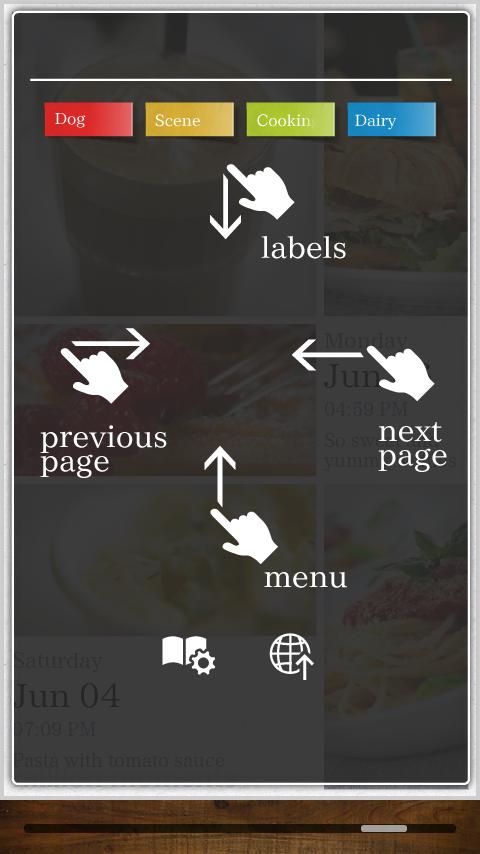
When the user imports pictures to the app, Million Moments automatically arranges them into an album. On sliding a finger down on a photo, the app presents the user with colored ribbons that he can use to tag and label the picture. All the user has to do is tap a particular label and tap it on the photo he wishes to tag. By attaching labels to the pictures, the user automatically organizes them into different albums with elegant layouts, in the bookshelf.
The Million Moments app generates beautiful looking albums depending on the kind of pictures included, the label and the date. It then lets the user flip through the album in a chronological order. The albums are given beautiful book like jacket covers with a title that makes it pretty to look at. A page could have a maximum of 5 pictures and each page displays the date, day and time of when the picture taken. If the user slides his finger upwards, a menu bar shows up that gives the user an option to click a new picture, import new ones, share the album or change the album settings.
The album settings allow the user to change the album name, select a font, sort the picture order and choose a time span. The user could pick either from the following options:
- 1-day per page
- 1 week per page
- None
When the user clicks on particular photo from an album, it is shown on a different page with a little bar at the bottom that lets the user play around with the photo. The user can rotate the photo, change information like date and comments, make it the cover page of the album or share it with his friends. It is pretty easy to use the Million Moments app and get a hang of it and a whole lot easier on the eye than the mundane photo galleries that smartphones typically offer.
Although there are few shortfalls within the Million Moments app like absence of editing features for those Instagram-smitten folks and not being able to delete the entire album in one go, this app has blown other apps of similar genre to smithereens with its simplicity and classiness. So go ahead, download it now from Google Play Store and show off your photos like never before!