How to Disable Facebook’s Auto-Play Feature on Android
2 min read
If you’ve used your Facebook mobile app for Android lately, then you’ve undoubtedly noticed the new auto-play feature.
Auto-play automatically plays videos as you scroll through your news feed. Depending on how awful your friends are, these videos can range from simply annoying to downright disgusting. Of course, they also burn through your data very quickly.
Today, I’m going to show you how to easily disable Facebook’s automatic video playback feature:
Disabling auto-play on Android
Step 1) Open the Facebook app on your Android device
Step 2) Tap your settings button
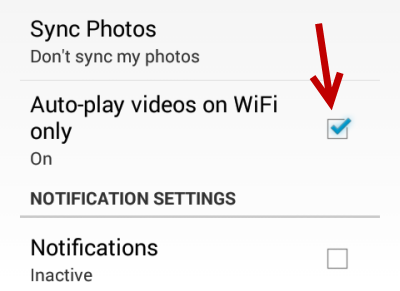
Step 3) Check the box beside “auto-play videos on Wi-Fi only” to avoid burning through costly data
Unfortunately, you cannot totally disable Facebook auto-play on your mobile device; you can only disable it over your mobile network. Thanks, Facebook!
Disabling auto-play on PC
Step 1) Open Facebook and go to your Settings from the top right corner of the screen
Step 2) Under the left sidebar, click Videos
Step 3) Change the setting from On to Off to disable auto-playback on your PC.
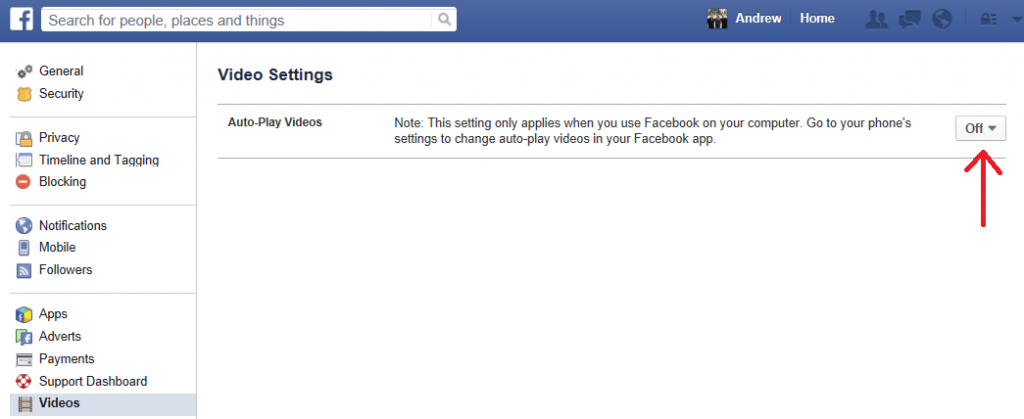
Unfortunately, changing this setting will not change your mobile settings or prevent video playback.
The auto-play videos feature on Facebook has actually encountered a lot of controversy. Looking around the internet, it seems that auto-playing videos are wreaking havoc on low bandwidth Wi-Fi networks in military bases and remote corners of the world. If everyone on a military base is looking at Facebook at night, and Facebook tries to automatically stream every video that’s on their feed, then you can imagine how much the speed will slow down.
Anyways, it’s yet another reason to stop using Facebook.

Step 3) Check the box beside “auto-play videos on Wi-Fi only” to avoid burning through costly data
Unfortunately, you cannot totally disable Facebook auto-play on your mobile device; you can only disable it over your mobile network. Thanks, Facebook!
Disabling auto-play on PC
Step 1) Open Facebook and go to your Settings from the top right corner of the screen
Step 2) Under the left sidebar, click Videos
Step 3) Change the setting from On to Off to disable auto-playback on your PC.
Unfortunately, changing this setting will not change your mobile settings or prevent video playback.
The auto-play videos feature on Facebook has actually encountered a lot of controversy. Looking around the internet, it seems that auto-playing videos are wreaking havoc on low bandwidth Wi-Fi networks in military bases and remote corners of the world. If everyone on a military base is looking at Facebook at night, and Facebook tries to automatically stream every video that’s on their feed, then you can imagine how much the speed will slow down.
Anyways, it’s yet another reason to stop using Facebook.

One Click Root Author
Content Writer
Experienced writer covering technology and mobile development.
You Might Also Like
Android Apps
Android 14 Root Methods: What Changed?
Explore the new root methods and security changes in Android 14.
Android Apps
Latest Android Security Updates Impact Root Access
Understanding how the latest security patches affect root methods.
Android Apps
Google Pixel 8 Pro Root Guide Released
Complete step-by-step guide to rooting the Google Pixel 8 Pro.
Comments
JD
John Doe
2 days ago
Great article! Very informative and well-written. Thanks for sharing.
JS
Jane Smith
5 days ago
I found the security section particularly helpful. Looking forward to more content like this!
Leave a Comment
Newsletter
Get the latest tech news delivered to your inbox weekly.
Popular Posts
-
1
Getting Started with Android Development
12.5K views
-
2
Best Practices for Mobile Security
8.2K views
-
3
Understanding Smartphone Hardware
6.8K views