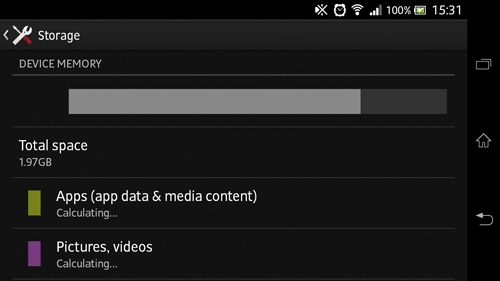
There are two main restrictions that virtually all modern smartphones share: short battery life and limited storage space.
Both of these issues affect Android devices, which is why many users encounter the “Insufficient Storage Available” error. Like many errors, this storage space problem occurs at the worst possible time.
For me, this problem occurred at the top of a mountain in Switzerland. It was one of the most picturesque locations I’ve ever visited, and just as I got to the top, I ran out of storage space on my phone.
I needed to clear a lot of space fast. So here’s what I did:
-Went to my Application Manager and uninstalled all my large apps that I didn’t need to use for the rest of the day
-Went through all my important Application Manager apps and cleared the cache of each one
Fortunately, there are better ways to solve your sudden storage problem. Here’s a smarter set of steps to take:
Step 1) Download and install the
App Cache Cleaner – 1 Tap Clean app for free
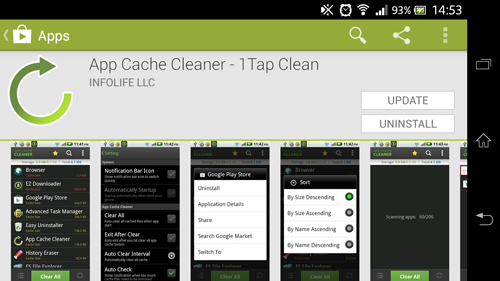
Step 2) Run that app and let it scan your Android
Step 3) The app identifies the cache size of all apps on your system. The cache is used to store app history, your login data, and any personal preferences. Clearing the cache can speed up Android performance and free up space on your storage device.
Step 4) You can use App Cache Cleaner to wipe out all cache data at once or just select which individual apps to clear
Step 5) If this doesn’t free up enough storage space, here are some other tips to consider:
-Uninstall large apps that you no longer use (go to the Application Manager to sort through apps by size)
-Connect your Android to a computer and copy over all pictures, songs, or videos that you don’t need to carry with you on your phone
-Buy an SD card and move all your multimedia files over to that card
-Root Android and backup all your data to the cloud, then delete it off your internal storage
If you’ve tried all of those tips and still need more space, then you’re in trouble. Buy a bigger SD card or perform a virus scan to make sure something bad isn’t clogging up your system space.
Method 2) Make sure you’re actually using your SD card
When I ran out of storage space on a mountain in Switzerland, I was confused. I had planned for the trip and bought an SD card. Unfortunately, my phone was saving my photos to my internal storage card – even though I specifically told it to save it to the ‘sdcard’ folder.
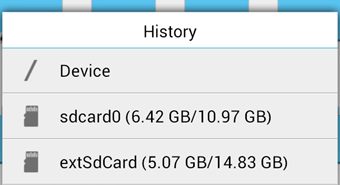
Here’s why I messed up:
-Your internal storage card is often labeled as
/sdcard0 in your phone’s file directory
-If you add an SD card, your SD card’s folder will be called
/sdcard1 or
ExtSDCard
This can be confusing. When my photos were being saved to a folder called /sdcard0,
I mistakenly thought that was the 16GB SD card I had just installed. Really, my SD card was empty and my internal storage was filling up, leading to my sudden storage problem.
To change this, open your camera app and go to the Settings menu. Look for the
Storage section and choose where you want to save your pictures. Some phones will give you the option between phone and memory card, while others will let you choose a specific folder.
To make sure your photos are properly being saved to your SD card, take a test photo and open it in the gallery. Tap the settings button and view the properties of the photo. Check its storage location and make sure it says /sdcard1, not /sdcard0. If so, then you’re in the clear!