Making use of the hotword, “Ok Google” to initiate a search or execute any command on your Android phone is undeniable one of the coolest things you can do to your Android device.
However, there just some users that just don’t like talking to their phones, it may be because it’s kind of weird for them or it’s just not their thing. So this article is written for those users.
There are several reasons why some users may want to disable the “Ok Google” functionality. As mentioned, it may be weird for them to talk to their phones, or they never use it at all. And maybe for some, it could be because some of them are sick of the false positives on regular conversations, which is totally understandable. And then there’s Google Assistant, which will be affected when you disable “Ok Google”. Assuming that your Android device has a Google Assistant, the good thing is that you can disable “Ok Google” without hastily changing how Google Assistant works. So instead of saying the hotword to open Assistant, all you have to do is to long press the home button which actually is a native function of Assistant.
But if you want to disable both the “Ok Google” and the Google Assistant, you can do that as well. Follow the instructions below if you want to disable only the “Ok Google” command or if you want to disable both the Assistant and “Ok Google”.
Depending on whether or not your Android device has Google Assistant, there are two different locations where you can disable Ok Google. The good thing is both of these locations are aware of one another so when you disable one location, it will also automatically disable the other one. That’s why we’re going to use the method that works well for everyone, regardless if you have Google Assistant or not.
Since all Android devices have the Google App installed by default, it has become an essential part on how Android functions. To the process of disabling Ok Google, follow the steps below.
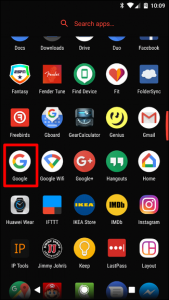
Step 1: Launch the Google App.
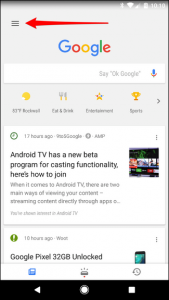
Step 2: After opening the Google App, look for three lines located on the upper-left corner or you could also slide in from the left side and then tap on it.
Step 3: From there, tap on Settings.
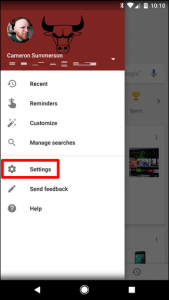
Take note that if you have Google Assistant, you can access Settings from there if you want to but since we’re looking for bit general option: Voice, and so we opt for the Google App.
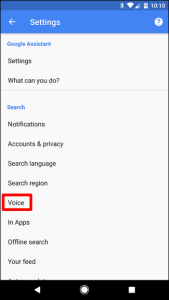
Step 4: Tap on Voice.
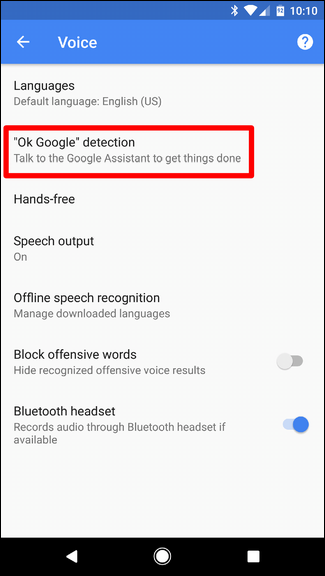
Step 5: After opening Voice, the second option in it
should be “Ok Google detection”. So if you see it, tap on it.
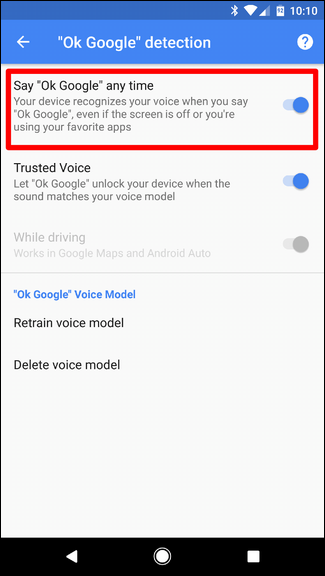
Step 6: And then tap the slider next to “Say Ok Google” anytime to disable the feature.
And that’s pretty much how to do it. Keep in mind though that Ok Google will still be on if you’re in the Google App or if you’re on the home screen when using the Google Now Launcher that is actually discontinued.