Your smartphone should save you time. Unfortunately for most people, their smartphones do the complete opposite.
If you’re sick of wasting time on your Android when you should be productive, then you’ll appreciate our list of the top 5 easiest ways to save time on your Android smartphone or tablet:
Find out more about an app by dragging it to your home screen
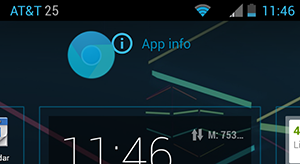
This one works on most Android devices with the major exception of the Galaxy S lineup. To find out more about an app without navigating through Settings menus, simply tap and hold on that app icon in the app drawer and drag it to your home screen. At the top of your home screen you’ll see a small ‘i’ with a circle around it that says
App info. Drag your app icon onto that and you’ll go straight to the application information menu.
Pro tip: If you’re on a smartphone that doesn’t support this feature, you can
install Nova Launcher to add that functionality to your phone.
Tap a contact’s photo to navigate to call, text, or email them
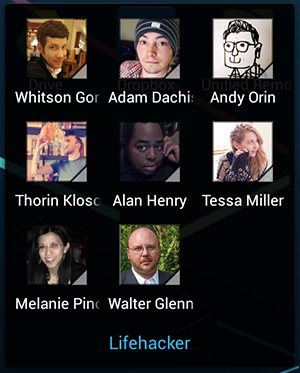
This is one of the oldest Android tips in the book, but it’s something that most Android users don’t use. This feature allows you to add photos of your friends to your phone’s homepage and tap those pictures when you need to call, text, or email your friends.
To access this feature, go to your app drawer and tap on
Widgets. Then, look for the 1x1
Contacts widget and drag it onto your home screen. You can also add this widget to a folder. Once it’s on your home screen, you can customize the widget t display any of your friends’ beautiful faces. From there, you’re just a tap away from contacting them using a number of different methods, including calling and emailing them (as well as any other messaging/calling apps you have installed).
Refine Google Play Store results to show the real app you’re looking for
Search for any popular app on the Google Play Store and you’re bound to find dozens of knockoff apps with similar names. This is a waste of your valuable time, but it’s also potentially dangerous to the security of your phone.
To refine your Google Play Store results, use classic Google search commands like:
Intitle:
Allintitle:
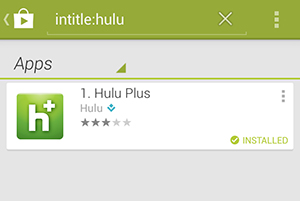
So if you’re searching only for apps with Hulu in the title, you’d type intitle:hulu.
Speed up your Android
All of the tips listed above are great, but let’s be honest: one of the most effective ways to limit time-wasting on Android is to speed up your device itself. You spend several minutes per day waiting for apps to load, starting up your phone, or switching between tasks.
There are a number of easy ways to speed up your Android, including:
-Clearing out your memory and deleting old files that you no longer use
-Moving files stored on internal storage to online cloud storage services like Dropbox or Google Drive
-Clearing app caches
-Reducing the number of widgets on your Android homescreen
-Rooting
Link your phone to your computer and text responses instead of typing them on your phone
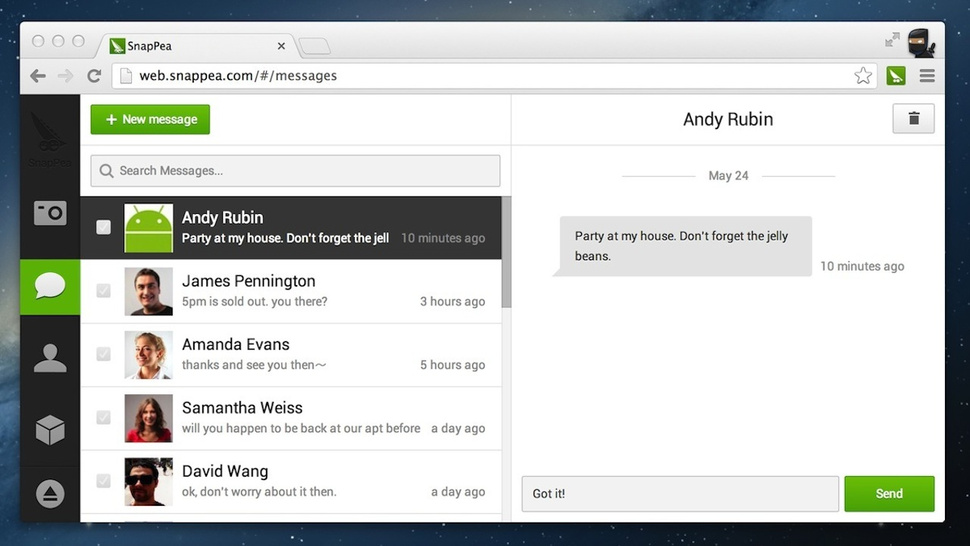
I don’t know about you, but I probably type 10 times as fast on my computer as I do on my Android. Maybe it’s my fat fingers or maybe it’s a knock against the Android keyboard. But one of the best time saving tips ever is to use one of many different PC/Android linking programs to connect your Android to your computer.
To do this,
install a program like SnapPea. SnapPea gives users total access to their Android phone when it’s connected to the same WiFi network as your PC. Yes, you have to enter passwords and input other security measures along the way, and once you’ve done that (it takes only a minute or two), then you can do all sorts of neat time-saving things, including:
-Texting from your PC’s keyboard
-Transferring files over the air to your Android
-Managing apps and other files
-Viewing contact information
Basically, SnapPea gives you control over your Android device from the comfort of your computer’s desktop. If you feel unproductive when you turn away from your PC to type on your tiny Android screen, then SnapPea is an excellent solution.