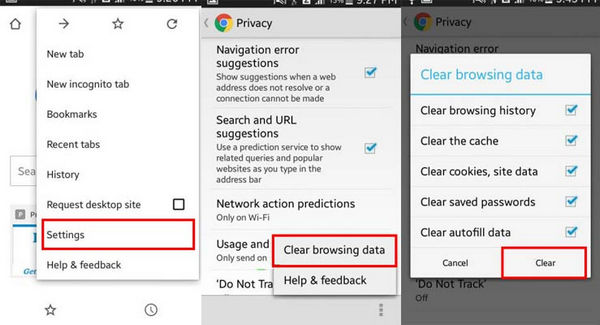
Have you noticed Chrome acting a little sluggish on your Android lately? It’s probably not your internet’s fault. Today, many Android users make common mistakes that can slow down Chrome’s performance.
If you’re like any internet user with half a brain, then you want the fastest internet speeds possible. With that in mind, let’s take a look at the 5 best ways to speed up Chrome for Android.
5) Switch Between Tabs by Swiping Across the Address Bar
You’ve probably figured out that you can drag down on a page to refresh it. But Chrome has other gesture controls that can speed up your experience.
My favorite Chrome gesture control is the ability to swipe left and right across the address bar to change from one open tab to the next. If you’re the type of person who likes having multiple tabs open, this is much easier than tapping that tiny number icon in the top right corner of your browser.
You can make this feature even more useful by dragging down from the address bar, which opens the tab list and lets you scroll through it in one swipe. If you just needed to peek at your other tabs, you can leave your finger on the screen and drag back up to close the tab list. Or, if you release your finger, you’ll open the tab you selected.
4) Highlight Text to Quickly Google Search Something
When you highlight text in Google Chrome, you get an option to copy, share, or select all. You’ve probably only ever noticed those three buttons.
But there’s one more button hidden down below. That button is a Google Search bar that highlights the word you just selected. Tap that button, and Google will perform a quick search for that term. The new search window appears in a miniature box on-screen, letting you view information at a glance.
If you want to view more information about that particular word, then you can slide it up to the top of the page to get regular search results.
To activate this feature, just long-press to highlight a word. That’s it.
3) Clear the Cache to Speed Up Chrome
Clearing the cache is a time-honored way to speed up any tech device. The cache is a good thing in the short-term: it saves data frequently used across your websites, saving time and speeding up Chrome.
Over time, however, it can become bloated and filled with unnecessary data, which means you should clear your cache from time to time. To do that, follow these steps:
Go to
Settings >
Apps (or Application Manager)
Scroll down until you see
Chrome
Select
Storage
Tap
Clear cache
That’s it! Your cache has been wiped out. This won’t clear any saved passwords or other data, but it may take a half-second longer to load your favorite websites the first time after clearing the cache.
2) Turn on Data Saver – Even If You Have Unlimited Data
Data saver is great if you do a lot of browsing away from Wi-Fi, but it’s also valuable for those who want to speed up Chrome. Even if you have an unlimited data plan, you might want to turn on Chrome’s Data saver feature to speed up the app.
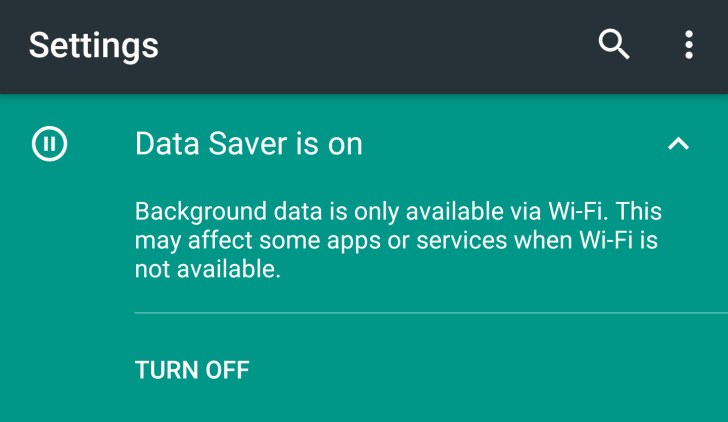
To turn on
Data saver, follow these steps:
Open
Chrome and go to
Settings (the three dots in the top right corner)
Select
Settings
Scroll down and tap
Data saver
Toggle the
Data saver setting on
1) Open Recent Tabs from All Your Devices
Have you ever opened a tab on your desktop, then wanted to read that as you’re walking around your house with your phone? You can open recent tabs across all your devices with a simple few taps.
The feature is automatically enabled on all your Chrome devices (as long as you’re signed in across all devices). Go to the settings menu (three vertical dots) in the top right corner of Chrome, then tap Recent Tabs.
From here, you’ll see a list of tabs opened across all your devices – including your tablets, smartphones, and computers running Chrome. You can view your full history, or even see recently-closed tabs.
By following the tips listed above, you can optimize Google Chrome speeds across all Android devices.