Continuing its trend of decoupling built-in applications from its Android OS, Google has released a standalone camera application to the Play Store. This application however works only on devices operating on Android 4.4 KitKat.
By making it a separate downloadable app from Google Play store, other Android phones can now enjoy the cool features of the camera available on the Google Nexus phones.
The
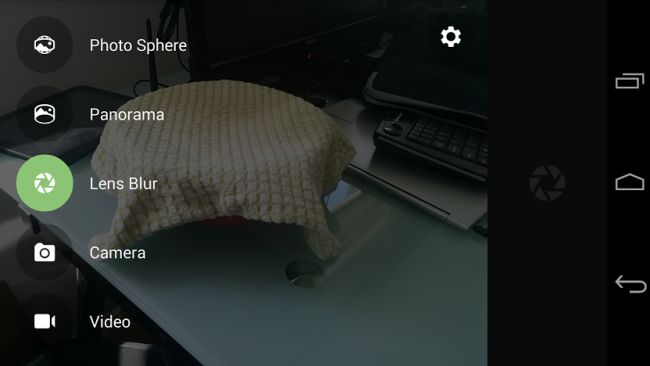
Google Camera App is very simple and fairly well designed. It has 5 functionalities. It has a sleek, simple and very easy to use interface. Everything is just a swipe or click away. You can change the camera mode at any point just by sliding to the right from anywhere and the modes will slide out from the left. If you want to view recently captured images, simply slide your finger to the left and it will open up the last image taken.
If you want the complete “Google experience”, then download Google Photos to give you even the gallery experience of the Google Nexus.
Using the Settings, you can change the front and rear facing camera resolutions, turn location on and off and even turn on manual exposure if needed.
You can zoom in and out by pinching the screen. When you pinch to zoom, you can see 2 bars that will show you how zoomed in the camera is. At the bottom are some quick settings – Flash, Exposure, Changing from front facing camera to the rear camera and an icon to see the grid while capturing an image.
The 5 Camera modes are Photo Sphere, Panorama, Lens Blur, Camera & Video.
- Camera :
The camera mode is simple, it allows you to click images.
- Video :
Basic video mode. Google always reminds you to take a video in landscape mode, since a video in portrait mode isn’t appealing.
- Panorama :
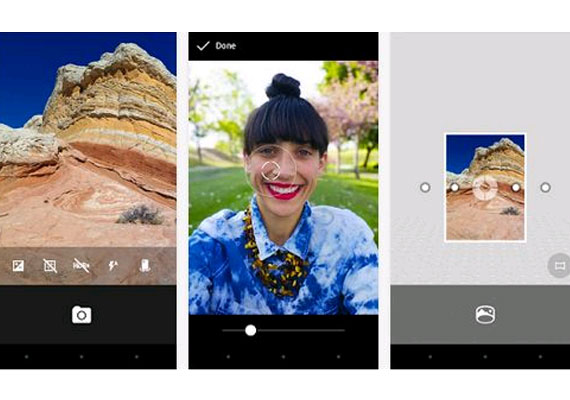
Google makes taking Panorama shots really easy using this app. It starts off by taking one picture and Google gives you a dot to follow trying to make sure your image is as steady as possible. Depending on the camera resolution, it can take a minute or 2 to process and render the image.
- Photosphere :
It’s almost the same concept as the Panorama mode. However, instead of just a landscape shot, this mode allows you to snap pictures in all directions and the system does the stitching. What you’re left with are photos that can be navigated giving the viewers an ‘inside the scene’ view.
- Lens Blur :
This mode allows you to emphasize the subject while blurring the background for an impressive depth of field effect.
The Google Camera app uses algorithms to simulate the large camera lens and aperture your phone or tablet doesn't actually have. Taking the photo requires an upward sweep to capture multiple images, used to estimate the depth of objects for a 3D map that lets the software re-render the photo later and blur specific items based on where it thinks they are.
Unlike a regular photo, Lens Blur lets you change the point or level of focus after the photo is taken. You can choose to make any object come into focus simply by tapping on it in the image. By changing the depth-of-field slider, you can simulate different aperture sizes, to achieve bokeh effects ranging from subtle to surreal (e.g., tilt-shift). The new image is rendered instantly, allowing you to see your changes in real time.
Google Camera is surely one of the best camera apps to come out in a long time, which is why it earned the default app status on Google’s popular Nexus 5 phone when it released. Now you can tap into the magnificence of this app too by downloading it on your Android device from Google Play Store.