Helpful Tips and Tricks for your Brand New Android Phone
4 min read
Whether you got an Android for Christmas or purchased one as a gift for yourself, thousands of new Android users activate their devices every day. If your Android experience is just beginning, here are some useful tips and tricks that will help you get the most out of your hot new device.
Androids are very stable. Most people will never experience a crash in their life. That being said, having a backup is always a good idea. Allow your Android to back itself up automatically by going to Settings> Backup and Restore and tapping the Keep this phone backed up with my Google account option.
Nobody likes to manually update their apps (right?). To allow your apps to always update automatically, be sure to tap the box that says Allow automatic updating when you start to download a new app. That way, you will be notified whenever an app needs to be updated. By tapping that notification, you can instantly update that app.
Google Maps is great – until you’re outside of data coverage or in a foreign country. If you want to avoid using costly data while still accessing the awesomeness that is Google Maps, connect your Android to a Wi-Fi network and tap the settings button in the bottom left corner of the screen. Then, tap the Make available offline button to download map data for the area that you’re currently looking at.
So if you’re heading to a foreign country and don’t want to lose mapping data, zoom in to the specific area that you need to access and then tap the Make available offline button.
Android has support for dozens of online accounts. When you add accounts to Android’s Sync features, it makes it easier to share photos, statuses, emails, or whatever and receive notifications through the notifications screen.
To add new accounts to your new Android, go to Settings and scroll down to the Accounts subheading. At the bottom of your list of existing accounts, you should see an option that says Add account. Tap that button to – you guessed it – add an account from a range of popular online services.
Google Now is seriously cool. All Android 4.1 and later devices come pre-installed with Google Now, which is basically Google’s answer to Siri. The main difference between Siri and Google Now is that Google Now is actually intelligent. ‘Now’ will keep track of the things you search for over time and attempt to answer questions before you ask them.
It will automatically show you the route home and the time it will take, for example, no matter where you are. If you’re constantly asking about the sports scores from last night, Google Now will start to automatically add those scores and highlights after a game. It’s a seriously cool app, and Google has put a lot of effort into making it as usable as possible. To access Google Now, just open your Google search bar.
For more useful Android tips and tricks, check out One Click Root’s extensive list of Android tips, tricks, secrets, and more.
Sign in with your existing Google account
Most people have a Google account. In their efforts to take over the internet, Google has linked everything from YouTube to Picasa accounts with a single Google account. When you get a new Android, you’ll be prompted to login with your existing Google account. Do this if you want to sync your Android with your calendar, email, YouTube subscriptions, Chrome bookmarks, etc.Back up your Android to your Google Account
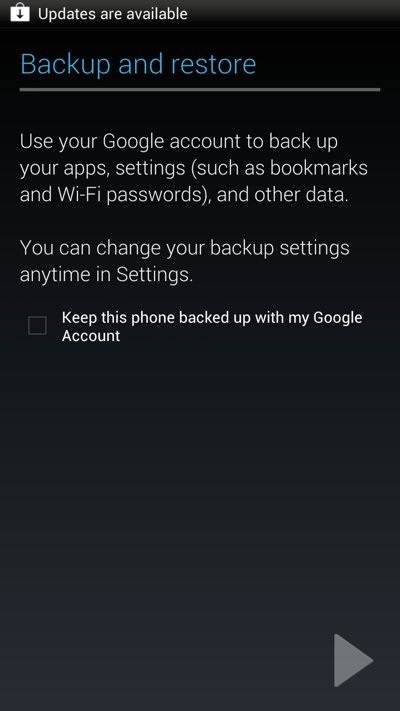
Androids are very stable. Most people will never experience a crash in their life. That being said, having a backup is always a good idea. Allow your Android to back itself up automatically by going to Settings> Backup and Restore and tapping the Keep this phone backed up with my Google account option.
Update apps automatically
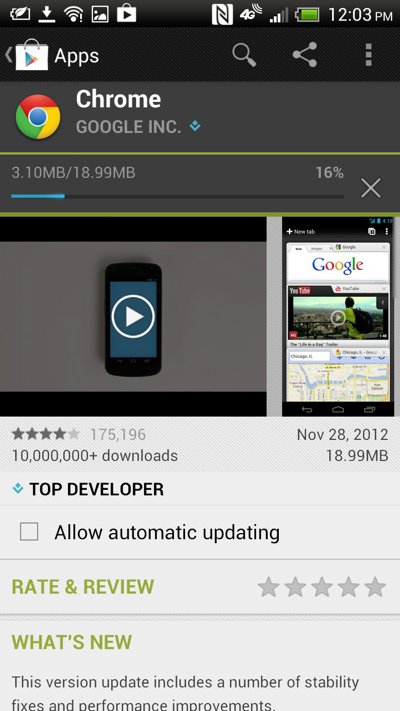
Nobody likes to manually update their apps (right?). To allow your apps to always update automatically, be sure to tap the box that says Allow automatic updating when you start to download a new app. That way, you will be notified whenever an app needs to be updated. By tapping that notification, you can instantly update that app.
Make Google Maps available offline
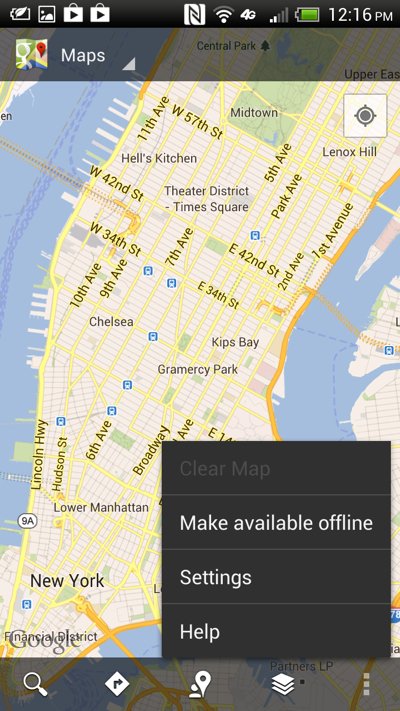
Google Maps is great – until you’re outside of data coverage or in a foreign country. If you want to avoid using costly data while still accessing the awesomeness that is Google Maps, connect your Android to a Wi-Fi network and tap the settings button in the bottom left corner of the screen. Then, tap the Make available offline button to download map data for the area that you’re currently looking at.
So if you’re heading to a foreign country and don’t want to lose mapping data, zoom in to the specific area that you need to access and then tap the Make available offline button.
Add accounts
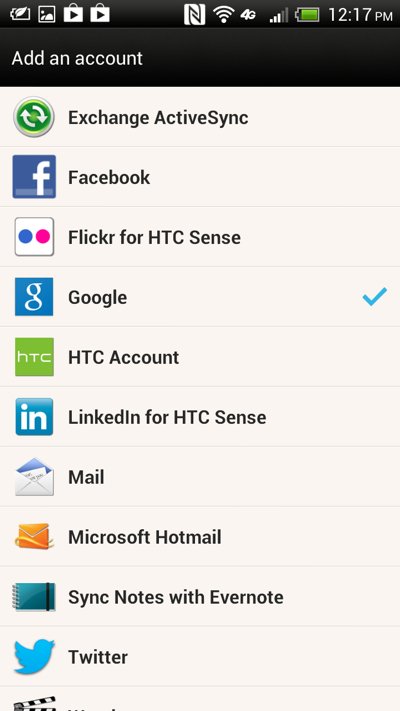
Android has support for dozens of online accounts. When you add accounts to Android’s Sync features, it makes it easier to share photos, statuses, emails, or whatever and receive notifications through the notifications screen.
To add new accounts to your new Android, go to Settings and scroll down to the Accounts subheading. At the bottom of your list of existing accounts, you should see an option that says Add account. Tap that button to – you guessed it – add an account from a range of popular online services.
Use Google Now
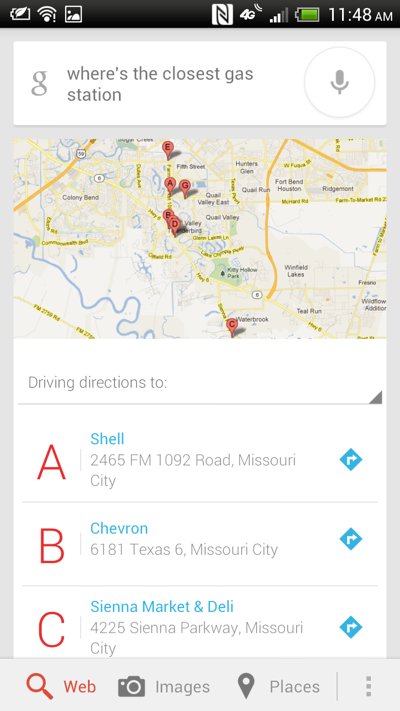
Google Now is seriously cool. All Android 4.1 and later devices come pre-installed with Google Now, which is basically Google’s answer to Siri. The main difference between Siri and Google Now is that Google Now is actually intelligent. ‘Now’ will keep track of the things you search for over time and attempt to answer questions before you ask them.
It will automatically show you the route home and the time it will take, for example, no matter where you are. If you’re constantly asking about the sports scores from last night, Google Now will start to automatically add those scores and highlights after a game. It’s a seriously cool app, and Google has put a lot of effort into making it as usable as possible. To access Google Now, just open your Google search bar.
For more useful Android tips and tricks, check out One Click Root’s extensive list of Android tips, tricks, secrets, and more.

One Click Root Author
Content Writer
Experienced writer covering technology and mobile development.
You Might Also Like
How-To
Android 14 Root Methods: What Changed?
Explore the new root methods and security changes in Android 14.
How-To
Latest Android Security Updates Impact Root Access
Understanding how the latest security patches affect root methods.
How-To
Google Pixel 8 Pro Root Guide Released
Complete step-by-step guide to rooting the Google Pixel 8 Pro.
Comments
JD
John Doe
2 days ago
Great article! Very informative and well-written. Thanks for sharing.
JS
Jane Smith
5 days ago
I found the security section particularly helpful. Looking forward to more content like this!
Leave a Comment
Newsletter
Get the latest tech news delivered to your inbox weekly.
Popular Posts
-
1
Getting Started with Android Development
12.5K views
-
2
Best Practices for Mobile Security
8.2K views
-
3
Understanding Smartphone Hardware
6.8K views