Most Android rooting experts know how to get into Android’s Safe Mode without even thinking of the button combination. But some users have never used Safe Mode before – and don’t know why they would ever want to.
Today, I’m going to teach you why Safe Mode can be a lifesaver on Android.
How Does Android Safe Mode Work?
Android Safe Mode is a lot like Windows Safe Mode. In Android Safe Mode, only critical Android system apps and processes run. There are no third party apps running – just the apps required for the most basic processes on your phone to work.
Why Does Android Safe Mode Help Me?
Android Safe Mode is something you don’t ever need to enter – until you
really need to enter it.
Today, some Android viruses lock you from your device from the moment you start it up. These ransomware viruses “hold your phone hostage” and force you to pay money to bypass your phone’s lock screen (I’m not kidding).
Android Safe Mode is the only real way to get around these viruses and other serious infections.
When you boot up in Android Safe Mode, you can easily uninstall these viruses just like you would uninstall any app you didn’t like.
Android Safe Mode even works if you’ve been stupid enough to grant a malware app root access (believe me, it happens often). Typically, malware apps need root access to start up when your phone starts up.
In any case, Android Safe Mode can help you with all of the following:
-Uninstall malicious Android apps that have been granted root access
-Uninstall apps that hold your phone for ransom (ransomware)
-Uninstall apps that prevent access to certain parts of your phone (some apps block the Google Play Store and the Application Manager, for example).
How to Boot Into Safe Mode
Rebooting into Safe Mode is really easy. There are two ways.
Method #1
Try these steps first:
Step 1) Power off your Android
Step 2) Press and hold down the Volume Down button and the Power button at the same time to start up your phone. Continue holding the Volume Down button after your screen lights up (but release the Power button).
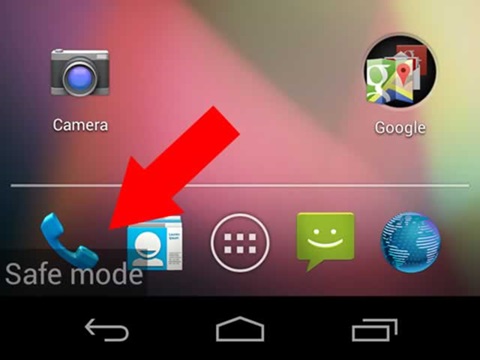
Step 3) Continue holding the Volume Down button until you reach the lock screen. Look for the Safe Mode icon in the lower left corner of your screen. If you see it, then you can release the Volume Down button and proceed.
Method #2
Alternatively, some phones let you restart into safe mode more easily. All you do is
hold down the Power button.
Then, when the phone asks whether you want to Power Off or Restart, you
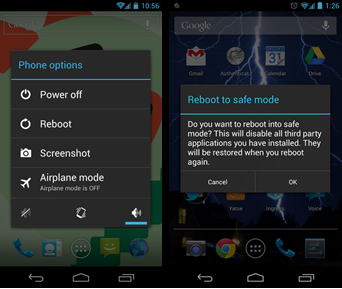
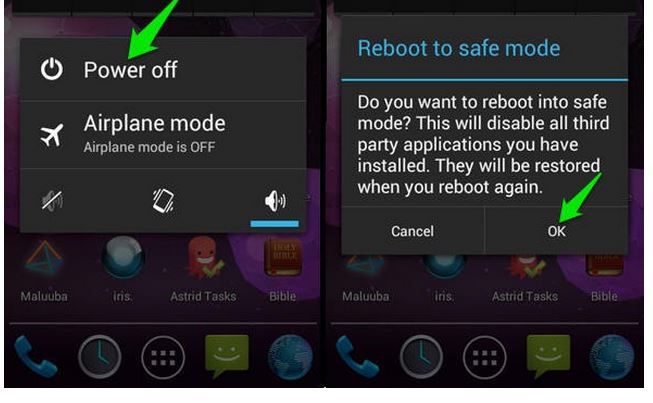
long press the Power Off button, then tap Reboot to Safe Mode from the next menu that pops up.
Sometimes, this menu only appears if you’ve activated the Developer Options menu from the Settings menu (where you tap Build Number 7 times). Otherwise, your best bet is to use the first method.
How to Fix Android Problems in Safe Mode
Safe Mode looks pretty normal. You’ll see the same Android desktop you know and love and all of your apps will be on the screen (although all third-party apps will be greyed out).
From here, you’re most likely going to want to go to
Settings >
Application Manager. Then, uninstall any offending apps or malware just like you would uninstall any app.
If Application Manager doesn’t work, then consider hooking your phone up to your computer to manually delete the offending files using Windows Explorer.