

How to access Developer Options in Android 4.2
2 min read
Android 4.2 was recently released on a select number of devices. Along with changes that were prominently advertised by Google – like improved keyboard options, Google Now, Photo Sphere, and better widget support on the desktop, there was another change that Google didn’t really mention: they disabled access to Developer Options.
The Developer Options section might not be valuable to the average Android user, but if you develop apps for Android or enjoy messing around with the inner workings of your phone, then there are plenty of useful features found under this menu.
Well, Google didn’t completely remove access to the Developer Options menu. They just made it more difficult to access. Keep reading to discover how to regain access to the Developer Options menu in Android 4.2:
Step 1) Go to the Settings menu
Step 2) Scroll down and tap on the About Phone link
Step 3) Scroll down until you see Build number and tap on that number seven times in a row
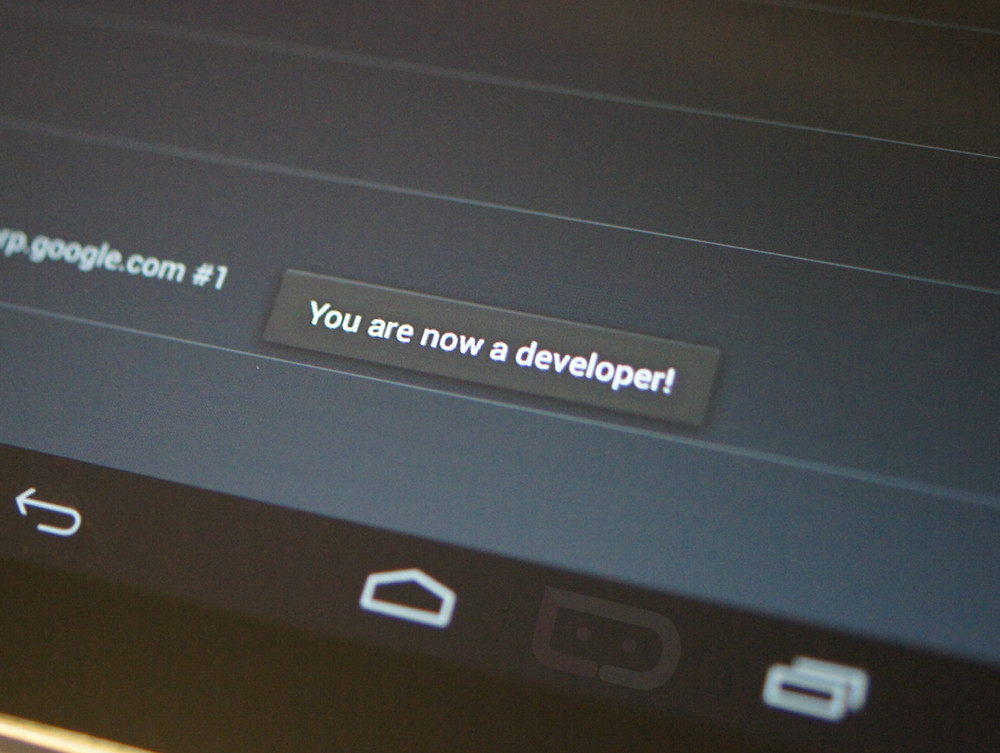
Step 4) After tapping the Build number button seven times, you will have successfully activated Developer Options.
Google didn’t just make it difficult to access the Developer Options menu; they basically turned the menu into a hidden Easter Egg. In any case, following the steps listed above will allow you to easily access Developer Options after the Android 4.2 update.
Newsletter
Get the latest tech news delivered to your inbox weekly.