

How to Add an Instant Dictionary to Android
2 min read
Android and iOS have many things in common. However, one thing that iOS users sometimes miss is their on-screen dictionary.
iPhone users – particularly iPhone users who don’t speak English as a first language – love this feature, as was discussed in this post. It’s a great way to quickly identify a word on a website, text, or email without having to switch to another app. Many people don’t use the pop-up dictionary, but those who do use it a lot.
Today, I’m going to show you that switching to Android doesn’t mean giving up your pop-up dictionary. Here’s how to easily add a pop-up dictionary to your Android device.
Step 1) Download and install an app called WordLookup: https://play.google.com/store/apps/details?id=com.icechen1.wordlookup
Step 2) Open any text, email, or webpage and, when you come across a word you don’t know, press and hold it to highlight it
Step 3) Press the Share button and choose WordLookup from the menu that pops up. If your Android is truly a smartphone, then it will display WordLookup first.
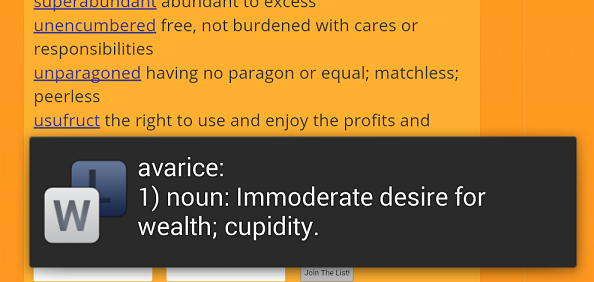
Step 4) WordLookup will pop up the definition on your screen. That definition will automatically disappear after a few seconds, although you can adjust the specific length of time from the app’s settings menu.
Other settings menu options include the ability to hear a word and definition out loud when you highlight it. The WordLookup option might not be as intuitive as the iOS system, but it’s an effective replacement if you’re really missing that feature on iOS.
Whether you’re learning English as a second language or just trying to improve your vocabulary, it’s easy to appreciate the usefulness of a pop-up dictionary.
Newsletter
Get the latest tech news delivered to your inbox weekly.