If you’re not using Snapchat to send picture messages these days, then you’re missing out. It’s a great way to let all of your friends know you’re doing something more interesting than they are.
You see, Snapchat isn’t just for sexting and, contrary to what some people believe, it’s not just for sending cute pictures of your cat. You can use it to send whatever multimedia you want.
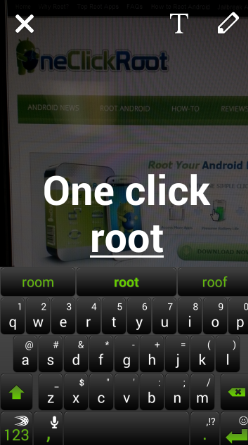
Thanks to a recent update, you can now change all sorts of different things about your Snapchat photos, including filters, text size, and more. Today, we’re going to show you how to do that and impress all your Snapchat
contacts:
Step 1) Download the latest version of Snapchat if you haven’t already done so
Step 2) Open Snapchat and swipe left. This will open your recent messages. Look for the ‘cog’ symbol in the top right corner of the screen and tap it.
Step 3) From the settings menu, look under the Additional Services headline and click Manage
Step 4) Tick the ‘Visual Filters’ checkbox to add new filters to Snapchat
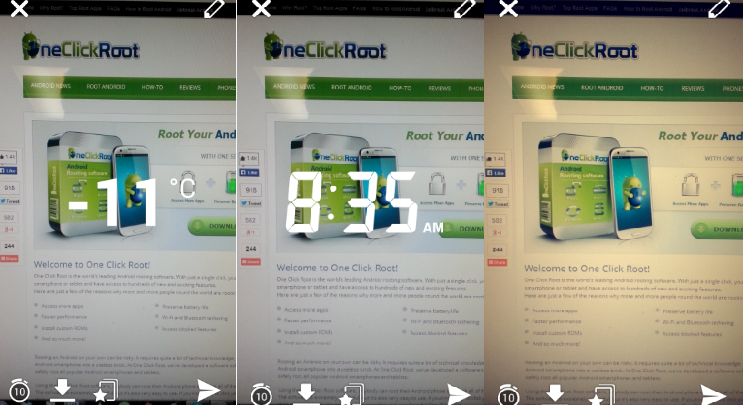
Step 5) You can also tick the ‘Smart Filters’ box to add weather-based Snapchat filters, or tick the Special Text box to give yourself more text customization options
Step 6) Take a Snapchat photo. Then, swipe left and right to change your filter.
Step 7) Tap anywhere on your image to add text, and then tap the big ‘T’ button in the top right corner to change text sizing
Other new Snapchat options
There are several other important options under the ‘Manage’ menu that you should be aware of. The first is the front-facing flash option, which people don’t generally enable because they know their phone doesn’t have a front-facing flashlight.
Nobody’s phone has that. That’s why Snapchat’s front-facing flash option simply turns your screen white, which can make a big lighting difference if you’re Snapchatting in a dark, lonely place.
The final option to tell you about is the ‘Replay’ option, which gives users the ability to look at their received Snapchats one more time. You read that right: the recipient can choose to review their latest Snapchat simply by ticking this option. It only works for your most recently received Snapchat, but this feature is a bit worrying to users who like their Snapchats to be discrete. Fortunately, it only allows one replay.
Snapchat is a strange little app that has somehow found become popular. If you like to go above and beyond on your Snapchats, then why not surprise your friends with a little sepia filter and supersized text next time?