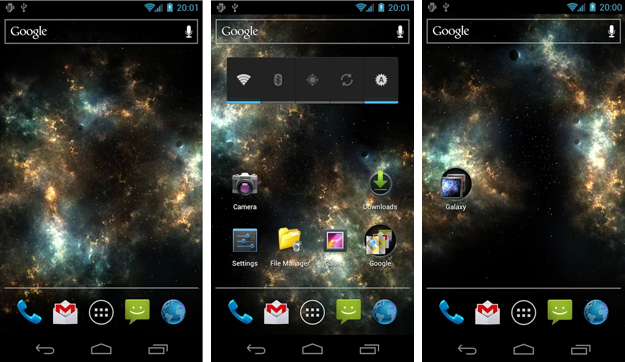
Most people have static Android wallpapers. Maybe it’s a picture you took on vacation or maybe it’s one of the default background Android images.
But Android wallpapers can be so much more than that. Android has something called ‘live wallpapers’. Live wallpapers move around and let users interact with them.
They’re pretty neat, but most Android users don’t ever get to experience live wallpapers. There are thousands of live wallpapers available for free on the Google Play Store, but just like apps, only a few are worth downloading.
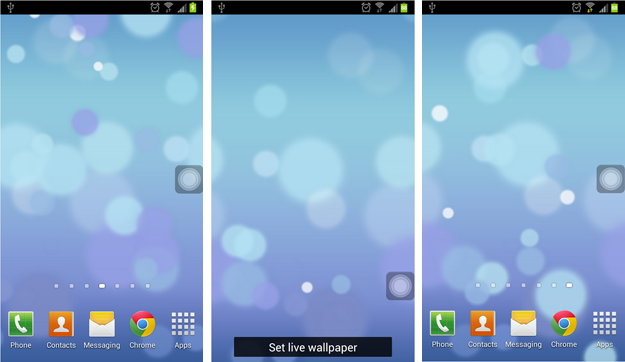
Want to experience the world of live wallpapers? Here is a brief guide to adding live wallpapers to your Android smartphone or tablet (and yes, it’s very easy to do):
Step 1) Tap and hold
on any blank spot on your homescreen
Step 2) Once the pop-up menu appears, tap
Wallpaper or
Set Wallpaper
Step 3) On some devices, you’ll need to go through another confirmation window that asks for
Home Screen,
Lock Screen, or
Home and Lock Screens. Choose wherever you want to add your live wallpaper
Step 4) Tap
Live Wallpapers
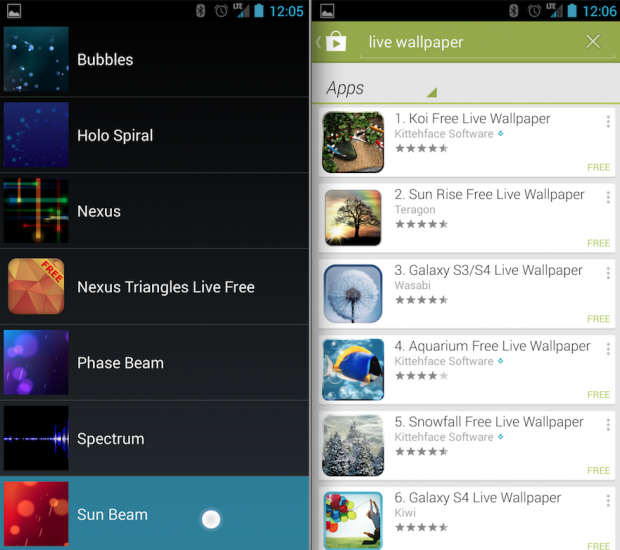
Step 5) Choose the live wallpaper you want. Most Androids come with a handful of default live wallpapers. You can choose a live wallpaper that reflects current weather patterns, for example, or a live wallpaper that delivers some news to you. You’ll get a preview of the live wallpaper before adding it to your device so don’t get too stressed out about this step.
Want to add more live wallpapers?
There are only a few different live wallpapers available by default on most Android devices. Fortunately, there are thousands more live wallpapers available from the Google Play Store. Here are some of the best live wallpapers I recommend:
-
Pixel Rain Live Wallpaper
-Nexus Triangles LWP Free
-
Nexus Revamped Live Wallpaper
-
Shadow Galaxy Live Wallpaper
-iOS7 Fantasy Live Wallpaper
Alternate instructions
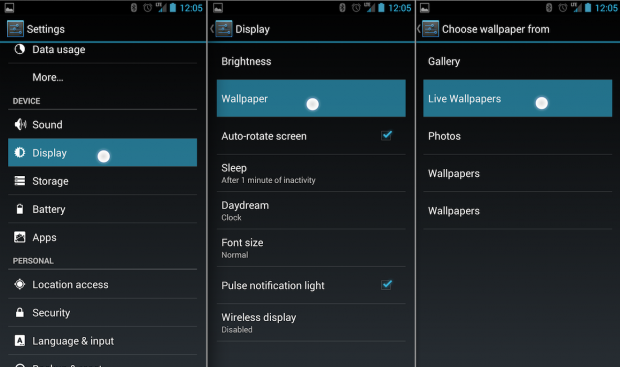
The instructions listed above will work for most Android devices. However, many Android manufacturers change what a long-press on the homescreen does, in which case the instructions listed above probably didn’t work. Instead, follow the instructions below:
Step 1) Go into the
Settings menu
Step 2) Select
Display >
Wallpaper >
Live Wallpaper
Step 3) Choose a live wallpaper or download alternate live wallpapers from the Google Play Store
Note: Live wallpapers tend to burn your battery life slightly faster than standard wallpapers. Use them wisely.