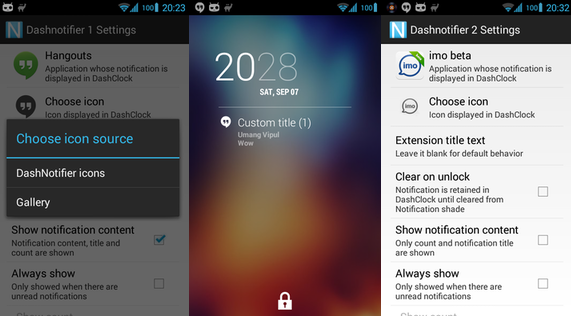
Lock screen notifications are available on a number of different Android custom ROMs and OSes. Unfortunately, a lot of Android users don’t have default access to lock screen notifications.
That’s unfortunate, because lock screen notifications are really useful. You can instantly see important facts about your phone without going to the trouble of unlocking it. You can look at what song is playing, for example, and see basic details of your latest texts and calls.
Are you ready to add lock screen notifications to Android? Today, I’m going to show you exactly how to do that by installing one simple app. You will need to have a smartphone or tablet running Android 4.2 or higher for this method to work.
How to add lock screen notifications
Step 1) Download and install
DashClock Widget for free from the Google Play Store: This is one of the most popular apps available for Android today. Unfortunately, it’s only available to users of Android 4.2 and up. However, it does offer extensive customizability options.
Step 2) DashClock Widget is useful enough on its own: it adds an aesthetically pleasing clock to your Android homescreen. However, the real value of DashClock Widget comes with the new apps and extensions you can add.
Step 3) XDA Forum Member ‘umax’ created an extension called DashNotifier which replicates the NotificationListener service in Android 4.3. and gives it the ability to display more than just Gmail messages. You can download DashNotifier
from the XDA Developers Forum here or directly from the
Google Play Store here
You will need to download and install DashClock Widget before you use DashNotifier.
Once you’ve installed DashNotifier, you’ll find a bunch of helpful customization options available. Go to the DashNotifier settings menu to choose exactly which apps should appear on your lock screen’s notifications page. You can set it to automatically display all unread notifications, for example, or choose to only display notifications from Facebook, Twitter, and Gmail.
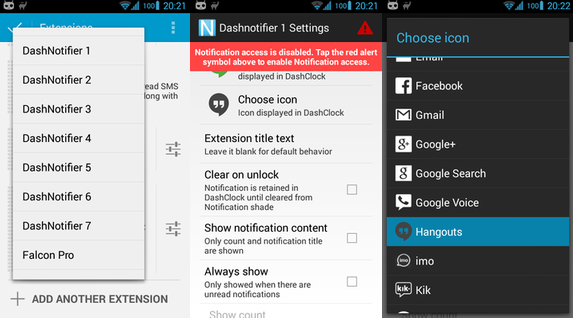
The best part about DashNotifier is that it looks really good. If you’re looking for an aesthetically pleasing way to display lock screen notifications on Android 4.2 or later, then the combination of DashClock and DashNotifier is an excellent option.
Download DashClock here first
And then download the DashNotifier extension here