

 Step 2) Download this launcher app and install it (if you can’t get that file to run on your device, then you may need to adjust your security settings to allow app installs from unknown sources)
Step 3) Tap your Android home button and choose the new ‘Launcher’ option in the screen that pops up. You can choose to run that launcher ‘Just Once’ to give it a try, or ‘Always’ if you want to go all-in.
Step 4) That’s it! You’ve now installed Android KitKat’s Google Experience Launcher. You can use this launcher on your phone by default or switch between GEL And your native UI.
A few weeks ago, third-party downloads of the Google Experience Launcher were unstable and unreliable. Now, it appears they’re finally fit for public consumption.
Once again, to add the unique Nexus 5 look and feel toy our Android device, all you need to do is download and install this file.
Step 2) Download this launcher app and install it (if you can’t get that file to run on your device, then you may need to adjust your security settings to allow app installs from unknown sources)
Step 3) Tap your Android home button and choose the new ‘Launcher’ option in the screen that pops up. You can choose to run that launcher ‘Just Once’ to give it a try, or ‘Always’ if you want to go all-in.
Step 4) That’s it! You’ve now installed Android KitKat’s Google Experience Launcher. You can use this launcher on your phone by default or switch between GEL And your native UI.
A few weeks ago, third-party downloads of the Google Experience Launcher were unstable and unreliable. Now, it appears they’re finally fit for public consumption.
Once again, to add the unique Nexus 5 look and feel toy our Android device, all you need to do is download and install this file.
How to Add the Minimalistic Nexus 5 UI to Any Android
2 min read
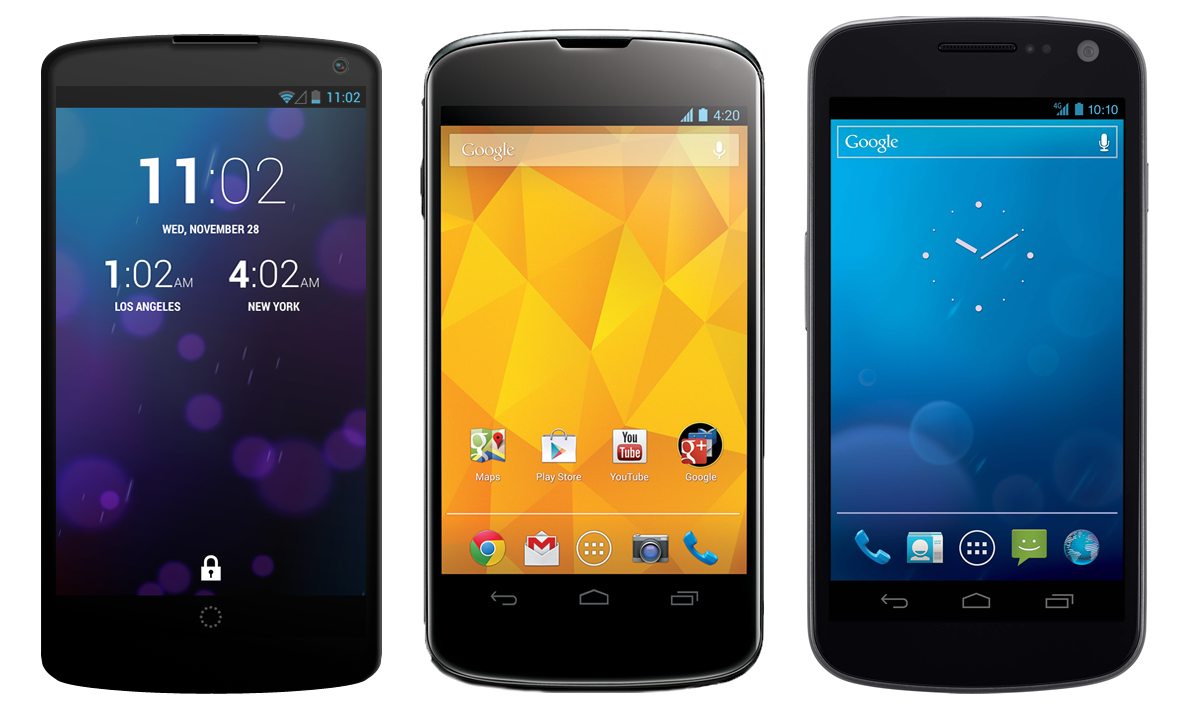
The Nexus 5 is a beautiful phone with a fantastic UI. It’s as pure as Android can possibly get.
On most phones, Android is heavily modified. Samsung modifies Android to create TouchWiz, and HTC modifies Android to create Sense. Some people like these UIs, while others prefer the plain look of vanilla Android.
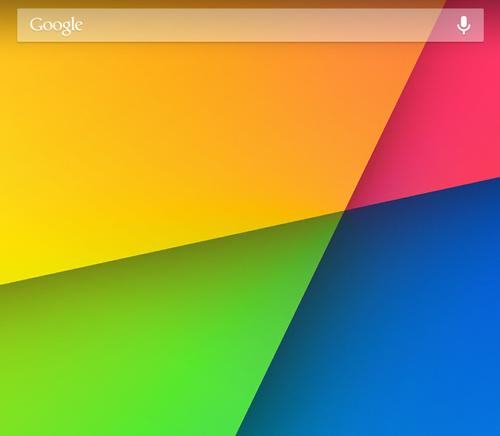
Fortunately, there is an easy way to add that minimalistic Nexus 5 look to any Android phone. Today, we’re going to show you exactly how to do that:
Step 1) Download the latest version of Google Search from the Play Store
Step 2) Download this launcher app and install it (if you can’t get that file to run on your device, then you may need to adjust your security settings to allow app installs from unknown sources)
Step 3) Tap your Android home button and choose the new ‘Launcher’ option in the screen that pops up. You can choose to run that launcher ‘Just Once’ to give it a try, or ‘Always’ if you want to go all-in.
Step 4) That’s it! You’ve now installed Android KitKat’s Google Experience Launcher. You can use this launcher on your phone by default or switch between GEL And your native UI.
A few weeks ago, third-party downloads of the Google Experience Launcher were unstable and unreliable. Now, it appears they’re finally fit for public consumption.
Once again, to add the unique Nexus 5 look and feel toy our Android device, all you need to do is download and install this file.
Step 2) Download this launcher app and install it (if you can’t get that file to run on your device, then you may need to adjust your security settings to allow app installs from unknown sources)
Step 3) Tap your Android home button and choose the new ‘Launcher’ option in the screen that pops up. You can choose to run that launcher ‘Just Once’ to give it a try, or ‘Always’ if you want to go all-in.
Step 4) That’s it! You’ve now installed Android KitKat’s Google Experience Launcher. You can use this launcher on your phone by default or switch between GEL And your native UI.
A few weeks ago, third-party downloads of the Google Experience Launcher were unstable and unreliable. Now, it appears they’re finally fit for public consumption.
Once again, to add the unique Nexus 5 look and feel toy our Android device, all you need to do is download and install this file.
Newsletter
Get the latest tech news delivered to your inbox weekly.