If you do a lot of web browsing on your Android device, then you undoubtedly noticed that websites look different on your phone than they do on your computer. And we’re not just talking about screen size.
That’s right: as you probably know, almost every website has a desktop version as well as a mobile version. If the website notices the internet user is coming from a mobile source – like a smartphone or tablet – then it will send you to the mobile version of that site without even having the common courtesy of asking you.
This is usually a good thing. Mobile websites are optimized for smaller screens and touch-screen compatibility. But it’s not always perfect. Sometimes, websites don’t spend enough time optimizing the mobile version of their websites. In other cases, you can only access a limited number of features through the mobile version.
That’s why you should learn how to permanently request the desktop version of sites on your mobile browser.
Switching Chrome to desktop-only mode (requires root)
For whatever reason, Google has made it exceptionally difficult to switch to desktop-only mode on its Android Chrome browser. There are two options here: you can follow the series of complicated steps listed at
this page on the XDA Developers forum (look for the post towards the end of the page).
Or you can simply install an app that instantly switches Chrome’s User Agent, which tricks websites into giving you the desktop version of the website. That app is called Chrome UA Switcher, and the only catch is that it requires rooting in order to function properly.
Step 1) Install Chrome UA Switcher by clicking here
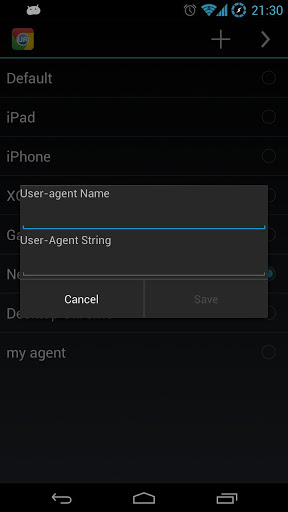
Step 2) Open the app and grant UA Switcher superuser permissions
Step 3) Choose the device that you want to trick websites into thinking you’re using (like a desktop computer)
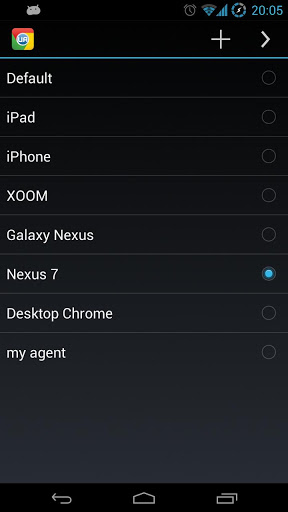
Step 4) Follow the steps and press ‘OK’ to change the user agent string in Chrome
Switching Firefox to desktop-only mode
Forcing Firefox to always access the desktop-version of mobile sites is also surprisingly difficult. However, you don’t have to root your device in order to do it:
Step 1) Open Firefox and type about:config into the address bar and press Enter
Step 2) A blank page will come up that shows an
Add a New Setting button. Tap that button.
Step 3) When prompted for the name of the setting, type in
general.useragent.override
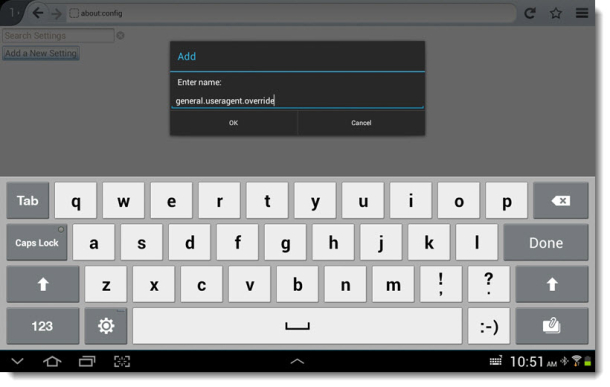
Step 4) Next, you need to enter the string of characters that identifies the device you’re tricking websites into thinking you’re using. Type in the following to mask your Android smartphone or tablet as the desktop version of Firefox for Windows 7:
Mozilla/5.0 (Windows NT 6.1; WOW64; rv:17.0) Gecko/20100101 Firefox/17.0
Once you’ve entered that line and pressed ‘OK’, restart Firefox and websites should automatically start to load the desktop versions.
You’re done! If you grow sick and tired of seeing the desktop version of websites, then you can easilyremove the override request at any time by going to the about:config window once more.