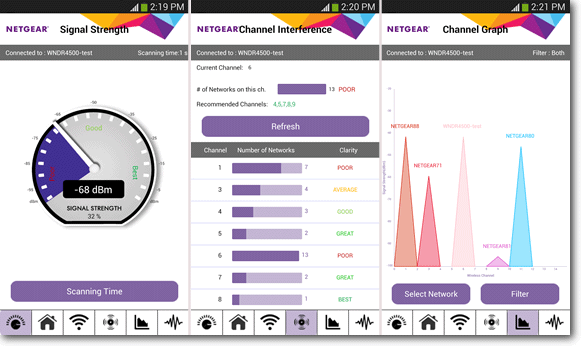
Does your home have crappy wireless coverage? If so, a free Android app can help.
Thanks to an app called
Netgear WiFi Analytics, you can measure the strength of your wireless signal throughout your house.
Some of the other features included in this app are:
-Check your network status
-Measure WiFi signal strength
-Identify crowded WiFi channels
-Find clear channels with less interference
This app works best as a troubleshooting tool. If you’re having wireless internet problems, then you may want to use the app to identify those problems.
Do You Need to Change your WiFi Channel?
One of the best things you can do with Netgear WiFi Analytics is decide whether or not you should change your WiFi channel.
If you live in a big city, an apartment, or a crowded condo block, then you may have noticed that your wireless signal is worse than it is in a more open space.
The reason, in many cases, comes down to WiFi signal crowding.
Specifically, WiFi signals can become crowded on a single channel. By default, routers pick their own channels. This can lead to a large number of routers in the same area operating on the same channel – which can lead to crowded network traffic.
Using Netgear WiFi Analytics, you can look at the channel information of all nearby wireless networks.
Take that information and find a channel that isn’t being used. Then, go to your router’s admin panel and switch your router to that channel.
In some cases, this can clear up significant internet problems. In other cases, it just leads to a small speed boost. But regardless, this is a good way to make a big impact on your router’s performance.
Consider Moving your Router
Netgear WiFi Analytics is also good at measuring signal strength around your house. You can keep track of the strength and speed of your wireless network in various parts of your home – like your office, living room, or basement, for example:
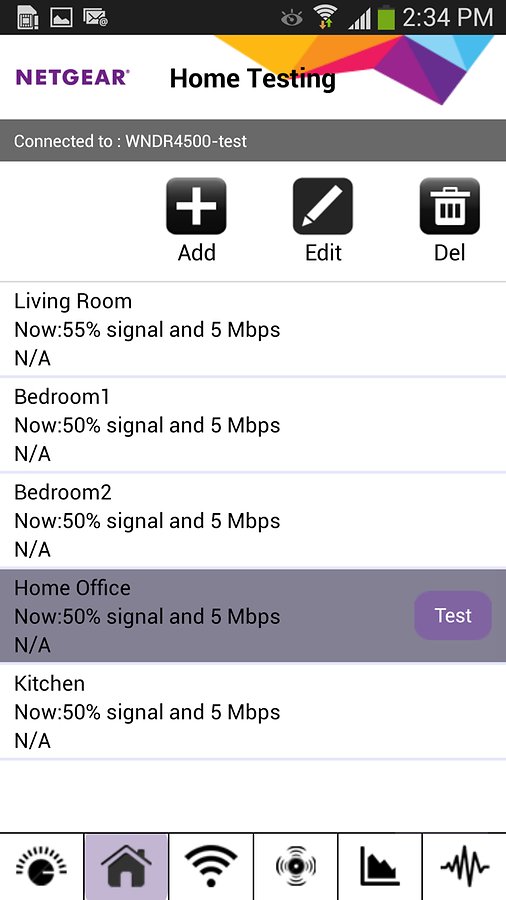
The signal strength indicator even comes with a nifty speedometer-like feature that indicates whether your connection strength is poor, good, or great.
Try playing around with your router’s positioning to see if you can improve the strength of the signal in some of the rooms in your house that you use most.
Download Netgear WiFi Analytics today from
here.