Just like Windows, Android has a feature called ‘safe mode’. Does that surprise you? Android’s safe mode can be used to troubleshoot app problems and prevent bricking and other issues. Accessing Safe Mode is very easy to do.
If you’re like most Android users (including me) who never even knew safe mode existed on Android, then read through this helpful guide to discover how to boot into safe mode today:
Ice Cream Sandwich devices (Android 4.0)

Step 1) Power your Android down
Step 2) Once your device has powered off, press and hold the volume down, volume up, and power buttons together
Step 3) Your Android will boot into safe mode
Jelly Bean devices (Android 4.1 and later)
Step 1) Press and hold the power button
Step 2) Wait for the power off menu to appear. Then, tap and hold the
Power off button and wait a few seconds.
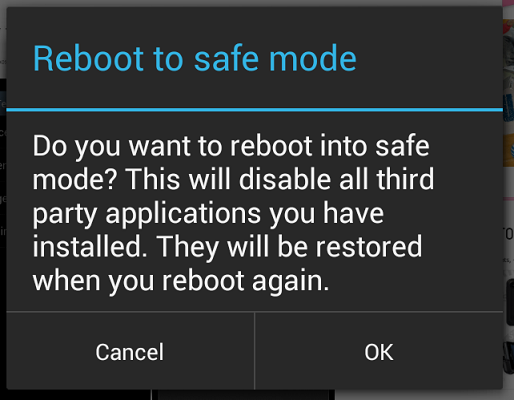
Step 3) A prompt will appear asking if you want to reboot into Safe Mode. Hit OK.
Step 4) Your device will reboot into safe mode. Good job!
Safe mode is a working Android environment with no third-party apps or widgets loaded. Android only loads the files it needs and then allows you to uninstall any apps you don’t like or troubleshoot other problems.
Why is safe mode useful?
Most Android users will never need to access safe mode in their lives. So why are we telling you about it? Well, safe mode can be used to troubleshoot a number of different Android problems, including:
-Troubleshoot app-specific problems that cause your device to slow down or even crash
-Remove a problematic widget or uninstall an app in safe mode
-If your Android device won’t boot normally, then booting into safe mode can save your life
-Troubleshoot viruses and malware, if you’re unfortunate enough to get a problem like that