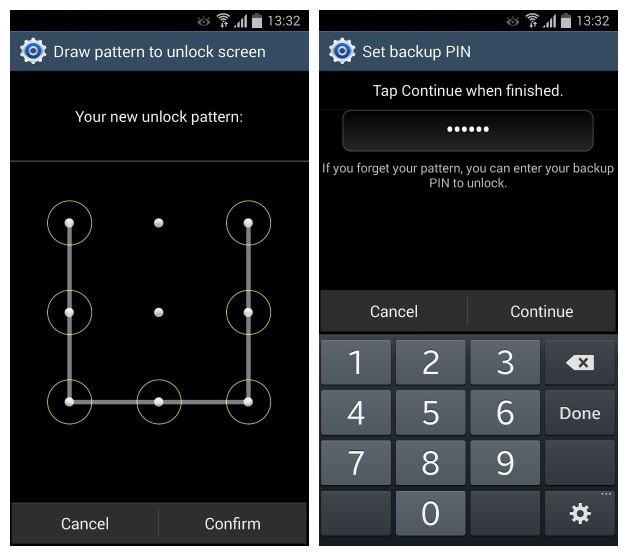
Many people have a pattern lock on their Android lock screen. The pattern lock is an effective way to safeguard your phone and it doesn’t take much time to enter.
Unfortunately, people forget their pattern locks all the time. Maybe you set your password when you were drunk, or maybe you have amnesia.
Whatever the reason may be, you need to access your phone and you need to access it now. Today, we’re going to show you exactly how to bypass the pattern lock on any Galaxy S3 or Galaxy S4 device:
Try 5 Times in a Row
Try guessing your unlock pattern several times in a row. Not once, not twice, not even three times, but FIVE times in a row.
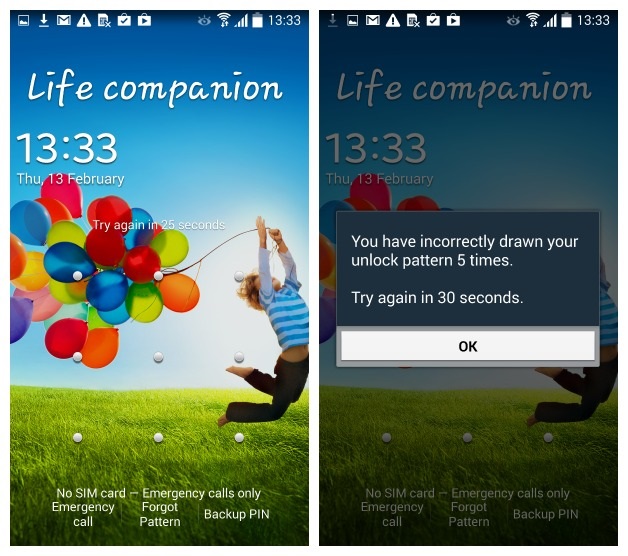
Once you’ve incorrectly guessed your pattern lock five times in a row, your Galaxy will get angry and demand that you wait 30 seconds before trying again. At this point, you are prompted with three different options:
-Emergency Call
-Forgot Pattern
-Backup PIN
Remember when you first setup your pattern lock and you were prompted to enter a backup PIN? Now is the time to use it, so hopefully you know that PIN. Tap the Backup Pin button and enter your four digits.
If you were smart, you made that PIN totally unique and saved that information in an encrypted, secure space. But if you were like most people, you used the same PIN as your bank account. Whatever you chose to do, enter your PIN now.
After entering your PIN, you’ll be taken to a screen where you can change your security settings.
I forgot my pattern lock and PIN
Wow, really dude?
Okay, don’t panic: after entering your incorrect pattern lock, you’ll see a few different options appear on the lock screen, including “Backup PIN” and “Forgot Pattern”. You clicked on the Backup PINM option in the previous step, but now you need to tap on the Forgot Pattern option.
Here, you’ll need to enter your email and password for your Google account. If you’re absolutely useless at remembering things and forgot your email too, then you can enter your username.
After entering your PIN or your Google account info, you’ll be prompted to setup a different security system. Maybe choose something other than “pattern unlock” this time, hey?