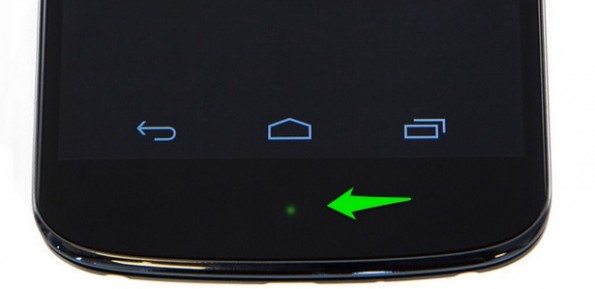
Your Android’s LED is an important part of your device. It lets you see notifications without actually picking up your Android.
Your LED switches colors according to the type of notifications you’re receiving. It flashes blue for emails, texts, and missed calls, for example. It flashes white for Google+ notifications and green for Twitter or Facebook (obviously, the specific colors used by your device may vary).
You can change your Android LED colors around using a simple app. Today, I’m going to show you how to do that:
Step 1) Download this free app called
Light Manager – LED Settings
Step 2) After the installation process, you’ll need to grant the app access to your notification settings. You can’t do this from within the app – you have to go to your Android settings menu. To do that, go to Settings > Security > Notification Access and then check the box beside Light Manager.
Step 3) Once you’ve done that, you have free reign over your LED settings. Take a look at some of the settings available through the Light Manager front page:
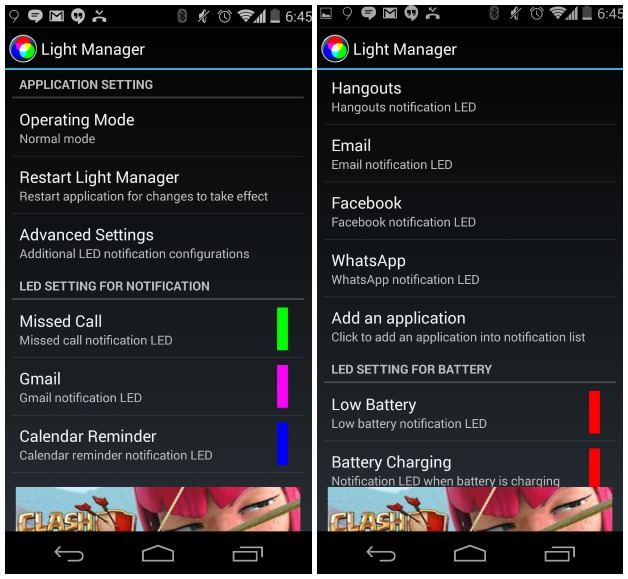
Possible LED changes include:
-Change LED settings for notifications from all your apps, email clients, messengers, etc.
-Change colors for network connections – like when you have Wi-Fi, 3G, or 4G
-Change system status LED settings, like when your phone is on flight mode
-Change colors for notifications from certain contacts – like your significant other
-Alter LED colors based on hex codes
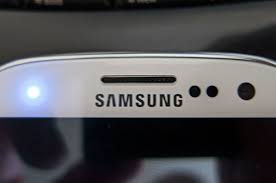
-Change flash rates and the frequently of flashing
LEDs are energy efficient and hardly place any strain on your Android’s battery life, so Light Manager shouldn’t negatively affect your battery life in any way.
Basically, with Light Manager, you can change how your LED reacts to every incoming notification. If you’re tired of your SMS and email notifications having the same “flashing blue” LED reminder, then Light Manager can help you solve that problem.
The app is free but supported by ads.
Download it here.