

Why Accurate Time is Important
Accurate time on your Android is essential for several reasons. Firstly, it ensures that your schedules and appointments are consistently aligned, helping you stay organized and on track. Timely notifications, such as reminders and alerts, rely on accurate time settings to function effectively. Moreover, many apps and services synchronize their data based on the device's time, ensuring that updates and information are received in a timely manner. For instance, some productivity apps like Traqq rely on accurate time to track work hours and activities precisely. This makes sure the recorded info is up-to-date, helping you manage time well and trust the data you have. Additionally, communication apps, like messaging platforms, depend on accurate time settings to organize conversations chronologically. This way you can follow conversations easily. In sum, when your device's time is accurate, everything runs smoothly, making it easier for you to stay organized and get things done on time.Set Your Android's Date and Time Manually
To set your Android's date and time manually, follow these steps:- Open the Settings on your phone.
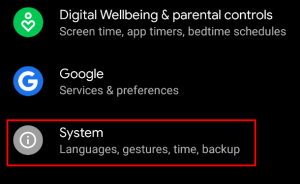
- Select General Management (for Samsung) or System (for other Android devices).
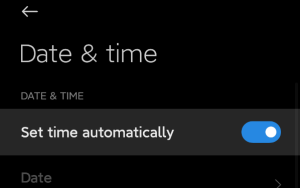
- Find and select Date & Time.
- Switch off the toggle for Set time automatically or any similar automatic setting.
- Once automatic settings are disabled, you can now set the date and time manually. You also can adjust such settings as your time zone, time format, and more.
Set Your Android's Date and Time Automatically
- Go to Settings > General Management / System > Date & Time.
- Turn on the toggle switch for Set time automatically or a similar automatic setting. This allows your device to synchronize with the network time automatically.
- If there is an option for Automatic time zone, enable it to let your device determine and set the time zone automatically based on your location.
Change Time and Date via the Clock App
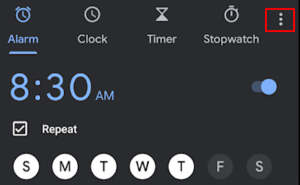
Changing the time on your Android is also possible via the Clock app:- Locate the Clock app on your Android device. It's typically pre-installed and may have an icon that looks like a clock. Tap on it to open the app.
- Within the Clock app, look for a settings icon. It usually looks like three vertical dots. Tap on this icon to access the Clock settings.
- Choose Change date & time to adjust settings.
Check Daylight Saving Setting
Sometimes, you may find your Android time is wrong by an hour. In this case, the issue could be with device's daylight saving settings. First, you need to make sure that your time zone is correct. Go to Settings > General Management / System > Date & Time. If your time zone is wrong, click on Time zone and pick the appropriate one from the list. Additionally, check that Set time automatically is turned on. If it's not on, switch the toggle to enable it.Update Android
If you still have problems with your time and date on Android, make sure that your operating system is up-to-date. It is crucial for resolving various issues, including time discrepancies.- Go to Settings.
- Select Software Update or System, and check for any available updates.
- Inside the update section, tap on Check for Updates.
- If there are any updates available, your device will let you know. Just follow the instructions on the screen to download and install them.
- You may be asked to restart your device to complete the process.