Compressing and extracting files helps keep things organized on PCs. It’s an easy way to transfer multiple files or really large files. But unfortunately, Android often has trouble opening compressed files.
Today, I’m going to show you how easy it is to compress and extract files on Android.
Compressing files on Android
This one’s easy:
Step 1) Download an app called ZArchiver for free from the Google Play Store
Step 2) Go to your Android file manager
Step 3) Look at the icons in the top right corner of the file explorer menu and tap the one on the far right
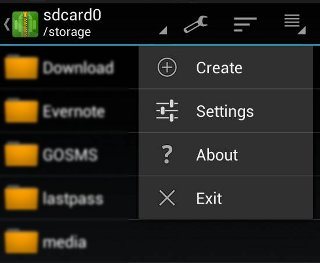
Step 4) Click
Create
Step 5) Tap
archive and choose which compression format you want – 7z, .zip, or TAR (7z and .zip tend to be the more popular compression formats)
Step 6) At this point, you can also choose whether or not you want to add a password to the .zip folder. You can also split the archive into multiple volumes.
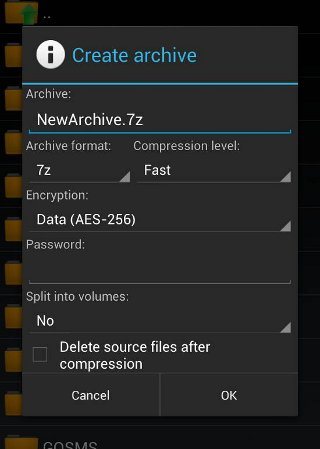
Step 7) Tap the files that you want to add to the compressed folder and then tap the down arrow to create a compressed archive
Extracting files on Android
If someone has emailed you a compressed file, then here’s some good news: extracting files on Android is even easier.
Step 1) Open ZArchiver and find the archived folder using the file manager
Step 2) Tap on the archive at which point you can choose to
View the contents of the file,
Extract a single file, or
Extract all the files.
Compatible compression file types on Android
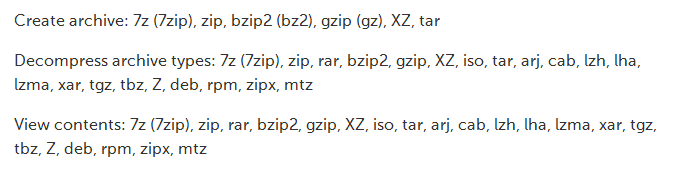
Not sure if your compression or extraction adventure will work on Android? Here’s a list of all compatible file types: