How to Customize Android LED Notifications (No Root Required)
2 min read
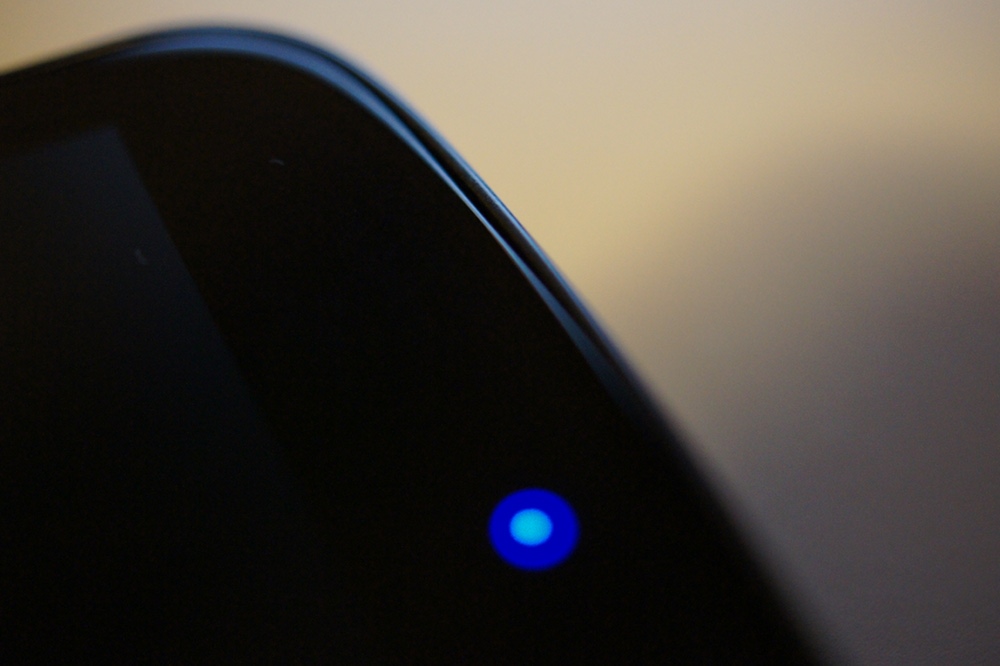
Your Android LED tells you a lot about your notifications. Different colors correspond to different app notifications, making it easy to see which program is trying to get your attention.
Snapchat notifications are yellow, for example, while SMS and email notifications trigger a blue LED.
Today, we’re going to show you how to easily customize your Nexus 5 LED notifications without rooting your device. You can follow this guide to control all notifications
Step 1) Download an app called Light Flow Lite here
Step 2) Install the app
Step 3) Open Light Flow Lite and enable the Notification feature
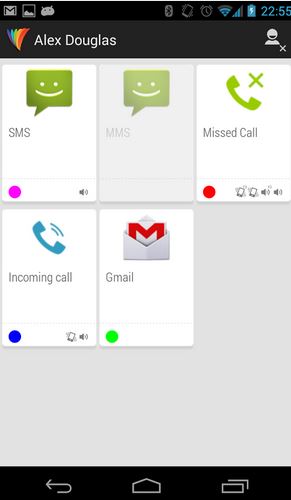
Step 4) From the main page of the app, you should see various commands and options, including Settings, Notifications, Tools, Volume, and more. Start by tapping Notifications.
Step 5) Tap on whichever app you want to change
Step 6) From this menu, you can change all three ways in which an app notifies you: notification, light, and sound. You can enable or disable the light, change its color, duration, flash rate, and more.
I like Light Flow Lite because it has a simple, easy-to-understand interface. It doesn’t require you to edit complex controls and everything can be modified directly from the app’s settings menu.
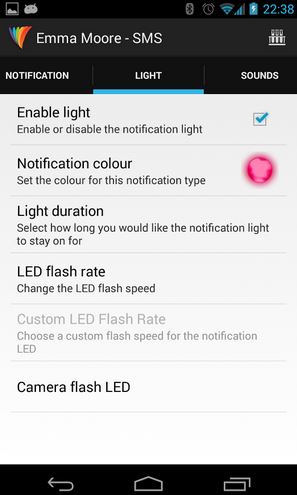
You can change notification messages, LED colors, and vibration patterns for all of the following aspects of your Android:
-SMS/MMS/SMS popup messages
-New emails and Gmail messages
-Low battery warnings
-Google Talk notifications and Google Hangout messages
-Bluetooth connectivity
-No signal
-Silent mode
-Missed calls
-Calendar reminders
Basically, you can control notification information for everything on your phone. If you don’t like the way a particular app is flashing, then Light Flow Lite is the easiest way to edit settings in seconds.
You can download Light Flow Lite today from here: https://play.google.com/store/apps/details?id=com.rageconsulting.android.lightflowlite

Step 4) From the main page of the app, you should see various commands and options, including Settings, Notifications, Tools, Volume, and more. Start by tapping Notifications.
Step 5) Tap on whichever app you want to change
Step 6) From this menu, you can change all three ways in which an app notifies you: notification, light, and sound. You can enable or disable the light, change its color, duration, flash rate, and more.
I like Light Flow Lite because it has a simple, easy-to-understand interface. It doesn’t require you to edit complex controls and everything can be modified directly from the app’s settings menu.
You can change notification messages, LED colors, and vibration patterns for all of the following aspects of your Android:
-SMS/MMS/SMS popup messages
-New emails and Gmail messages
-Low battery warnings
-Google Talk notifications and Google Hangout messages
-Bluetooth connectivity
-No signal
-Silent mode
-Missed calls
-Calendar reminders
Basically, you can control notification information for everything on your phone. If you don’t like the way a particular app is flashing, then Light Flow Lite is the easiest way to edit settings in seconds.
You can download Light Flow Lite today from here: https://play.google.com/store/apps/details?id=com.rageconsulting.android.lightflowlite

One Click Root Author
Content Writer
Experienced writer covering technology and mobile development.
You Might Also Like
How-To
Android 14 Root Methods: What Changed?
Explore the new root methods and security changes in Android 14.
How-To
Latest Android Security Updates Impact Root Access
Understanding how the latest security patches affect root methods.
How-To
Google Pixel 8 Pro Root Guide Released
Complete step-by-step guide to rooting the Google Pixel 8 Pro.
Comments
JD
John Doe
2 days ago
Great article! Very informative and well-written. Thanks for sharing.
JS
Jane Smith
5 days ago
I found the security section particularly helpful. Looking forward to more content like this!
Leave a Comment
Newsletter
Get the latest tech news delivered to your inbox weekly.
Popular Posts
-
1
Getting Started with Android Development
12.5K views
-
2
Best Practices for Mobile Security
8.2K views
-
3
Understanding Smartphone Hardware
6.8K views