

 The default keyboard on your Android device learns new words and adapts to your writing style. This allows it to suggest words as you type. However, the keyboard also learns and saves misspelled words. You must delete learned words from your Android keyboard.
Google devices have a special option for deleting learned words from the keyboard, but most other devices do not. Here is how to do it on Google devices and a method that will work on Samsung and LG devices, and other brands of Android devices.
Delete Learned Words from a Google Device
Swipe down once from the top of the screen and tap the "Settings" (gear) icon to delete unwanted learned words from your device.
Then tap "Languages & input".
Tap "Virtual keyboard" option on the "Languages & input" screen
Tap "Gboard", the default keyboard on Google devices.
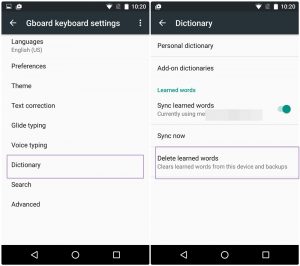
Tap "Dictionary" on the "Gboard keyboard settings" screen and then tap "Delete learned words".
Since you cannot undo this operation, a confirmation dialog box will appear to make sure you want to delete learned words. Enter the number in the dialog box and then tap "OK".
"Cleared" displays below "Delete learned words" when the learned words are deleted.
Learned words previously collected and saved on your device are now deleted. But the device will begin learning words and save them again as you type. If you don't want the data saved, you will need to clear the data for your keyboard from time to time.
If you don't want your device learning words and saving them, just follow the steps as instructed on the photo below.
Clear Data & Cache on a Samsung or LG Device
Samsung and LG devices do not have the same setting to delete learned words as Google devices. But there is a way to do the same thing that will work on Samsung and LG devices, and on other Android devices.
Swipe down once (or twice, depending on the device) from the top of the screen and tap the "Settings" (gear) icon.
Tap "Apps" and then tap the menu button (three vertical dots) at the top of the screen.
Tap "Show system apps" ("Show system" on LG devices) on the pop-up menu.
Next, tap "Samsung Keyboard", or the name of the keyboard on your device, such as "LG Keyboard".
Tap "Storage" on the "App Info" screen for the keyboard.
Then, tap "Clear Data".
A confirmation dialog box will appear to make sure you want to delete all the data for the keyboard. Tap "Delete" to continue.
Clearing the data also clears the cache, so both buttons are grayed out once the data is cleared.
If you don't want your device learning words and saving them, do as instructed at the photo below.
The default keyboard on your Android device learns new words and adapts to your writing style. This allows it to suggest words as you type. However, the keyboard also learns and saves misspelled words. You must delete learned words from your Android keyboard.
Google devices have a special option for deleting learned words from the keyboard, but most other devices do not. Here is how to do it on Google devices and a method that will work on Samsung and LG devices, and other brands of Android devices.
Delete Learned Words from a Google Device
Swipe down once from the top of the screen and tap the "Settings" (gear) icon to delete unwanted learned words from your device.
Then tap "Languages & input".
Tap "Virtual keyboard" option on the "Languages & input" screen
Tap "Gboard", the default keyboard on Google devices.
Tap "Dictionary" on the "Gboard keyboard settings" screen and then tap "Delete learned words".
Since you cannot undo this operation, a confirmation dialog box will appear to make sure you want to delete learned words. Enter the number in the dialog box and then tap "OK".
"Cleared" displays below "Delete learned words" when the learned words are deleted.
Learned words previously collected and saved on your device are now deleted. But the device will begin learning words and save them again as you type. If you don't want the data saved, you will need to clear the data for your keyboard from time to time.
If you don't want your device learning words and saving them, just follow the steps as instructed on the photo below.
Clear Data & Cache on a Samsung or LG Device
Samsung and LG devices do not have the same setting to delete learned words as Google devices. But there is a way to do the same thing that will work on Samsung and LG devices, and on other Android devices.
Swipe down once (or twice, depending on the device) from the top of the screen and tap the "Settings" (gear) icon.
Tap "Apps" and then tap the menu button (three vertical dots) at the top of the screen.
Tap "Show system apps" ("Show system" on LG devices) on the pop-up menu.
Next, tap "Samsung Keyboard", or the name of the keyboard on your device, such as "LG Keyboard".
Tap "Storage" on the "App Info" screen for the keyboard.
Then, tap "Clear Data".
A confirmation dialog box will appear to make sure you want to delete all the data for the keyboard. Tap "Delete" to continue.
Clearing the data also clears the cache, so both buttons are grayed out once the data is cleared.
If you don't want your device learning words and saving them, do as instructed at the photo below.
How To Delete Learned Words From Your Android Device's Keyboard
3 min read
The default keyboard on your Android device learns new words and adapts to your writing style. This allows it to suggest words as you type. However, the keyboard also learns and saves misspelled words. You must delete learned words from your Android keyboard.
Google devices have a special option for deleting learned words from the keyboard, but most other devices do not. Here is how to do it on Google devices and a method that will work on Samsung and LG devices, and other brands of Android devices.
Delete Learned Words from a Google Device
Swipe down once from the top of the screen and tap the "Settings" (gear) icon to delete unwanted learned words from your device.
Then tap "Languages & input".
Tap "Virtual keyboard" option on the "Languages & input" screen
Tap "Gboard", the default keyboard on Google devices.
Tap "Dictionary" on the "Gboard keyboard settings" screen and then tap "Delete learned words".
Since you cannot undo this operation, a confirmation dialog box will appear to make sure you want to delete learned words. Enter the number in the dialog box and then tap "OK".
"Cleared" displays below "Delete learned words" when the learned words are deleted.
Learned words previously collected and saved on your device are now deleted. But the device will begin learning words and save them again as you type. If you don't want the data saved, you will need to clear the data for your keyboard from time to time.
If you don't want your device learning words and saving them, just follow the steps as instructed on the photo below.
Clear Data & Cache on a Samsung or LG Device
Samsung and LG devices do not have the same setting to delete learned words as Google devices. But there is a way to do the same thing that will work on Samsung and LG devices, and on other Android devices.
Swipe down once (or twice, depending on the device) from the top of the screen and tap the "Settings" (gear) icon.
Tap "Apps" and then tap the menu button (three vertical dots) at the top of the screen.
Tap "Show system apps" ("Show system" on LG devices) on the pop-up menu.
Next, tap "Samsung Keyboard", or the name of the keyboard on your device, such as "LG Keyboard".
Tap "Storage" on the "App Info" screen for the keyboard.
Then, tap "Clear Data".
A confirmation dialog box will appear to make sure you want to delete all the data for the keyboard. Tap "Delete" to continue.
Clearing the data also clears the cache, so both buttons are grayed out once the data is cleared.
If you don't want your device learning words and saving them, do as instructed at the photo below.
Newsletter
Get the latest tech news delivered to your inbox weekly.