How to Easily Block Calls on Android
3 min read
Maybe you’ve got a crazy ex-girlfriend. Or maybe you keep getting calls from one annoying telemarketer.
But whatever the reason may be, you need to learn how to block calls on Android. Today, we’re going to show you how to easily do that in just a few steps.
For whatever reason, stock versions of Android do not have the ability to block a call. Instead, what they do have is the ability to send all calls from a certain number immediately to voicemail. That’s basically the same as blocking, right?
Step 1) Add the unwanted number to your Contacts book if you haven’t already done so
Step 2) Open that contact’s page and tap the ‘Edit’ button, which is the three vertical dots
Step 3) tap All Calls to voicemail
From now on, all incoming calls from that contact will be sent directly to voicemail. That will show them!
Many Androids do have call blocking, which makes things easier. Samsung Android devices, for example, make it easy to block unwanted numbers.
Step 1) Go to your Contacts page and select the contact you want to block
Step 2) Click the settings button
Step 3) Tap the “Add to Reject list” button
Step 4) That contact and all associated numbers will be added to your reject list, which means the call will be rejected
Step 5) You can manage your call reject settings from your Phone’s settings menu. Go to your Phone app, tap settings, and then tap Call Settings. From here, you can perform a number of reject related tasks, like:
-Edit your list of rejected callers
-Force all Unknown numbers to be rejected
-Create and edit ‘reject’ messages to unwanted callers to explain why you rejected them
Sony and HTC devices each have call blocking features which can be found in the Call settings menu. Simply go there and then choose ‘Add number’ or ‘Choose from contacts’.
Stock Android does not have a call blocking feature
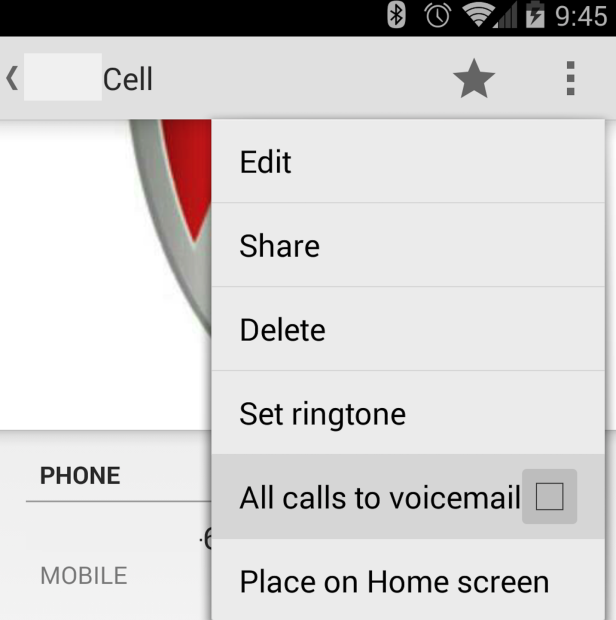
For whatever reason, stock versions of Android do not have the ability to block a call. Instead, what they do have is the ability to send all calls from a certain number immediately to voicemail. That’s basically the same as blocking, right?
Step 1) Add the unwanted number to your Contacts book if you haven’t already done so
Step 2) Open that contact’s page and tap the ‘Edit’ button, which is the three vertical dots
Step 3) tap All Calls to voicemail
From now on, all incoming calls from that contact will be sent directly to voicemail. That will show them!
Some Androids have call blocking
Samsung
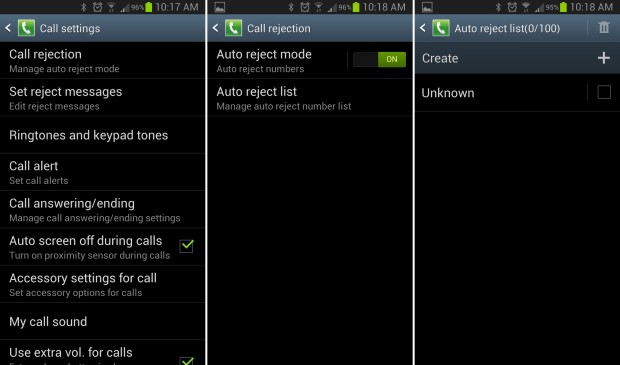
Many Androids do have call blocking, which makes things easier. Samsung Android devices, for example, make it easy to block unwanted numbers.
Step 1) Go to your Contacts page and select the contact you want to block
Step 2) Click the settings button
Step 3) Tap the “Add to Reject list” button
Step 4) That contact and all associated numbers will be added to your reject list, which means the call will be rejected
Step 5) You can manage your call reject settings from your Phone’s settings menu. Go to your Phone app, tap settings, and then tap Call Settings. From here, you can perform a number of reject related tasks, like:
-Edit your list of rejected callers
-Force all Unknown numbers to be rejected
-Create and edit ‘reject’ messages to unwanted callers to explain why you rejected them
Sony and HTC
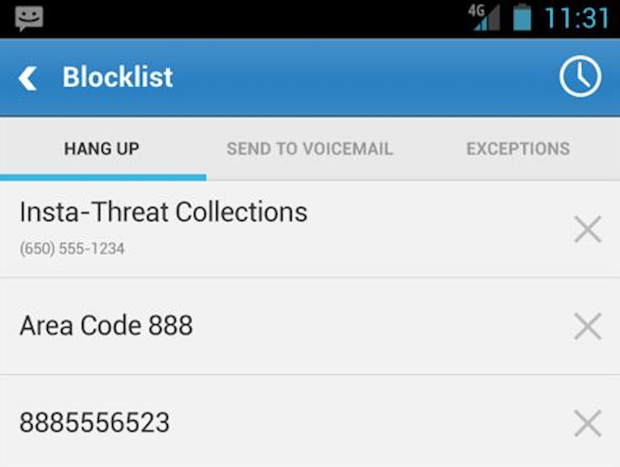
Sony and HTC devices each have call blocking features which can be found in the Call settings menu. Simply go there and then choose ‘Add number’ or ‘Choose from contacts’.
Third party apps
If you don’t have a Sony, HTC, or Samsung device but really want call blocking features, then there are some apps to download. Check out Mr. Number, for example, a free app that lets you hang up and send voicemails, among other things. You can also check out Advanced Call Blocker & Tools or the aptly titled Call Blocker. All of these apps basically do the same job: prevent weirdos from calling you at any time of the day or night.One Click Root Author
One Click Root Author
Content Writer
Experienced writer covering technology and mobile development.
You Might Also Like
How-To
Android 14 Root Methods: What Changed?
Explore the new root methods and security changes in Android 14.
How-To
Latest Android Security Updates Impact Root Access
Understanding how the latest security patches affect root methods.
How-To
Google Pixel 8 Pro Root Guide Released
Complete step-by-step guide to rooting the Google Pixel 8 Pro.
Comments
JD
John Doe
2 days ago
Great article! Very informative and well-written. Thanks for sharing.
JS
Jane Smith
5 days ago
I found the security section particularly helpful. Looking forward to more content like this!
Leave a Comment
Newsletter
Get the latest tech news delivered to your inbox weekly.
Popular Posts
-
1
Getting Started with Android Development
12.5K views
-
2
Best Practices for Mobile Security
8.2K views
-
3
Understanding Smartphone Hardware
6.8K views