

What are .apk files?
.apk is a unique type of file designed solely for Android devices. .apk is used to distribute application files, and appropriately, APK stands for Application Package File. The .apk file itself is generally an archive that contains a number of different folders, including the application’s certificate, a list of application resources, and a library of compiled code. Together, these files tell the Android operating system how to run a particular app.
As you probably already know, apps are installed automatically from various app stores. So why would we ever encounter .apk files? Well, app developers will generally release .apk files prior to submitting their app for approval. These early .apk files are essentially beta versions of the app, and they help developers iron out any bugs or glitches that may be present prior to seeking official approval from app stores like Google Play.
The .apk file itself is generally an archive that contains a number of different folders, including the application’s certificate, a list of application resources, and a library of compiled code. Together, these files tell the Android operating system how to run a particular app.
As you probably already know, apps are installed automatically from various app stores. So why would we ever encounter .apk files? Well, app developers will generally release .apk files prior to submitting their app for approval. These early .apk files are essentially beta versions of the app, and they help developers iron out any bugs or glitches that may be present prior to seeking official approval from app stores like Google Play.
How to use .apk files
Now that you know what .apk files are, it’s time to learn how to use them. Step 1) Download and extraction Developers will generally release early versions of their apps in .zip or .rar format. The .apk file itself will be inside that zipped folder. Extract the .zip or .rar file using WinRAR, WinZIP, 7Zip, or whatever extraction utility you want to use. Some developers will also just release a plain .apk file, in which case you can skip ahead to step two. Step 2) Connect your phone to your PC Now you have to connect your phone to your computer using your USB cord. When you connect your phone to your PC, a menu that looks like this should pop up: 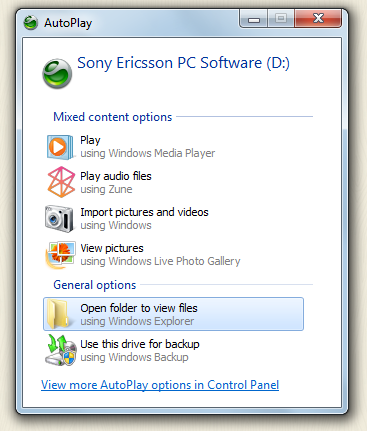
 Step 4) Install the .apk file using Astro
An app called Astro is required for this step. Astro is Android’s most popular file manager, and with over 35 million downloads from the Google Play Store, it looks like it will hold onto that title for a long time.
Astro makes it easy to find and organize pictures, music, documents, and other data on your Android smartphone or tablet. If you spend a lot of time moving files to and from your PC, then Astro is one of the most useful apps you can download.
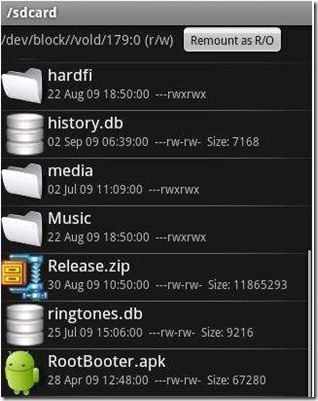
Once you have downloaded and installed Astro, open it and navigate to the /sdcard folder. Click on the name of whatever app’s .apk file you downloaded, then install the application. Astro will warn you about only installing apps from trusted sources. If you avoid downloading apps from legal sites and get .apk files directly from legitimate developers, then you shouldn’t have anything to worry about.
That’s it! Your .apk file just turned into an app.
Step 4) Install the .apk file using Astro
An app called Astro is required for this step. Astro is Android’s most popular file manager, and with over 35 million downloads from the Google Play Store, it looks like it will hold onto that title for a long time.
Astro makes it easy to find and organize pictures, music, documents, and other data on your Android smartphone or tablet. If you spend a lot of time moving files to and from your PC, then Astro is one of the most useful apps you can download.
Once you have downloaded and installed Astro, open it and navigate to the /sdcard folder. Click on the name of whatever app’s .apk file you downloaded, then install the application. Astro will warn you about only installing apps from trusted sources. If you avoid downloading apps from legal sites and get .apk files directly from legitimate developers, then you shouldn’t have anything to worry about.
That’s it! Your .apk file just turned into an app.