

 Step 7) Tap and hold the build.prop file and tap the Open As option
Step 8) Tap Text on the next screen that comes up
Step 9) Tap File editor
Step 10) Look through the build.prop file and edit the following line:
ro.build.version.sdk = 16
Step 11) Save that file
Step 12) Look for a file called GoogleQuickSearchBox.apk (it’s in your /system/app folder). Rename that file to GoogleQuickSearchBox.apk1 by tapping and holding on the file. Save that name.
Step 13) Exit the Astro File Manager app and reboot your Android
Step 14) Once your phone has started up, install Google Now on it by tapping on the .apk file
Step 15) After the app has been installed, you’re not done yet! Open Astro File Manager one final time
Step 16) Go to the /system folder and look for the build.prop file. Tap and hold that file and tap on Open as from the list of options that pops up
Step 17) Tap Text
Step 18) Tap File Editor
Step 19) Look through the build.prop file and edit the following line:
ro.build.version.sdk=15
Step 20) Exit Astro File Manager and reboot your smartphone
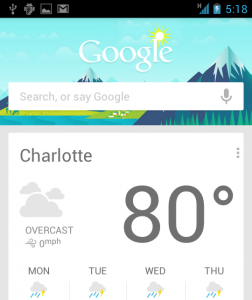
You now have a working copy of Google Now on your rooted Android! Unfortunately, there is one major restriction to Google Now on ICS: you can’t perform Google searches with your voice. You have to type in your queries manually, but Google Now will still function the same way (it will remember your searches, display relevant information, etc.)
Step 7) Tap and hold the build.prop file and tap the Open As option
Step 8) Tap Text on the next screen that comes up
Step 9) Tap File editor
Step 10) Look through the build.prop file and edit the following line:
ro.build.version.sdk = 16
Step 11) Save that file
Step 12) Look for a file called GoogleQuickSearchBox.apk (it’s in your /system/app folder). Rename that file to GoogleQuickSearchBox.apk1 by tapping and holding on the file. Save that name.
Step 13) Exit the Astro File Manager app and reboot your Android
Step 14) Once your phone has started up, install Google Now on it by tapping on the .apk file
Step 15) After the app has been installed, you’re not done yet! Open Astro File Manager one final time
Step 16) Go to the /system folder and look for the build.prop file. Tap and hold that file and tap on Open as from the list of options that pops up
Step 17) Tap Text
Step 18) Tap File Editor
Step 19) Look through the build.prop file and edit the following line:
ro.build.version.sdk=15
Step 20) Exit Astro File Manager and reboot your smartphone
You now have a working copy of Google Now on your rooted Android! Unfortunately, there is one major restriction to Google Now on ICS: you can’t perform Google searches with your voice. You have to type in your queries manually, but Google Now will still function the same way (it will remember your searches, display relevant information, etc.)
How to install Google Now on your Android Ice Cream Sandwich device
3 min read
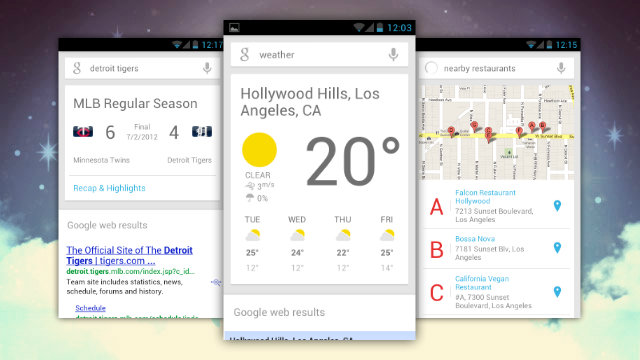
Jelly Bean adds several important tweaks to the Android operating system, but one of the most important additions is Google Now. Google Now is Android’s answer to iOS’s Siri. But instead of just mindlessly listening to your questions and then sending you to Google, Now learns information over time and tries to predict your questions before you ask them.
It’s a cool feature that has been getting rave reviews by Android users. But unfortunately, you need Jelly Bean 4.1 or 4.2 installed on your device in order to use it, right? Wrong!
There’s a relatively easy way to get Google Now on your Ice Cream Sandwich (Android 4.0) tablet or smartphone. Keep reading to find out exactly how it’s done!
Step 1) Root your Android using a program like One Click Root
Step 2) Make sure you’re running the ICS AOSP ROM (the default Android build for rooted devices)
Step 3) Download Astro File Manager from here
Step 4) Download the Google Now .apk file from the XDA Developers forum here (look for the download link in the first post in that thread)
Step 5) Install Astro File Manager onto your Android
Step 6) Open the Astro File Manger
Step 7) Tap and hold the build.prop file and tap the Open As option
Step 8) Tap Text on the next screen that comes up
Step 9) Tap File editor
Step 10) Look through the build.prop file and edit the following line:
ro.build.version.sdk = 16
Step 11) Save that file
Step 12) Look for a file called GoogleQuickSearchBox.apk (it’s in your /system/app folder). Rename that file to GoogleQuickSearchBox.apk1 by tapping and holding on the file. Save that name.
Step 13) Exit the Astro File Manager app and reboot your Android
Step 14) Once your phone has started up, install Google Now on it by tapping on the .apk file
Step 15) After the app has been installed, you’re not done yet! Open Astro File Manager one final time
Step 16) Go to the /system folder and look for the build.prop file. Tap and hold that file and tap on Open as from the list of options that pops up
Step 17) Tap Text
Step 18) Tap File Editor
Step 19) Look through the build.prop file and edit the following line:
ro.build.version.sdk=15
Step 20) Exit Astro File Manager and reboot your smartphone
You now have a working copy of Google Now on your rooted Android! Unfortunately, there is one major restriction to Google Now on ICS: you can’t perform Google searches with your voice. You have to type in your queries manually, but Google Now will still function the same way (it will remember your searches, display relevant information, etc.)
Step 7) Tap and hold the build.prop file and tap the Open As option
Step 8) Tap Text on the next screen that comes up
Step 9) Tap File editor
Step 10) Look through the build.prop file and edit the following line:
ro.build.version.sdk = 16
Step 11) Save that file
Step 12) Look for a file called GoogleQuickSearchBox.apk (it’s in your /system/app folder). Rename that file to GoogleQuickSearchBox.apk1 by tapping and holding on the file. Save that name.
Step 13) Exit the Astro File Manager app and reboot your Android
Step 14) Once your phone has started up, install Google Now on it by tapping on the .apk file
Step 15) After the app has been installed, you’re not done yet! Open Astro File Manager one final time
Step 16) Go to the /system folder and look for the build.prop file. Tap and hold that file and tap on Open as from the list of options that pops up
Step 17) Tap Text
Step 18) Tap File Editor
Step 19) Look through the build.prop file and edit the following line:
ro.build.version.sdk=15
Step 20) Exit Astro File Manager and reboot your smartphone
You now have a working copy of Google Now on your rooted Android! Unfortunately, there is one major restriction to Google Now on ICS: you can’t perform Google searches with your voice. You have to type in your queries manually, but Google Now will still function the same way (it will remember your searches, display relevant information, etc.)
Newsletter
Get the latest tech news delivered to your inbox weekly.