The Android O beta is officially available online. Today, Pixel and Nexus users can check it out before the full version is officially released to the public. Find out how to use Android O before anyone else today.
You’ll need to sign up for Google’s Android Beta Program and have one of three devices: a Nexus 5X, 6P, or any Pixel phone. With that in mind, let’s get started.
Method 1) Enroll in the Android Beta Program
Step 1) Sign up for the Android Beta Program
here. Google is currently accepting those with “pure Android” handsets, which includes owners of a 5X, 6P, or Pixel smartphone. Additionally, you can access the Android Beta Program through a Pixel C tablet or a Nexus Player set-top box. After you visit the website linked above, you’ll need to log in with your Google account, then read through the terms. Google warns you that updates may contain errors – so it’s a good idea to back up your device before you begin.
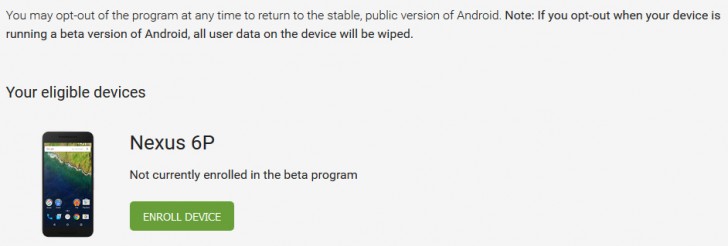 Step 2)
 Scroll down to a see a list of your eligible devices. Click the Enroll device button next to the handset you wish to enroll.
Step 3) That’s it! If there’s no new beta, then your phone will work as normal. You’ll receive security updates and official Android releases. However, when a beta
is launched, you’ll get a notification about it. Alternatively, if you’re impatient, you can scroll down to the About tab in Settings, then select system updates. The update will be installed over the air normally.
Eventually, the beta version of Android you’re testing will be released to the public in its final form. When that occurs, your device will automatically install the latest, cleanest version of Android.
You can uninstall the latest Android update by repeating the steps listed above, but clicking unenroll from the Android Beta Program website. However, this will wipe all data from your device – so you’ll want to backup before you do this.
Method 2) Download Through Google Developers
Most One Click Root users will opt for method 2, which is available for those who have flashed their device and want to install the files themselves.
Grab the Android O files from the Google Developers site
here. At that page, scroll down to the Latest section and find the version you’re looking for. Then, follow the link to go to the Public Beta Images page. Locate your device and download the appropriate file.
Alternatively, you can navigate directly to the Android O beta downloads
here.
That’s it! By following the steps above, you can install Android O on your device today.